
Overview
Checklists are defined in the Settings > Checklists > Definitions page. On this page, you can define any checklists that you want to use within Floatist.
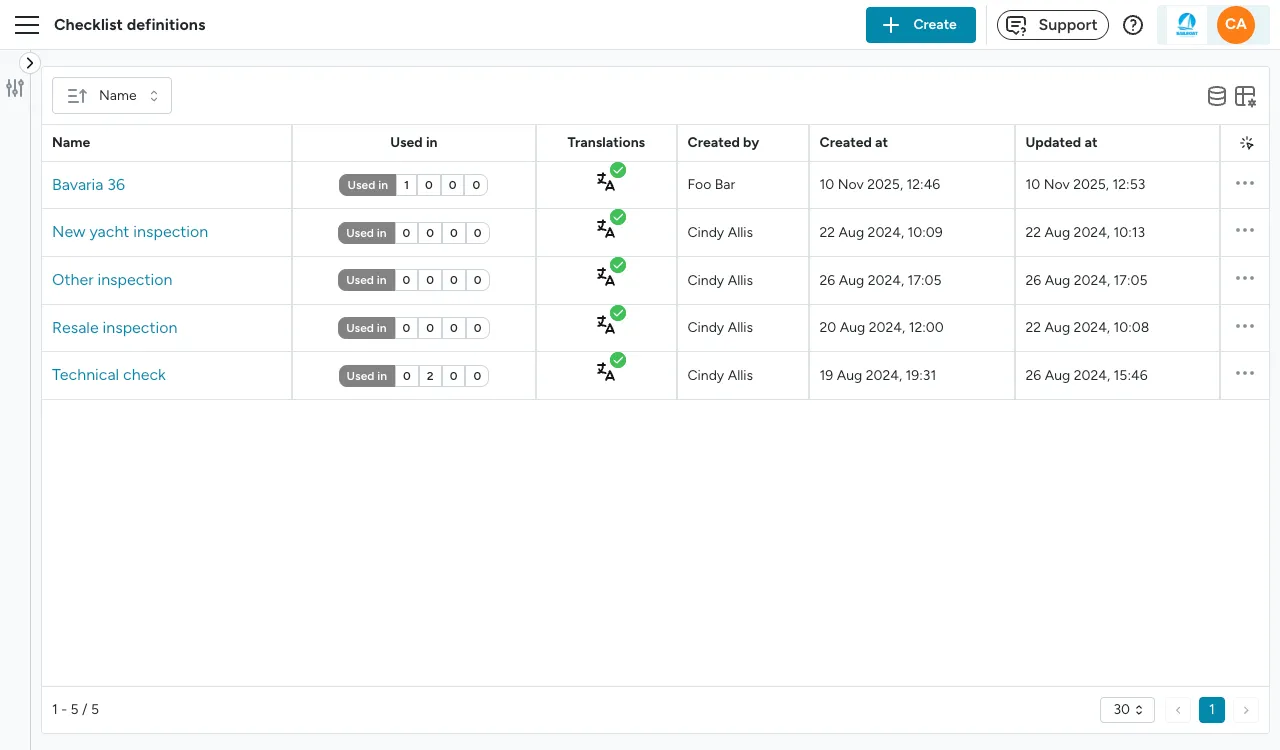
Checklists can be used in two different parts of the app:
- During (pre)check-in / check-out
- In tasks
Checklists for (pre)check-in / check-out
Section titled “Checklists for (pre)check-in / check-out”In order to use a checklist for (pre)check-in/check-out, you need to set it up as a booking configuration at Settings > Bookings > Configurations.
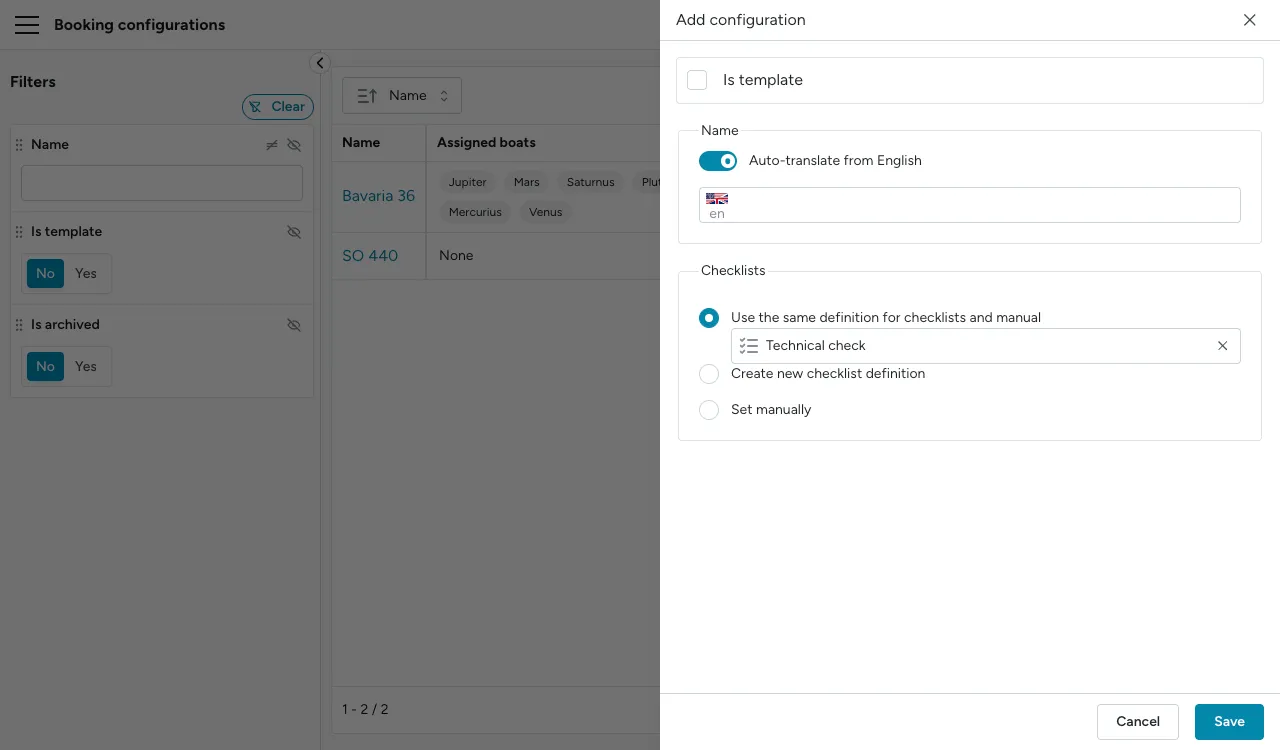
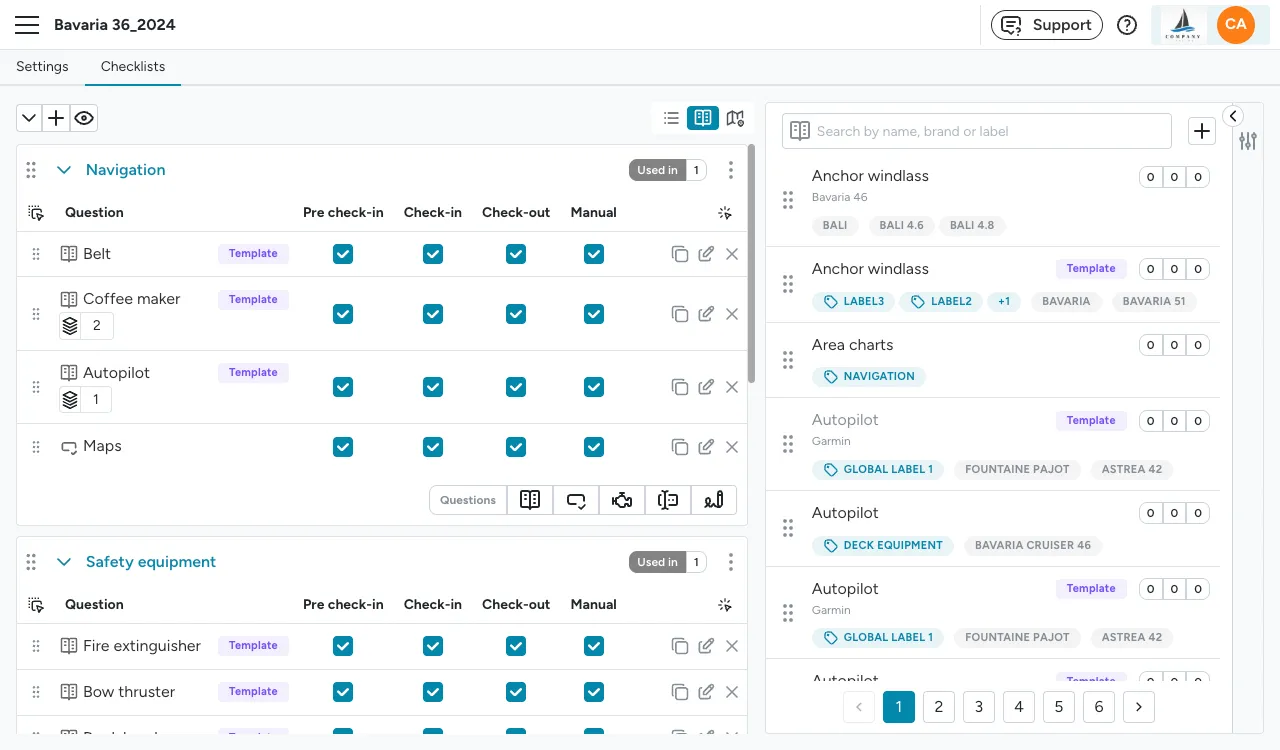
A booking configuration can have up to four checklists, one for each booking phase: pre check-in, check-in, check-out, and manual. You can use the same checklist definition across all phases, or assign different checklists to each phase. When using the same checklist, you can exclude specific questions from individual phases — for example, excluding signature questions from the manual.
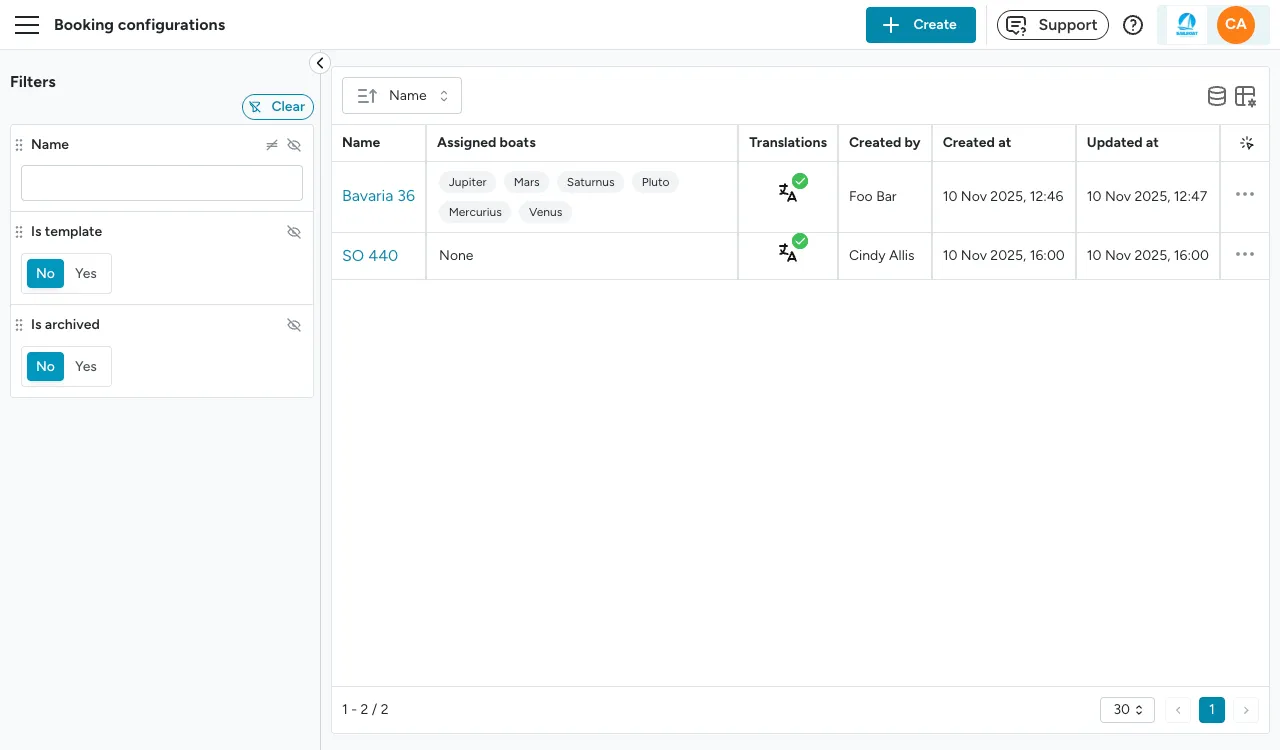
Using the Create button you can create a new booking configuration, either based on an existing checklist or from scratch.
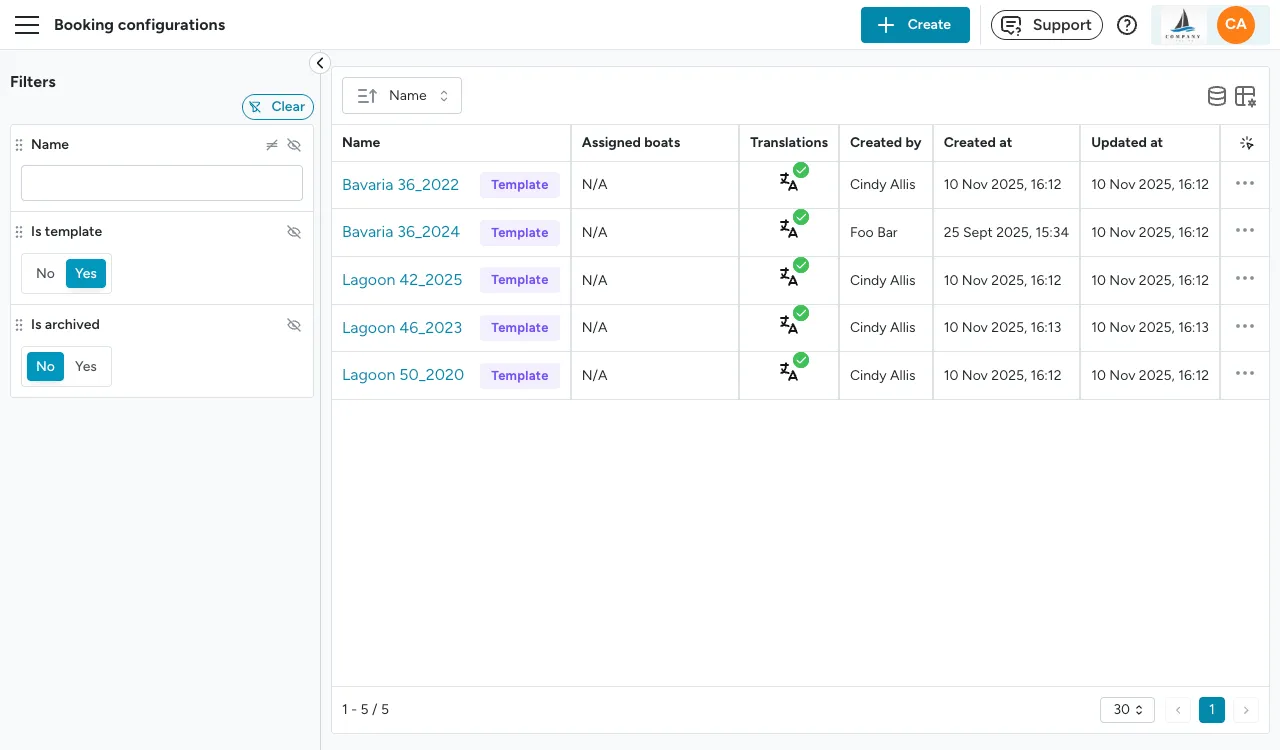
Instead of creating a configuration from scratch, you can also use one of the many Floatist templates available from the library. Click the three dots on the right and select Import to copy the template to your account. Any individual items marked with template are maintained by Floatist. If you don’t see any templates, use the filter Is template and set it to Yes.
After importing a template, the configuration is copied to your local account. You can then make any desired changes by using the catalogue items, or any of the other question types that can be added to the configuration. See Managing configurations for detailed instructions on editing, adding, and removing items.
Question types
Section titled “Question types”There are five different question types that can be part of a booking configuration:
- Catalogue items: these are items that are saved to the catalogue so you can reuse them in different places. There are also template catalogue items that are maintained by Floatist, that you can use in your configurations.
- Inline question: inline question, quick and easy to add, that you do not plan on reusing anywhere else.
- Component questions: to ask about the engine hours and/or fuel gauge of any components that are tracking either or both of these.
- Text input questions: to ask the user for input. For example useful for additional notes / comments or when you want the user to fill a quantity.
- Signature questions: to request a signature. You can ask for multiple signatures, and define which user should sign (charterer / skipper / staff / other / etc)
Signatures
Section titled “Signatures”You can add signatures to your booking configurations using the Signature item type. Signatures are captured in-app by drawing on the device, are always in-person (no remote signing), and are a different feature from legally-binding Contracts.
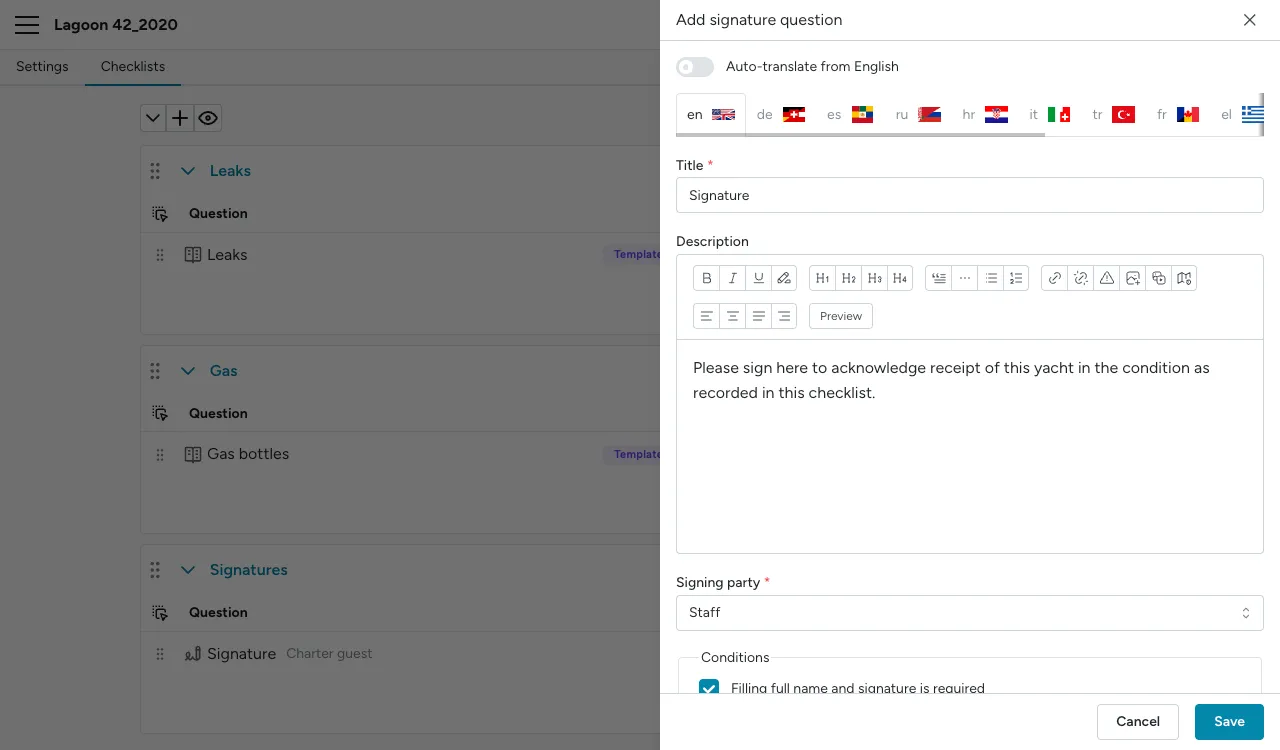
See Signatures for recommended setup, device rules, skipping behaviour, audit trail, and how signed PDFs are distributed.
Checklists on tasks
Section titled “Checklists on tasks”Checklists can also be attached directly to tasks — for maintenance routines, cleaning routines, or any check performed as part of a task. They use the same reusable definitions as booking configurations, but without the configuration wrapper.
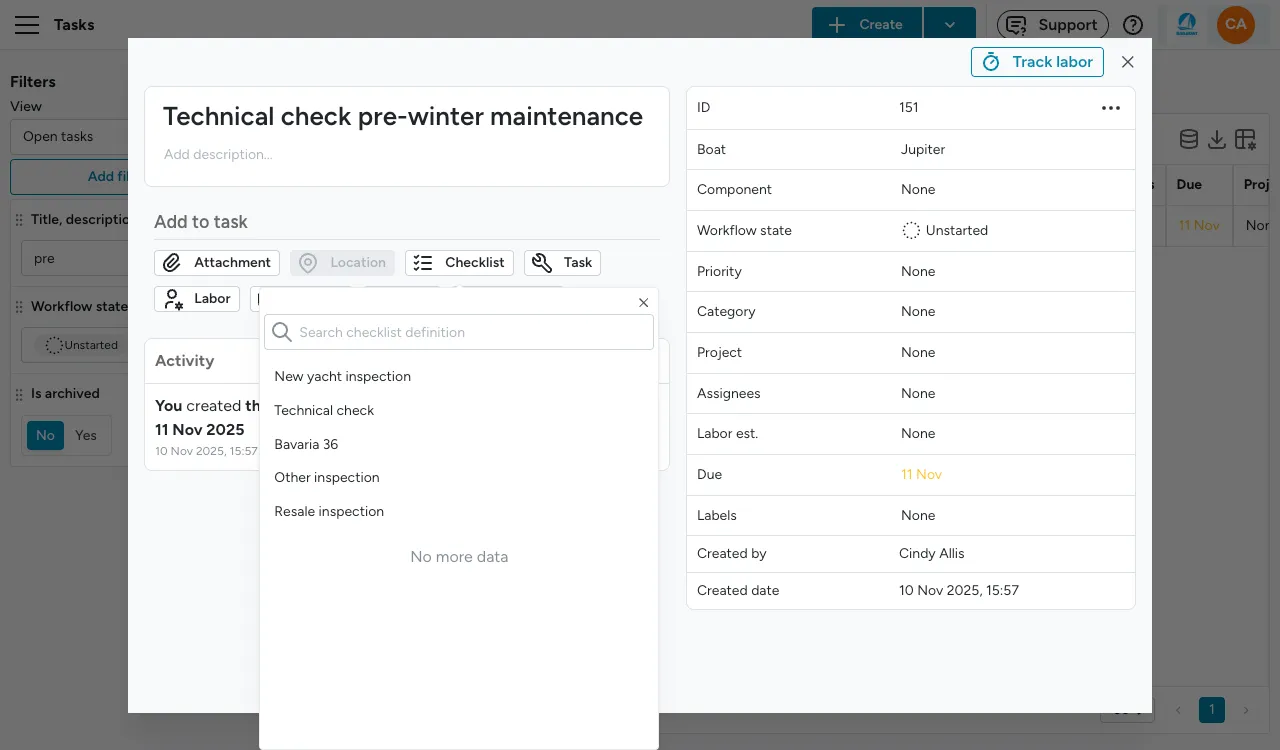
See Using checklists on tasks for the full guide, including how to attach them automatically via schedules, how to review submissions at Task management > Checklists, and how to create follow-up tasks from flagged items.
Printing and downloading checklists
Section titled “Printing and downloading checklists”Booking checklists can be printed for situations where a paper version is needed, such as when working in areas with poor connectivity.
There are two ways to get a printable copy:
- From a checklist definition: go to Settings > Checklists > Definitions, open a checklist, and click the Preview button (the eye icon). From the preview, click Download, choose CSV or PDF, and confirm.
- From a specific booking: on the booking’s timeline, next to a phase’s Start button, click the dropdown arrow and select Download paper checklist form. This pre-fills the item list for that booking.
You can also download submitted checklists as a PDF in any of the supported languages, making it easy to share results with international crew or stakeholders.
Submitting a paper checklist
Section titled “Submitting a paper checklist”If a checklist was completed on paper, you can submit it back into Floatist as a photo instead of re-entering every answer. On the booking’s timeline, next to the phase’s Start button, click the dropdown arrow and select Submit paper checklist, then upload a photo of the completed checklist.