
Setup
Floatist integrates with MMK so your MMK reservations show up in Floatist automatically, next to your Floatist bookings, with the guest’s contact details filled in. You can also have Floatist block availability in MMK for bookings made elsewhere. You just need your MMK API key, and we’ll help with the rest.
Set up
Section titled “Set up”Setup lives at Settings > Integrations > MMK and is Admin only. Until the integration is switched on, a Setting up MMK checklist at the top of the page tracks the steps below as you go. Work down the cards on the page and the checklist ticks off each step.
In order to make it easy for you, we prefer to assist with the integration. Please send us a message through the chat or support@floatist.com and we will assist you!
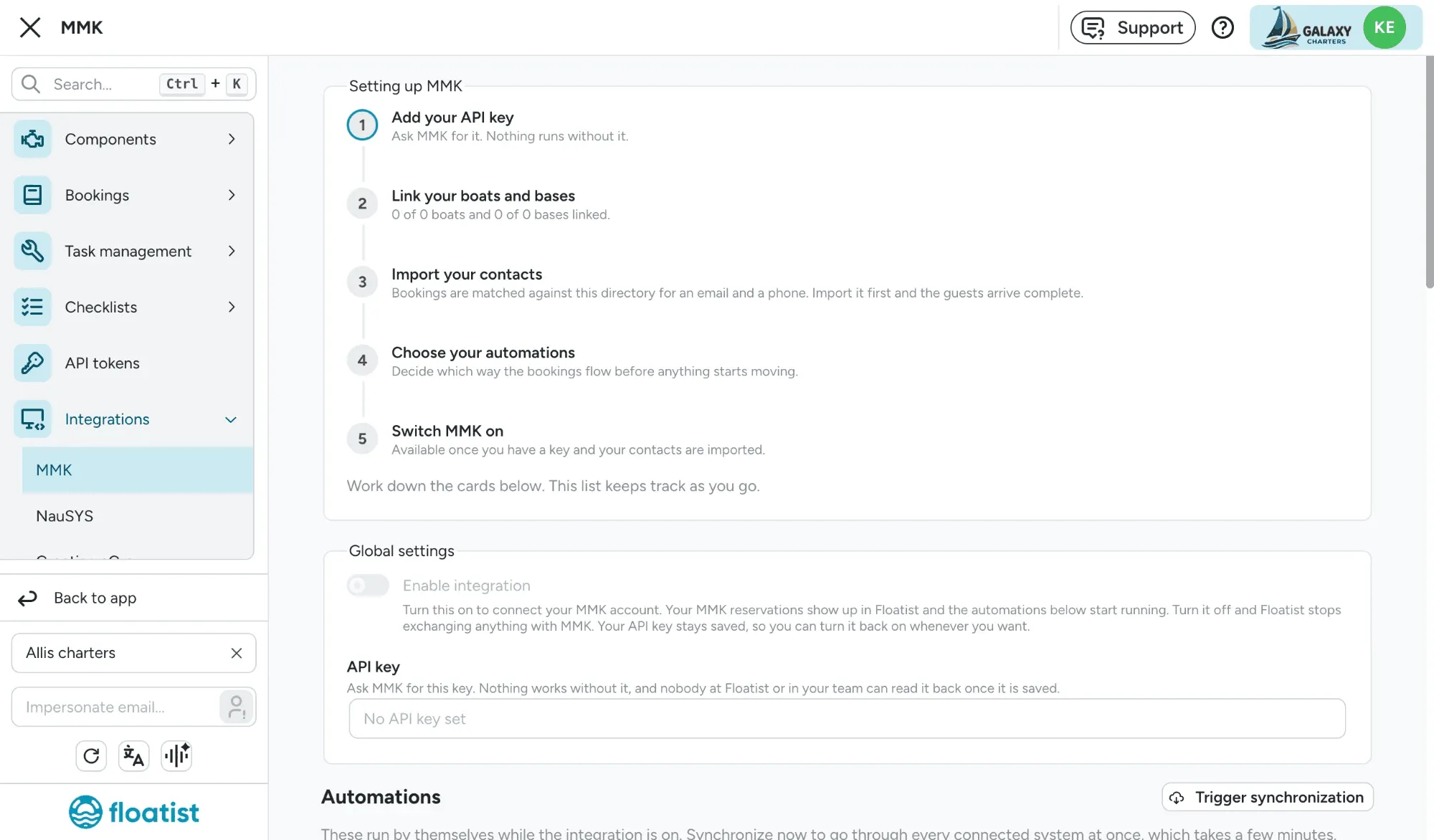
1. Add your API key
Section titled “1. Add your API key”In order to activate the integration you need to contact MMK Booking Manager to request your API key. Please contact MMK Booking Manager by email at info@booking-manager.com.
Once you have signed the contract with MMK you should receive your MMK API key. Paste it into the API key field in the Global settings card. Once it’s saved, nobody at Floatist or in your team can read it back.
2. Link your boats and bases
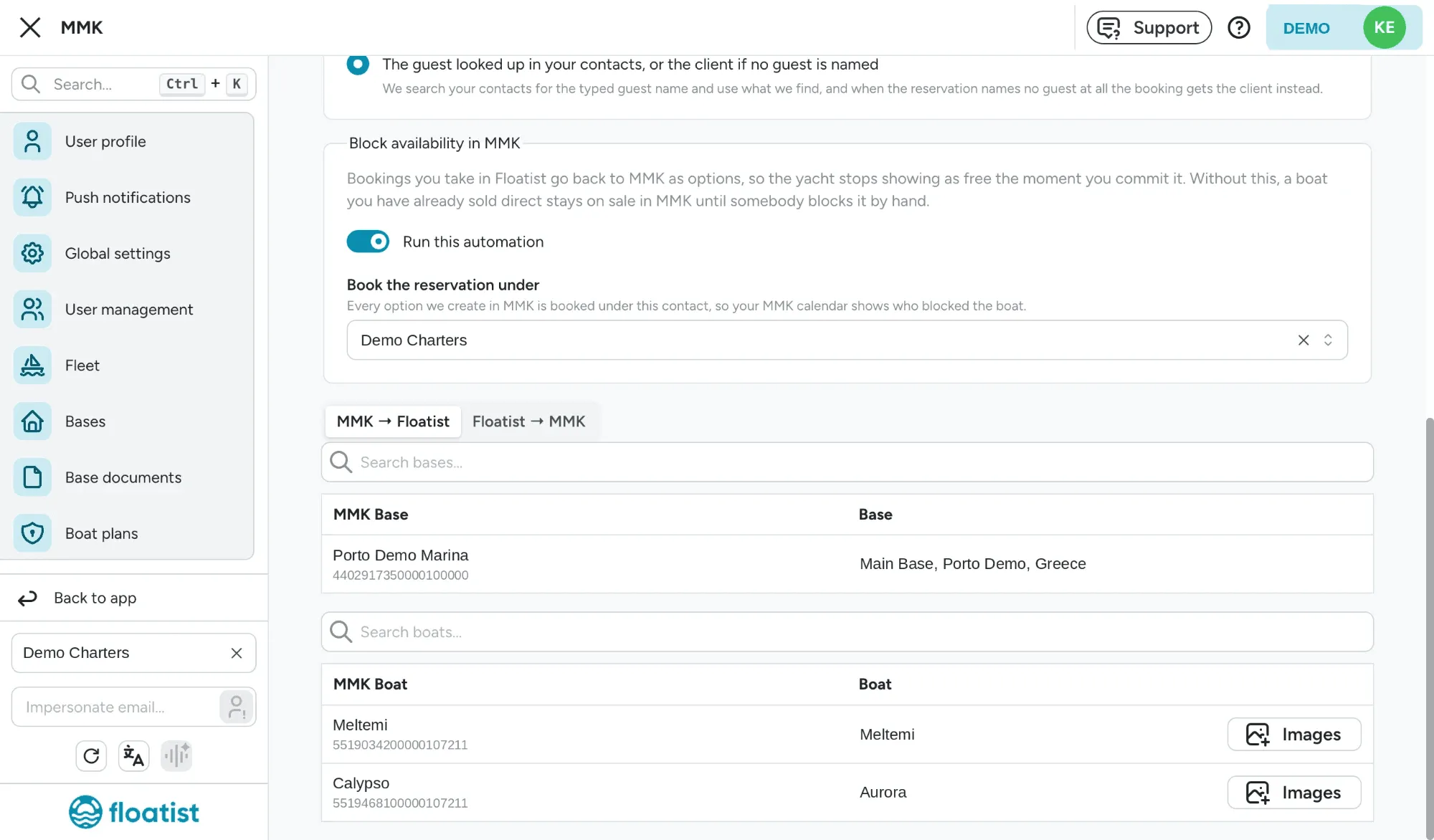
Section titled “2. Link your boats and bases”Once the API key is set, Floatist syncs your MMK bases and boats. Match each one to its Floatist counterpart. If a boat isn’t in Floatist yet, click the Create button next to its name to create it. The checklist shows how many boats and bases are linked so far.
A reservation only syncs if its boat and both bases are linked, so don’t skip any boat you want to see.
3. Import your contacts
Section titled “3. Import your contacts”Click Import contacts to bring your whole MMK address book into Floatist’s Contacts in one pass. It can take a few minutes. Floatist matches every booking against this directory to find the guest’s email and phone, so import it before you switch the integration on and your bookings arrive complete. Once MMK is on, the directory keeps itself up to date every night.
4. Choose your automations
Section titled “4. Choose your automations”Under Automations there are two cards, each with a Run this automation switch. You can set them up before switching MMK on. They start running as soon as you do.
- Create Floatist bookings turns your MMK reservations into Floatist bookings. This is what most fleets use. In the same card, choose how the booking’s contact is picked with the Booking contact setting.
- Block availability in MMK sends bookings you take in Floatist back to MMK as options, so the yacht stops showing as free the moment you commit it. Without it, a boat you’ve already sold direct stays on sale in MMK until somebody blocks it by hand. You only need it if you take bookings outside MMK, for example on your marketing website or through NauSYS (see the MMK & NauSYS bridge). It needs a contact to book under.
Each card also lists how fields map between MMK and Floatist.
5. Switch MMK on
Section titled “5. Switch MMK on”When the key is saved and your contacts are imported, turn on Enable integration in the Global settings card. The automations you chose start running. After that, you can go through every connected system at once with Trigger synchronization under Automations. It takes a few minutes.
Choosing the booking contact
Section titled “Choosing the booking contact”Every MMK reservation has a client and a guest, and they are rarely the same. The client is a contact from your MMK address book, often the agency that made the booking. The guest is a name typed on the reservation, often the person actually sailing, but with no email or phone attached. See Guest and client for the full story.
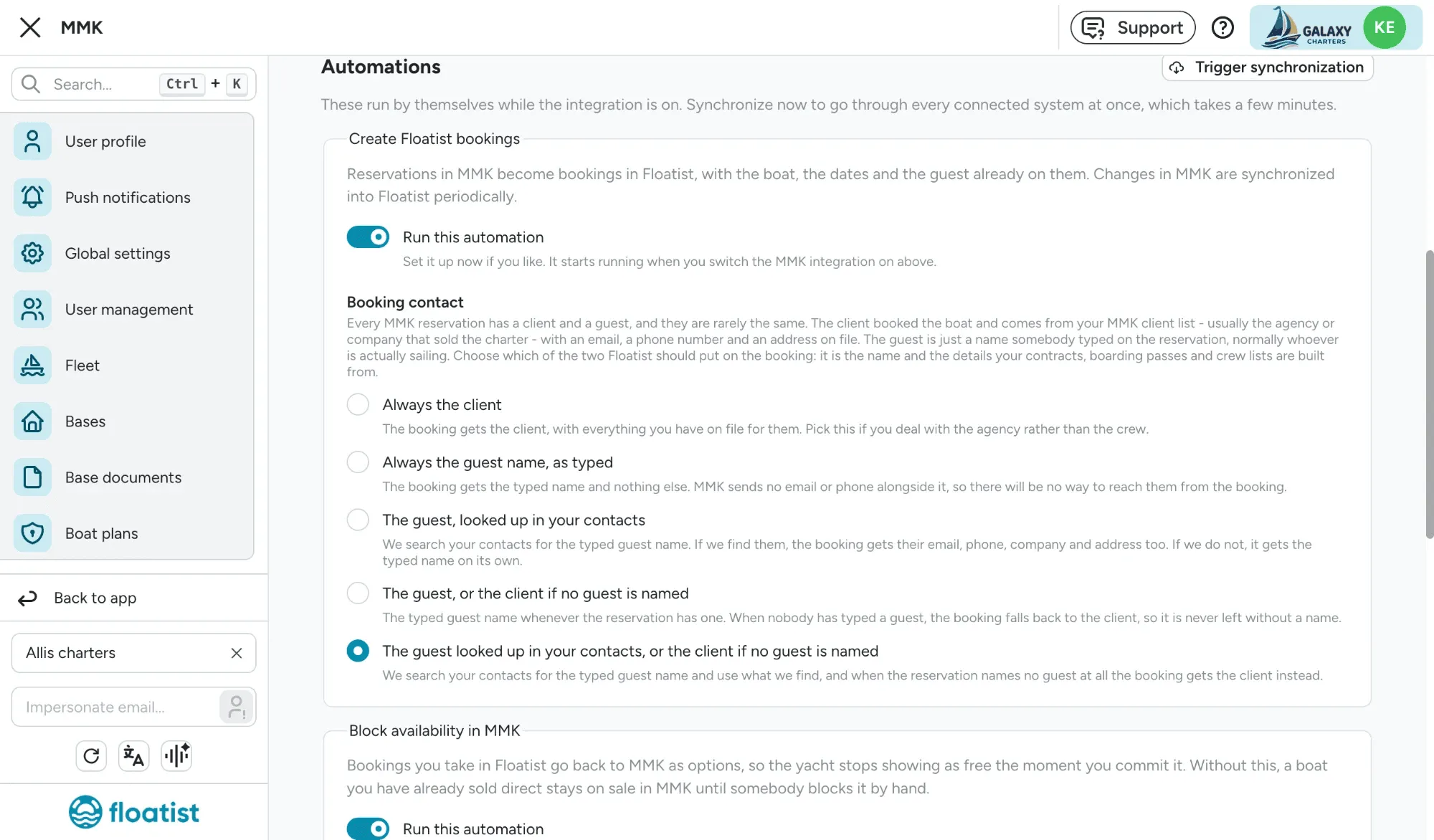
The Booking contact setting decides which one becomes the Floatist booking’s contact. That matters because it’s the name and details your emails, contracts, boarding passes and crew lists are built from.
| Option | What the booking gets |
|---|---|
| Always the client | The client, with everything you have on file for them. Pick this if you deal with the agency rather than the crew. |
| Always the guest name, as typed | The typed guest name and nothing else. There’s no email or phone, so there’s no way to reach them from the booking. |
| The guest, looked up in your contacts (default) | Floatist searches your contacts for the typed guest name. If it finds them, the booking gets their email, phone, company and address too. If not, it gets the typed name on its own. |
| The guest, or the client if no guest is named | The typed guest name whenever there is one. When nobody typed a guest, the booking falls back to the client, so it’s never left without a name. |
| The guest looked up in your contacts, or the client if no guest is named | Floatist looks up the typed guest name in your contacts and uses what it finds. When the reservation names no guest at all, the booking gets the client instead. |
The setting can only be changed while Create Floatist bookings is switched on.
What name your MMK and NauSYS options are booked under
Section titled “What name your MMK and NauSYS options are booked under”When Block availability in MMK is on, every option Floatist creates in MMK is booked under one contact from your MMK address book, so your MMK calendar shows who blocked the boat. Pick it in the Book the reservation under setting.
In NauSYS, options Floatist creates are always named “Floatist”. There’s nothing to set up. See the MMK & NauSYS bridge.
The picker lists the contacts in your MMK address book. If you add a new contact in MMK to use here, import your contacts again so it shows up in the picker.
Scheduled & manual syncs
Section titled “Scheduled & manual syncs”Reservations sync automatically throughout the day (see Sync frequency), and contacts sync every night.
If you want an immediate update, go to Bookings > List and click Synchronize bookings. This is available to Admins and Booking managers only.
A full MMK sync can take up to 12 minutes depending on the number of bookings and MMK’s API speed. Wait that long before assuming something is wrong.
Adding new boats to your integration
Section titled “Adding new boats to your integration”If you’re adding new boats to your fleet that you want to sync via MMK, follow these steps. Only admins can update integration settings.
- Go to Settings > Integrations > MMK.
- Scroll to the Boats section.
- New boats from MMK that aren’t yet in Floatist show a Create button next to them. Click Create for each boat you want to add.
- Verify the MMK ID is correct on each yacht. If an ID is missing, find it in MMK and add it manually. Without the ID, bookings for that boat won’t sync.
- On the Fleet page, open each new boat and click Edit to add additional details such as model, description, and registration details.
Importing boat images from MMK
Section titled “Importing boat images from MMK”You can pull a boat’s photos straight from MMK into Floatist instead of uploading them by hand.
- Go to Settings > Integrations > MMK and find the boat in the Boats section.
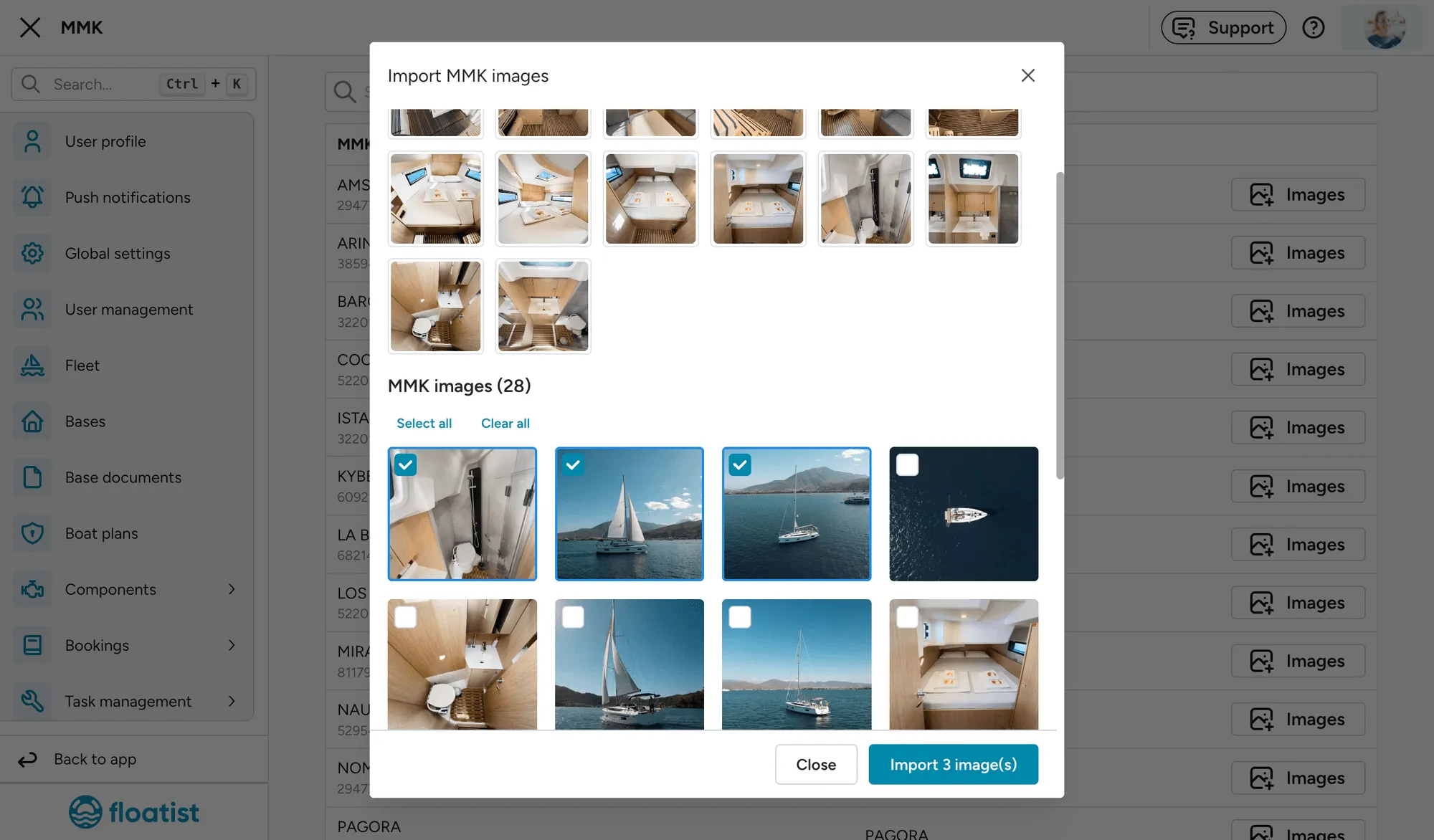
- Click Images on that boat to open the Import MMK images dialog.
- The dialog shows two columns: your Current images already in Floatist, and the MMK images available for that yacht.
- Tick the MMK images you want and click Import.
A few things worth knowing:
- Photos you’ve already imported are marked Imported and greyed out, so you can’t create duplicates. Floatist remembers which MMK image each imported photo came from.
- Importing adds to your existing Floatist images; it never replaces them.
- You can drag to reorder your Floatist images right in the dialog. That order is the order shown on your marketing website, so put your best shot first.
MMK and NauSYS bridge
Section titled “MMK and NauSYS bridge”If your fleet uses both MMK and NauSYS, Floatist can keep availability in sync between the two. See the MMK & NauSYS bridge page for the full setup.
Common questions
Section titled “Common questions”For sync-related questions (bookings not appearing, editing imported bookings, guest-name changes), see the Common questions page.