
System settings & navigation
How do I change the app language?
Section titled “How do I change the app language?”The display language is a per-user setting: changing it only affects you, not your colleagues.
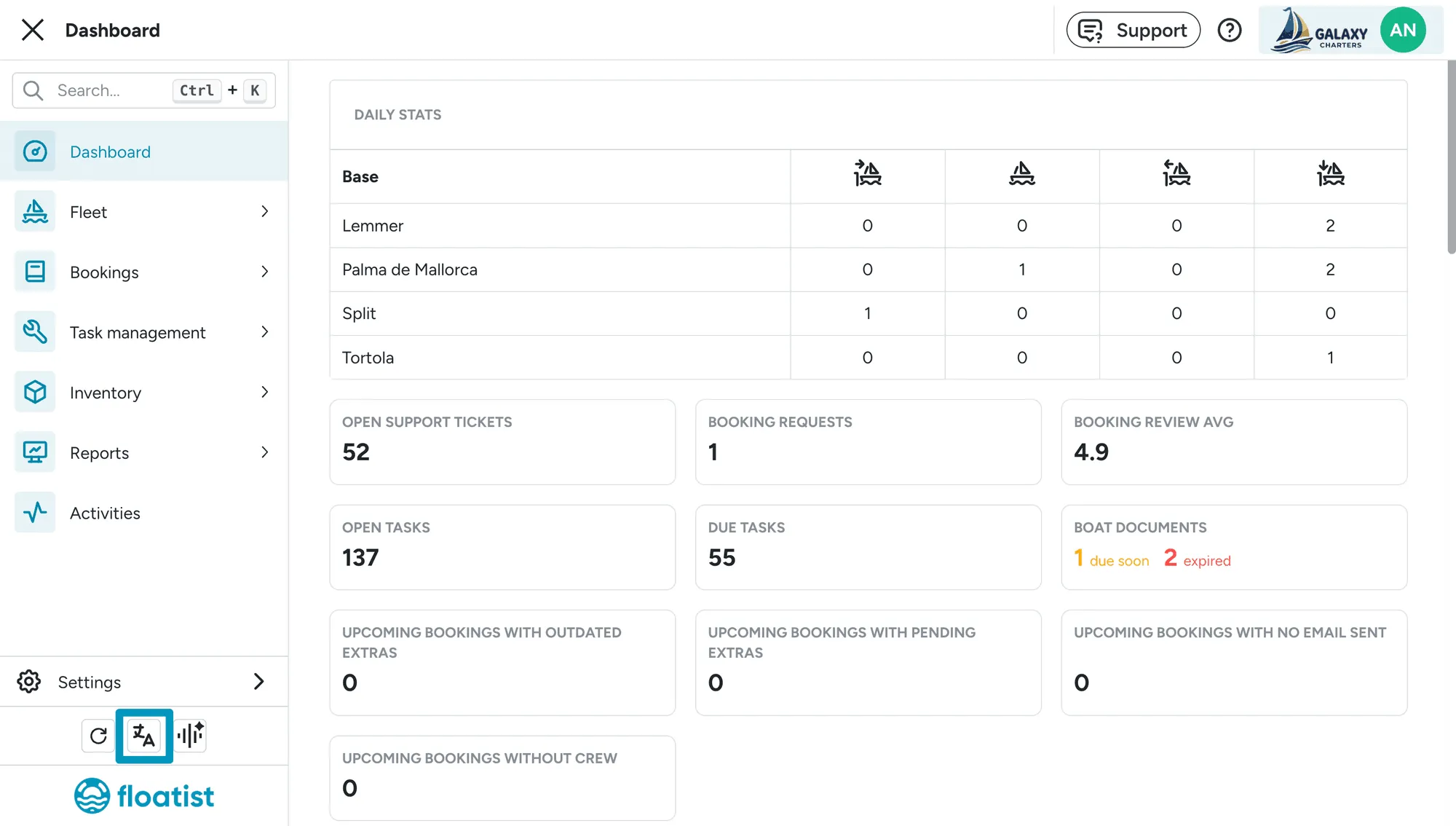
On desktop, open the language selector in the bottom-left corner of the screen.
On mobile, open the burger menu, then tap the language selector at the bottom-left of the menu.
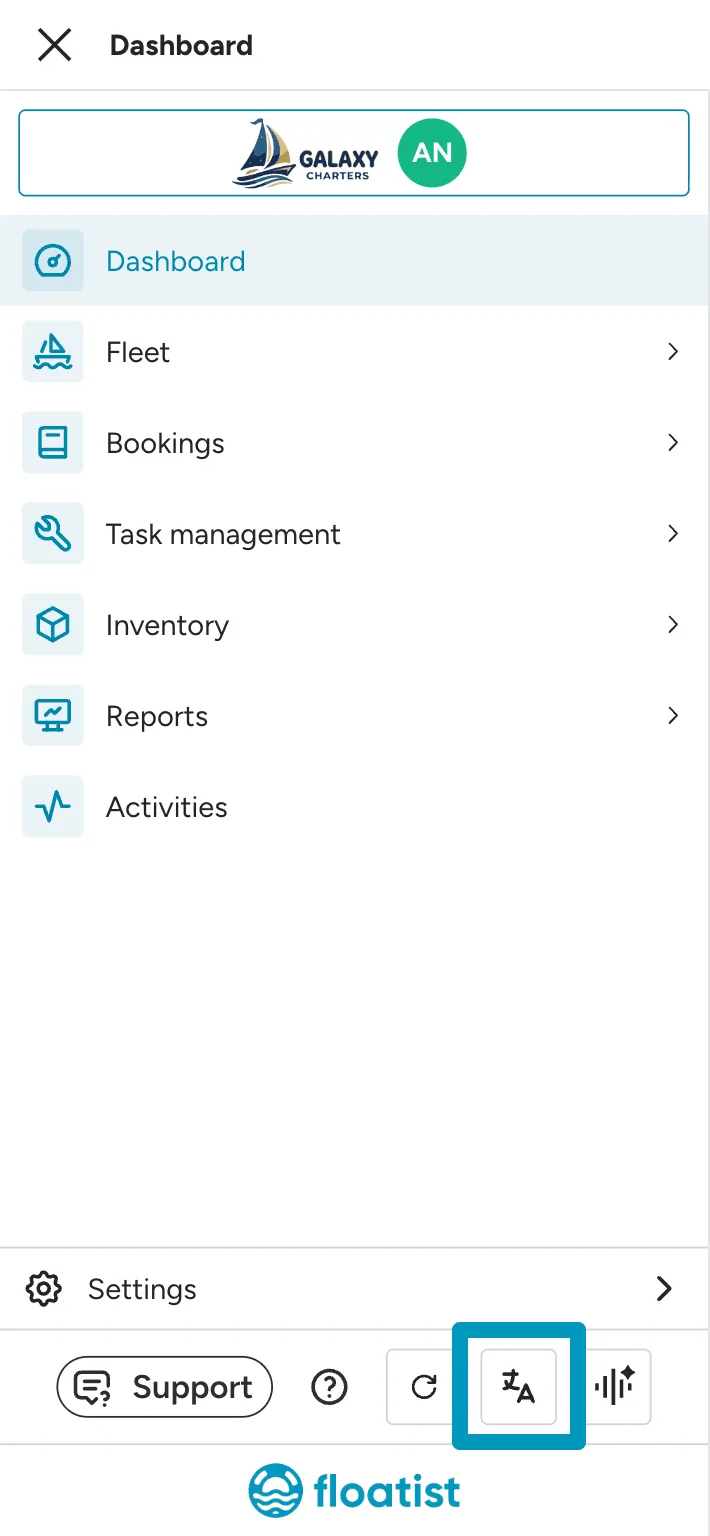
Pick the language you want and it applies immediately.
The currency in Floatist changed or is showing incorrectly: how do I fix it?
Section titled “The currency in Floatist changed or is showing incorrectly: how do I fix it?”The currency is a global setting for your account. Go to Settings > Global settings and update the Currency field. Only users with Administrator access can change this. Brazilian real (BRL) is now available as a currency option.
If the currency changed unexpectedly, it was likely updated by another admin in your account.
Can I use a different currency per boat or per booking?
Section titled “Can I use a different currency per boat or per booking?”No, the currency is set globally for your account. All bookings and extras use the same currency.
How do I change the length unit for my fleet?
Section titled “How do I change the length unit for my fleet?”The length unit (Meters or Feet) controls how Length, Beam, and Draft display across Floatist and your marketing website for all yachts in your fleet. Go to Settings > Global settings and update the Length unit field. Only users with Administrator access can change this.
How do I find or edit “sections”?
Section titled “How do I find or edit “sections”?”Sections live inside booking configurations, not as a top-level feature. To find or edit them:
- Go to Settings > Bookings > Configurations.
- Open the configuration that contains the section you want.
- Switch to the Checklists tab. Sections appear in the left panel of the configuration editor.
For the full guide on adding, editing, and reusing sections, see Working with sections.
Where are completed tasks?
Section titled “Where are completed tasks?”The default task list (Open tasks view) excludes completed tasks. To see them:
- Open the filter panel. On mobile, tap the funnel icon in the top right.
- Add or adjust the Workflow state filter so it includes Done.
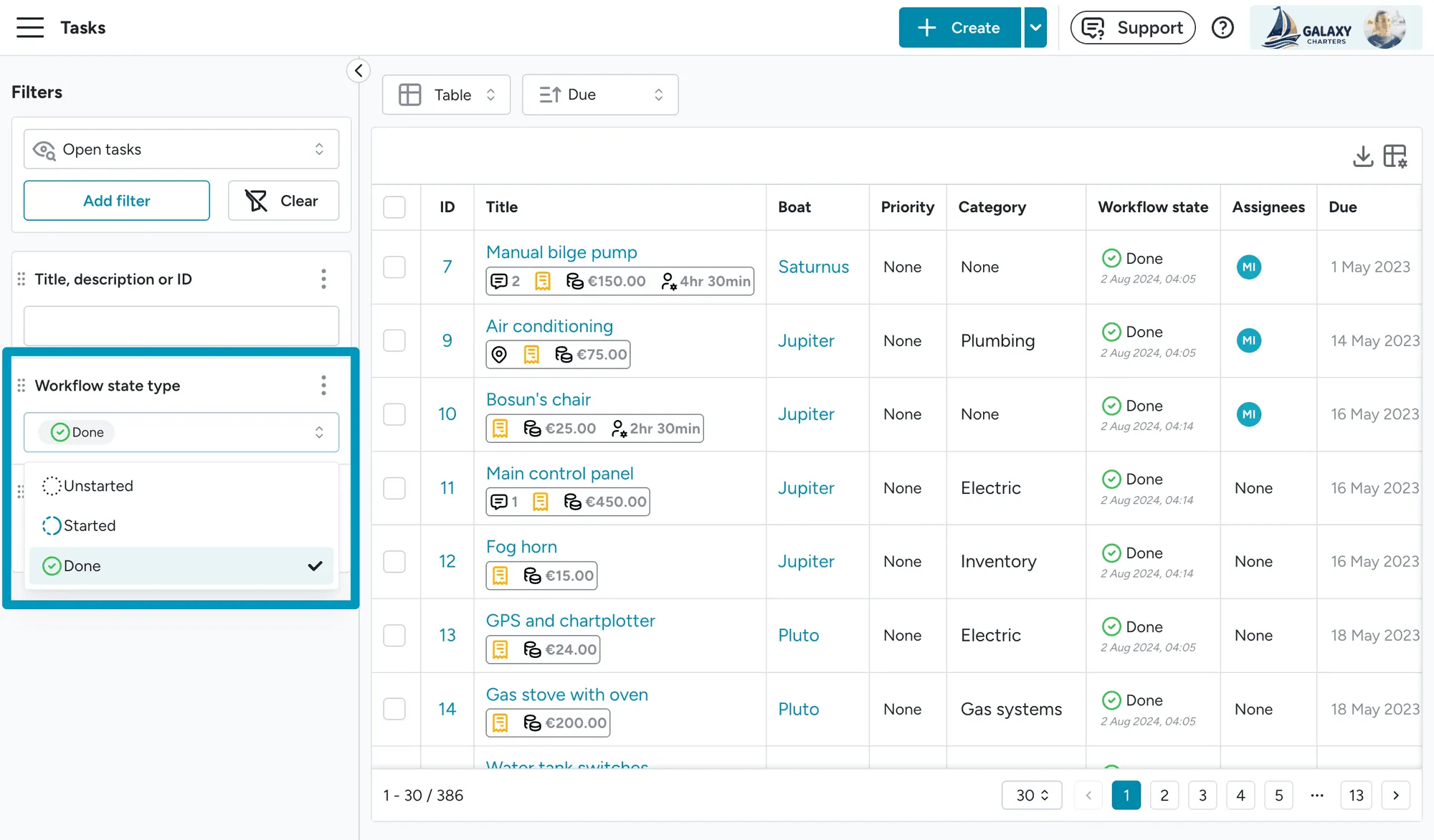
For more on filter views and how to save your own, see Task filters.
Where can I find engine hours?
Section titled “Where can I find engine hours?”Engine hours are tracked per boat component. Go to Fleet > Components to view and edit running hours for engines, generators, and any other component you’re tracking.
For a fleet-wide view across time, see Reports > Component hours in the Reports section.
How do I manage component types, manufacturers, models and locations?
Section titled “How do I manage component types, manufacturers, models and locations?”Every boat component can have a type (for example Engine or Watermaker), a manufacturer, a model and a location on the boat. Each of these is a list you manage yourself, on its own page:
- Settings > Components > Types
- Settings > Components > Manufacturers
- Settings > Components > Models
- Settings > Components > Locations
You need Boat admin access to open these pages. On each one you can:
- Add a value: click Create, enter a name and save. Names must be unique, so you get a message if the value already exists.
- Rename a value: click its name in the table and type the new one. Every component using it picks up the new name.
- See where a value is used: the Components column counts the boat components that use it, and (for types, manufacturers and models) the Project templates column counts the tasks in project templates that filter on it. Click either number, or pick Where is it used? from the row menu, to open a drawer listing every component (with its boat) and every project template task. Click any entry to jump straight to it.
- Delete values: pick Delete from the row menu, or select several rows and delete them in one go.
Before anything is deleted, Floatist shows you exactly what changes. A value nobody uses is simply deleted. If a value is in use, the dialog lists how many components lose it and which project template tasks it is removed from, and the button changes to Remove everywhere and delete.
This is the cleanest way to tidy up duplicates (for example Volvo and Volvo Penta): set the right value on the affected components, check the usage drawer shows nothing left on the duplicate, then delete it.
How do I delete a recurring task schedule?
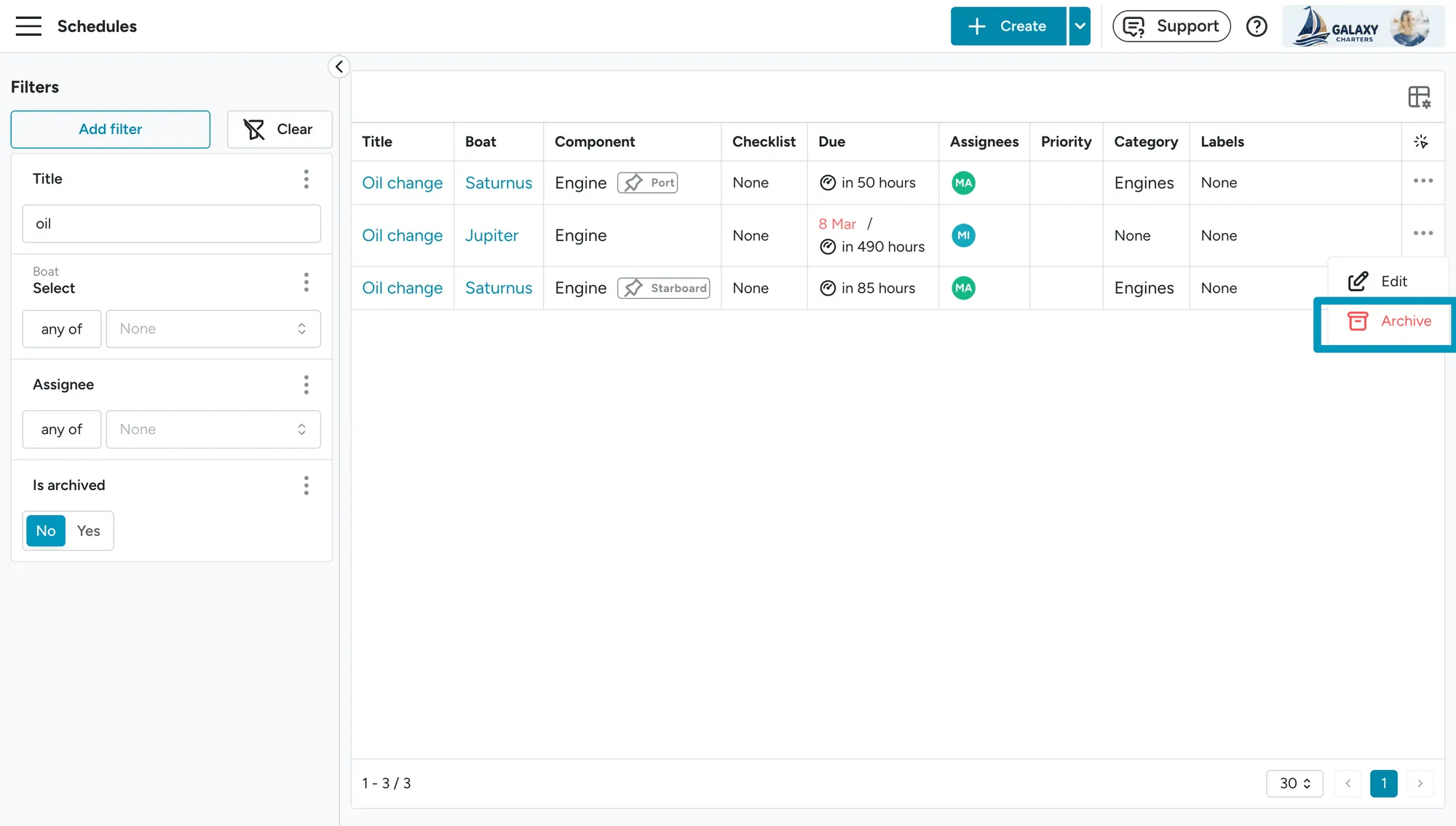
Section titled “How do I delete a recurring task schedule?”Schedules can’t be hard-deleted. They’re archived instead. Archiving stops future tasks from being created without removing the history of past tasks the schedule generated.
- Go to Task management > Schedules.
- Add a Title filter to find the schedule by name.
- Click the three-dot menu on the schedule.
- Select Archive.
We manage charter boats and boats we just maintain internally: can we separate them?
Section titled “We manage charter boats and boats we just maintain internally: can we separate them?”Yes. The cleanest way is to create a second base for your non-charter fleet. Each base has its own calendar, team, and task views, so your housekeeping boats stay separate from your charter operation. See How do I create a second base? below.
How do I create a second base?
Section titled “How do I create a second base?”- Go to Settings > Bases.
- Click Create in the top-right corner.
- Give the base a name and assign the relevant boats and team members.
The new base appears as a separate workspace in your navigation.