
Change management
Managing extras for multiple bookings
Section titled “Managing extras for multiple bookings”In the previous sections, we covered how to manage extras for individual bookings. However, during peak seasons or at the end of a season, you may need to make broader changes, such as:
- Adding a new mandatory extra
- Removing an existing extra
- Updating pricing
- Adjusting minimum or maximum quantities
These changes can be complex, as they may affect existing bookings. Before proceeding, consider the following questions:
-
Adding a new mandatory extra: Should the extra apply only to new bookings (not yet in Floatist), or should it also apply to existing upcoming bookings that haven’t departed?
-
Removing an extra: Do you want to remove the extra from upcoming bookings? If guests have already reserved it, they may be disappointed. You may need to notify them and issue refunds if they’ve paid.
-
Updating pricing: Pricing changes can take several forms:
- Increasing or decreasing the price.
- Changing the pricing model (e.g., per day, per week, or per night).
- Splitting an extra into separate options (e.g., one for large boats, another for small boats).
For each case, decide whether existing bookings should retain the original price or adopt the updated price. See Version locking for how Floatist handles this on individual bookings.
-
Adjusting min/max quantities: What happens if, for example, the maximum quantity was previously 8 but is now reduced to 6?
Each scenario requires careful consideration to ensure a smooth experience for your guests. To simplify this process, Floatist offers the Bookings > Extra editor, which allows you to apply changes to a specific set of bookings.
Using the extra editor
Section titled “Using the extra editor”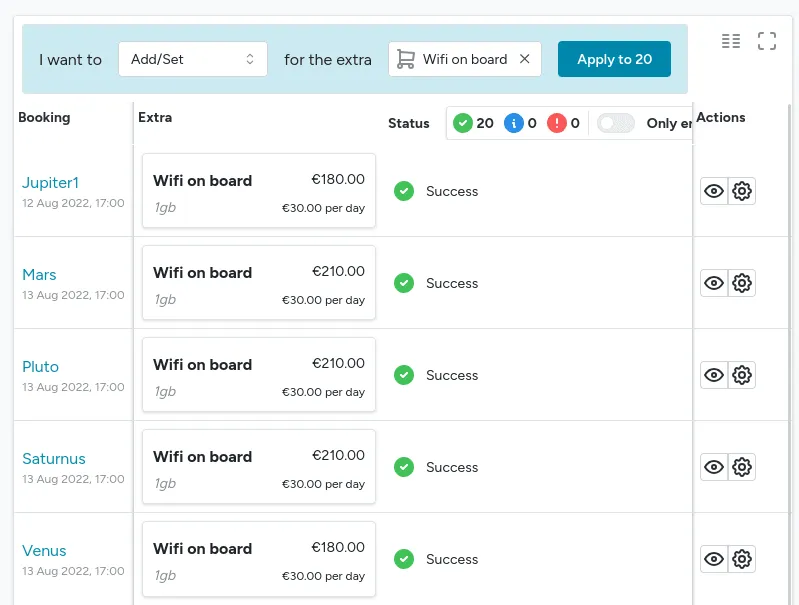
- Navigate to Bookings > List in Floatist.
- Use filters to select the bookings you want to modify (e.g., all upcoming bookings with a specific extra).
- Click Change Extras to open the Extra editor.
- Choose the operation you want to perform (e.g., Add, Remove, Set discount).
- Specify the extra to be modified.
- Apply the changes.
Once the operation is complete, you’ll see a status update for each booking. Each result is one of:
- Success: The operation was applied.
- Info: The operation didn’t apply but isn’t an error, for example trying to add an extra to a booking that already has it.
- Failure: The operation couldn’t be completed. Common reasons:
- Adding an extra that’s incompatible with the booking (e.g., an extra only available for boats over a certain size).
- Setting a quantity that exceeds the extra’s maximum limit.
You can also apply individual changes to a booking directly from the Extra editor, using the actions on the right side of the editor.
Common operations
Section titled “Common operations”-
Adding a new mandatory extra
- Create a new extra definition for the mandatory extra.
- Select all upcoming bookings in Bookings > List.
- Use the Extra editor to add the extra to the selected bookings.
-
Updating the price of an extra
- Modify the price in the existing extra definition.
- Select all upcoming bookings that include the specific extra.
- Use the Extra editor to update these bookings to the latest version.
-
Making an extra optional instead of mandatory
- Update the extra definition to change its status from mandatory to optional.
- Select all upcoming bookings that include the extra in the bookings list.
- Use the Extra editor to update these bookings to the latest version.
-
Replacing an extra with a new one
- Create a new extra definition to replace the existing one (e.g., replacing “Standard cleaning fee” with “Enhanced cleaning service”).
- In the bookings list, select all upcoming bookings that include the old extra.
- Use the Extra editor to remove the old extra and add the new one, ensuring compatibility with the selected bookings.