
Boat pricing
Pricing in Floatist is configured alongside availability. Both live inside the same calendars at Settings > Marketing > Availability and pricing. This page covers how to set up nightly rates with Price events, and how to validate your pricing before publishing a season using the Booking Preview.
If you haven’t created any calendars yet, start with Boat availability and come back here once you have at least one calendar with Availability events in it.
Price events
Section titled “Price events”A Price event attaches a nightly rate to a date range. Multiple Price events together form your seasonal pricing structure.
| Field | Notes |
|---|---|
| Start / End | Inclusive date range. |
| Name | A user-facing label per language (e.g. High season). |
| Auto-translate from English | When on, only the English field is editable and other languages are computed automatically. When off, fill in each language yourself. |
| Price per night | Decimal value. Shown to guests without a currency symbol. See Currency below. |
| Recurrence | Optional. See Recurrence rules on the Boat availability page. |
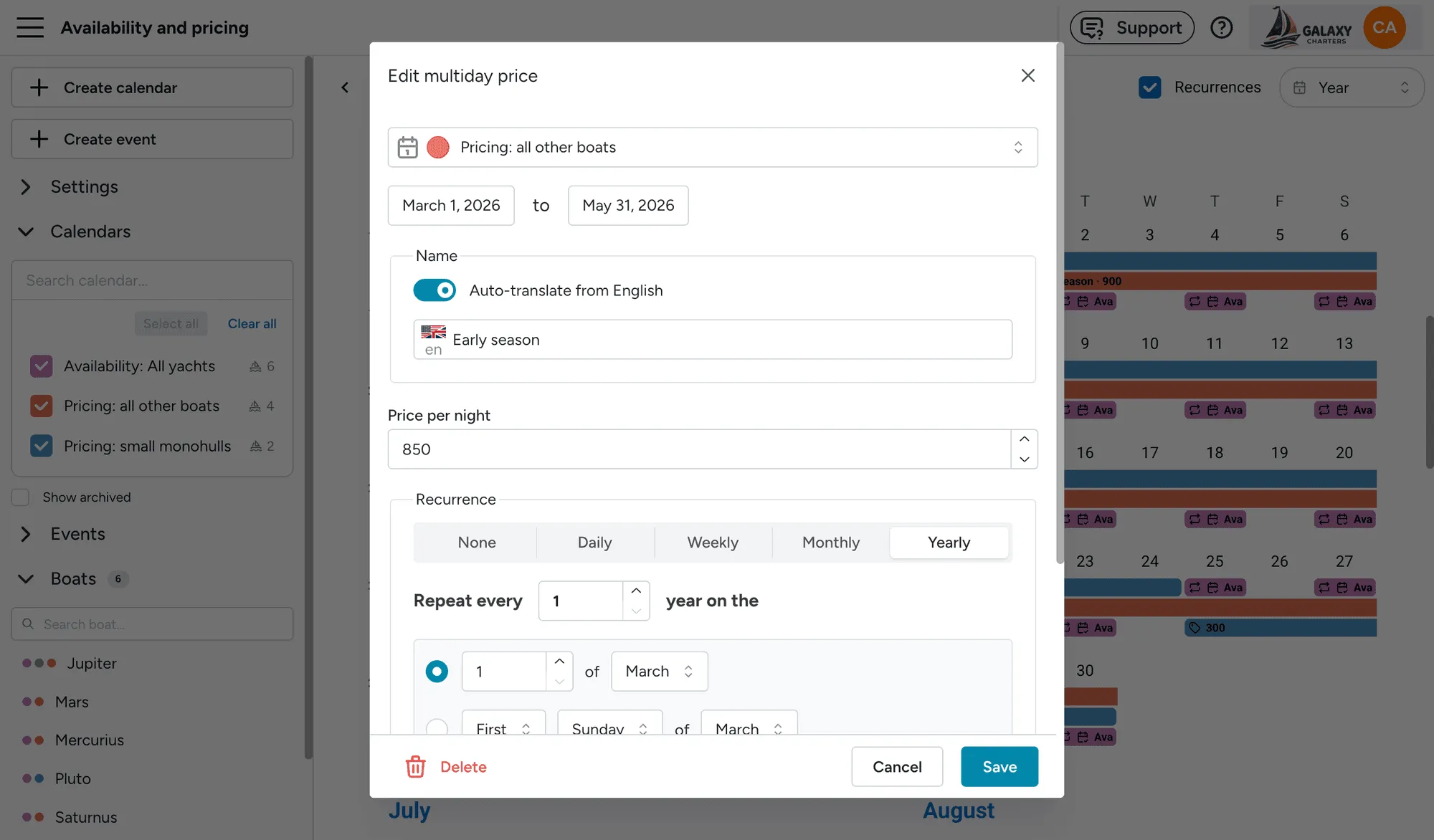
Each Price event shows on the calendar as a bar with the moon icon, the price-tag icon, and the price number:
Multiday price: + the price number
See Reading the calendar for the full icon legend.
Recipe: three-season pricing
Section titled “Recipe: three-season pricing”- Low season: Start = April 1, End = May 31, Name = Low season, Price =
300. - High season: Start = June 1, End = August 31, Name = High season, Price =
600. - Shoulder: Start = September 1, End = October 31, Name = Shoulder, Price =
400.
If a guest books across two ranges (e.g. starting in shoulder and ending in low season), the Booking Preview shows one line item per range.
Currency
Section titled “Currency”Day charter pricing
Section titled “Day charter pricing”Price events currently apply to multiday bookings only. Day-charter slots don’t yet have a dedicated Price event type; pricing for those is handled separately. Contact support if you need help configuring day-charter rates.
“Starts from” price
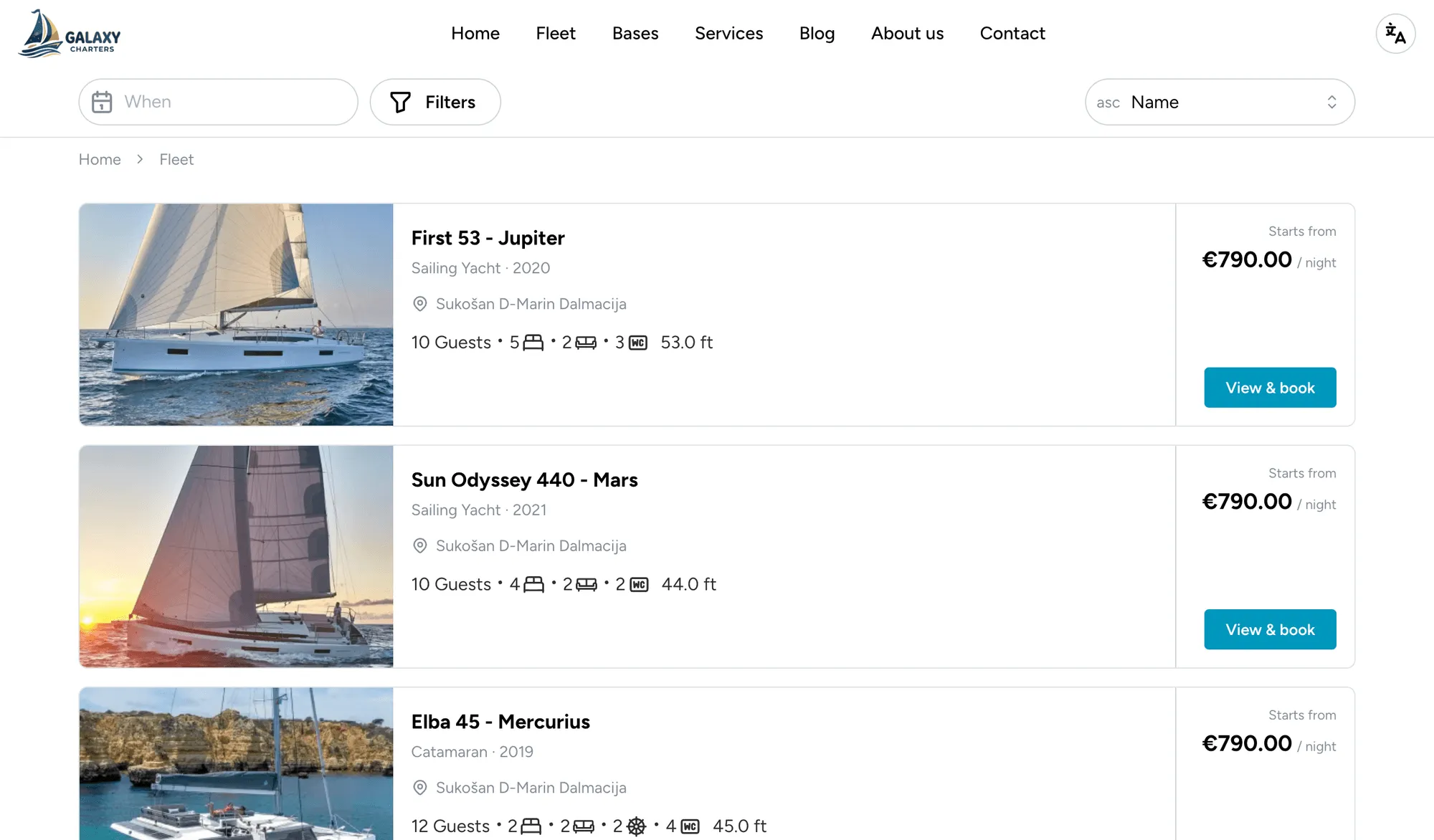
Section titled ““Starts from” price”The “Starts from” price is the headline teaser price shown on your marketing website: the “from XYZ” figure on each boat’s fleet-search card and at the top of the boat detail page before a guest has selected any dates. Floatist computes it automatically from your Price events as the cheapest fully-priced charter of a length you choose, so guests always see a real, bookable starting price rather than an estimate.
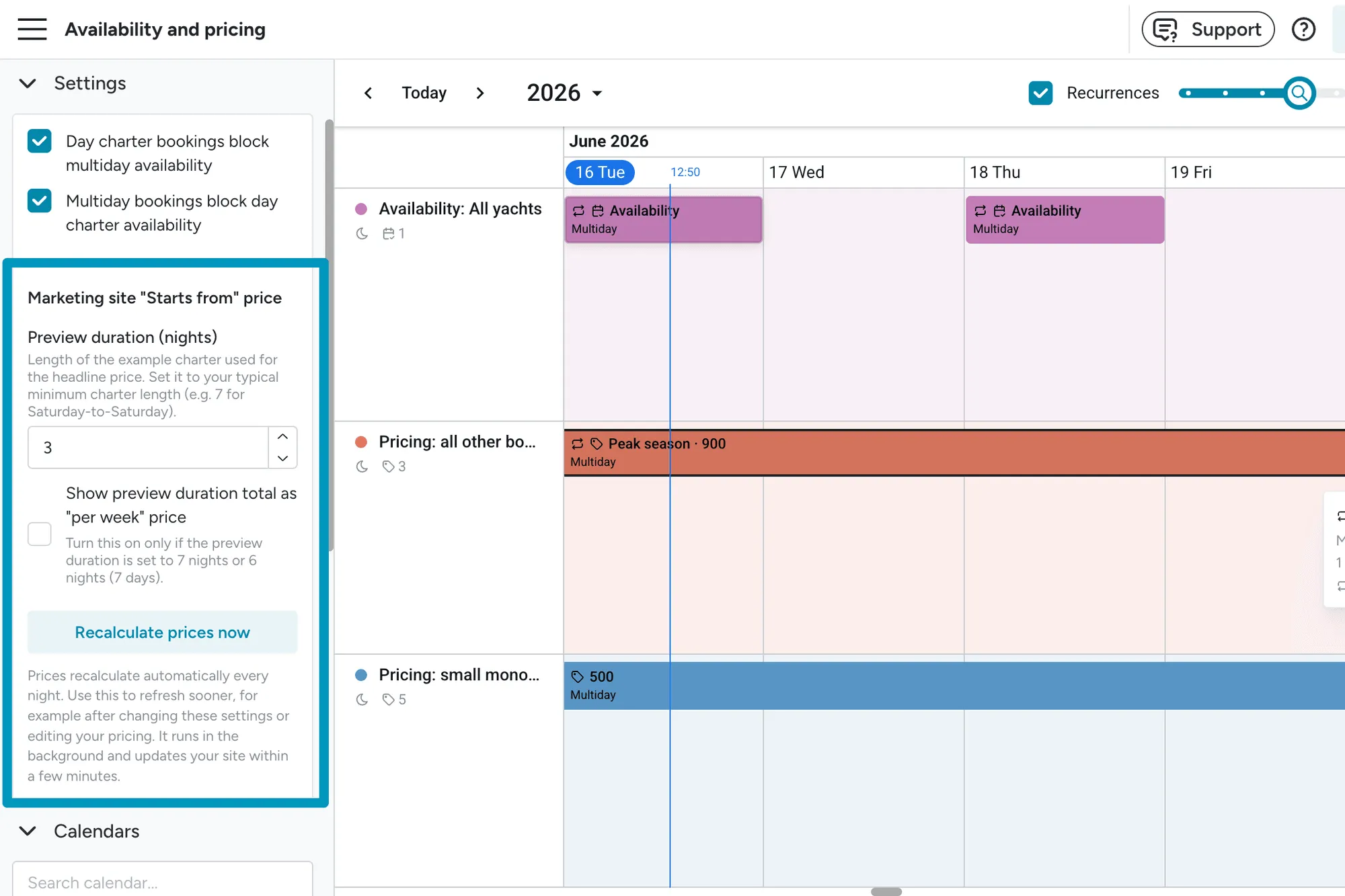
Configure it per boat alongside the other calendar settings at Settings > Marketing > Availability and pricing, under Marketing site “Starts from” price:
| Setting | Notes |
|---|---|
| Preview duration (nights) | Length of the example charter used for the headline price. Set it to your typical minimum charter length, e.g. 7 for a Saturday-to-Saturday week. Defaults to 7. |
| Show preview duration total as “per week” price | When on, the headline reads “per week”. Only turn this on if the preview duration is 6 or 7 nights, otherwise the label won’t match the figure. |
| Recalculate prices now | Prices refresh automatically every night. Use this button to recompute immediately after you change your Price events or these settings. |
Booking Preview
Section titled “Booking Preview”The Booking Preview section at the bottom of the sidebar simulates what a guest would see if they tried to book a date range against your currently selected calendars. Use it as a sanity check before publishing a new season.
| Field | Notes |
|---|---|
| Preview as date | The simulated “today”. Use it to go to the past or future and see how time-based rules apply. |
| Booking dates | The range the guest wants to book. |
The preview returns:
- A green Available or red Not available badge.
- A receipt of line items, one per Price event the booking overlaps. Each item shows the price name, date range, nights × nightly average, and subtotal.
- A footer with Avg / night and Total.
- “No pricing available for these dates.” if the dates are inside an Availability window but no Price event covers them. That’s a strong signal that your pricing has a gap to fix.
Watch for pricing gaps
Section titled “Watch for pricing gaps”If the Booking Preview says “No pricing available for these dates” for any range your Availability events cover, you have a gap. Guests will be able to view the boat but won’t be able to complete a booking. Add or extend a Price event to fill the gap.
Use the Booking Preview before every season
Section titled “Use the Booking Preview before every season”The Preview’s Preview as date is effectively a time machine. Pick the day your booking system opens, then test typical guest scenarios:
- First weekend of the season.
- A peak-season week.
- A shoulder-to-peak crossover week: does pricing split correctly across the two Price events?
- A date past the lead-time horizon: should be unavailable.
Price events follow recurrence rules too
Section titled “Price events follow recurrence rules too”Like every other event type, Price events support recurrence (see Recurrence rules). Most operators use single non-recurring events per season since the date ranges shift year to year, but recurring Price events are useful for rules like “every Christmas/New Year week the rate is X”.