Why tasks matter
A task is what links stock to a boat. Without one, you know what left the shelf and who took it, but not where it went. Once that stock is on a task, you know which boat it went on, what job it was for and what it cost that boat.
What a task adds
Section titled “What a task adds”Once consumed stock is on a task, you can:
- Put the cost on the right boat. The stock shows up in Cost by boat on the dashboard and in the usage summary.
- Bill the boat owner. Stock on a task becomes a billable, valued at the price you paid, so it can go on a bill for the boat owner.
- See the full history. Open the task to see the stock, labor and other expenses together, or open the item to see every boat it went on.
Stock that isn’t on a task stays a loose end: it left the warehouse, but there’s no record of where it went.
From the shelf to a task
Section titled “From the shelf to a task”- Someone consumes stock. They take it out of the warehouse, by scanning it or from the item page. See Consuming stock.
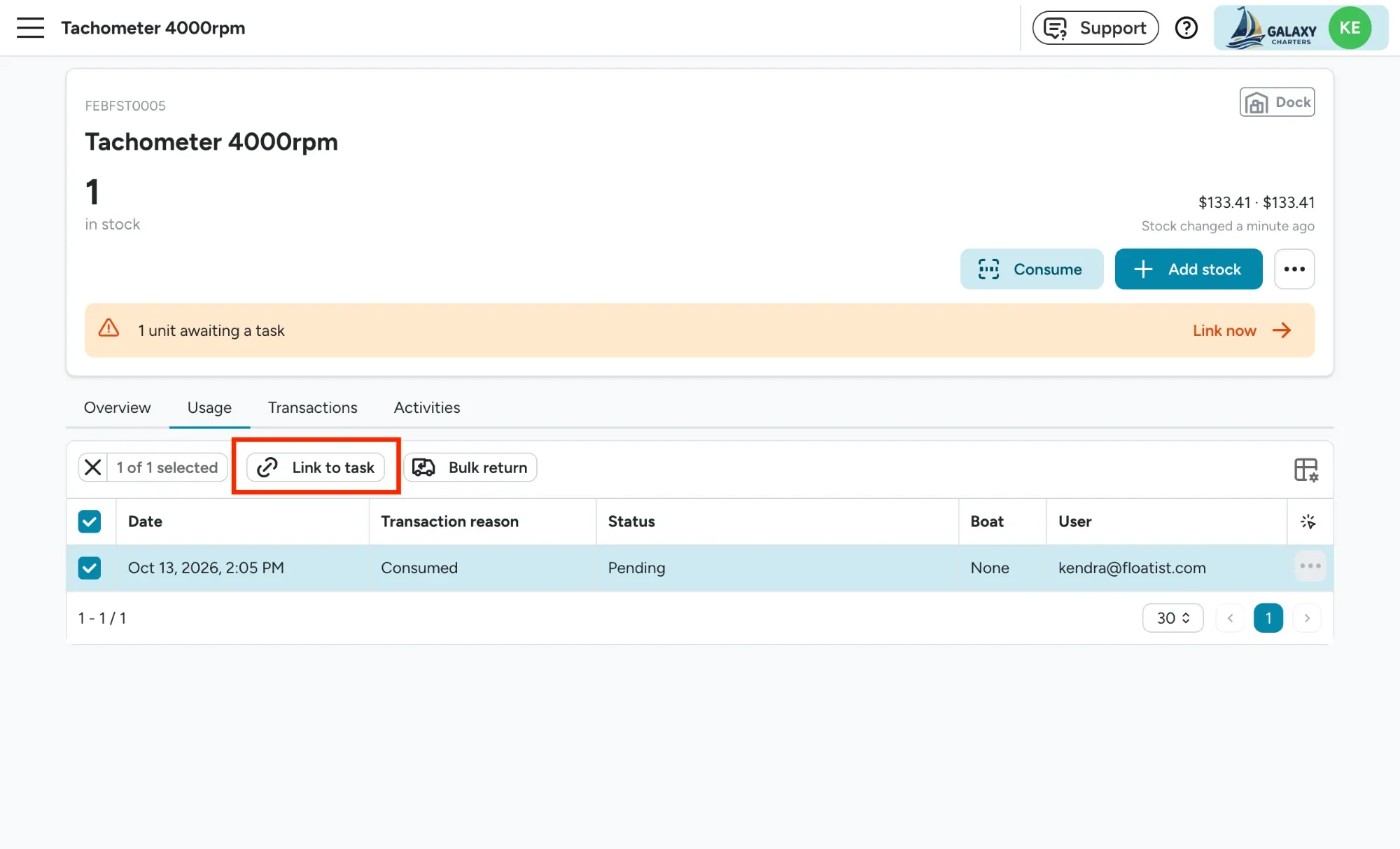
- The stock is awaiting a task. Its usage status is Pending: it’s off the shelf but not yet linked to a job.
- Someone links it to a task. Its status changes to Used for task and it counts towards that boat’s costs. See Using items on a task.
If the stock wasn’t used after all, set it to Returned and it goes back on the shelf. If nobody knows what happened to it, set it to Lost.
You can also skip steps 1 and 2: add stock to a task directly from the In warehouse tab, and it goes straight to Used for task.
What “awaiting a task” means
Section titled “What “awaiting a task” means”Awaiting a task means stock has been consumed but isn’t linked to a task yet. It doesn’t mean a task is open and unfinished. As soon as stock is linked to a task, it’s Used for task, even if the task itself takes days to finish.
While stock is awaiting a task:
- It isn’t in any boat’s costs, so Cost by boat shows it on its own row instead.
- It can’t be billed to a boat owner.
- Your reports show stock used, but not where.
Where you see it
Section titled “Where you see it”Stock awaiting a task is flagged across Inventory Management, so your team doesn’t lose track of it:
| Where | What it shows |
|---|---|
| Dashboard banner | How many units are awaiting a task, what they’re worth and the oldest one |
| Item page banner | How many units of that item are awaiting a task, with Link now |
| Awaiting a task card on the dashboard | Who consumed them, oldest first |
| Data health | Units awaiting a task for over 7 days |
| Warehouses list | Units awaiting a task per warehouse |
| Unlinked usage column on the items list | Consumed units of each item not on a task yet |
| Inventory > Usage page | Every usage line, filtered to Status Pending |
How to clear it
Section titled “How to clear it”Open the stock awaiting a task (click Link now on the dashboard or item page banner, or filter the usage page to Pending) and for each line:
- Link to task if it was used on a boat. Select several rows to link them all to the same task.
- Set returned if it went back on the shelf.
- Set lost if nobody can account for it.