
Charter app for guests
Giving guests access to the app
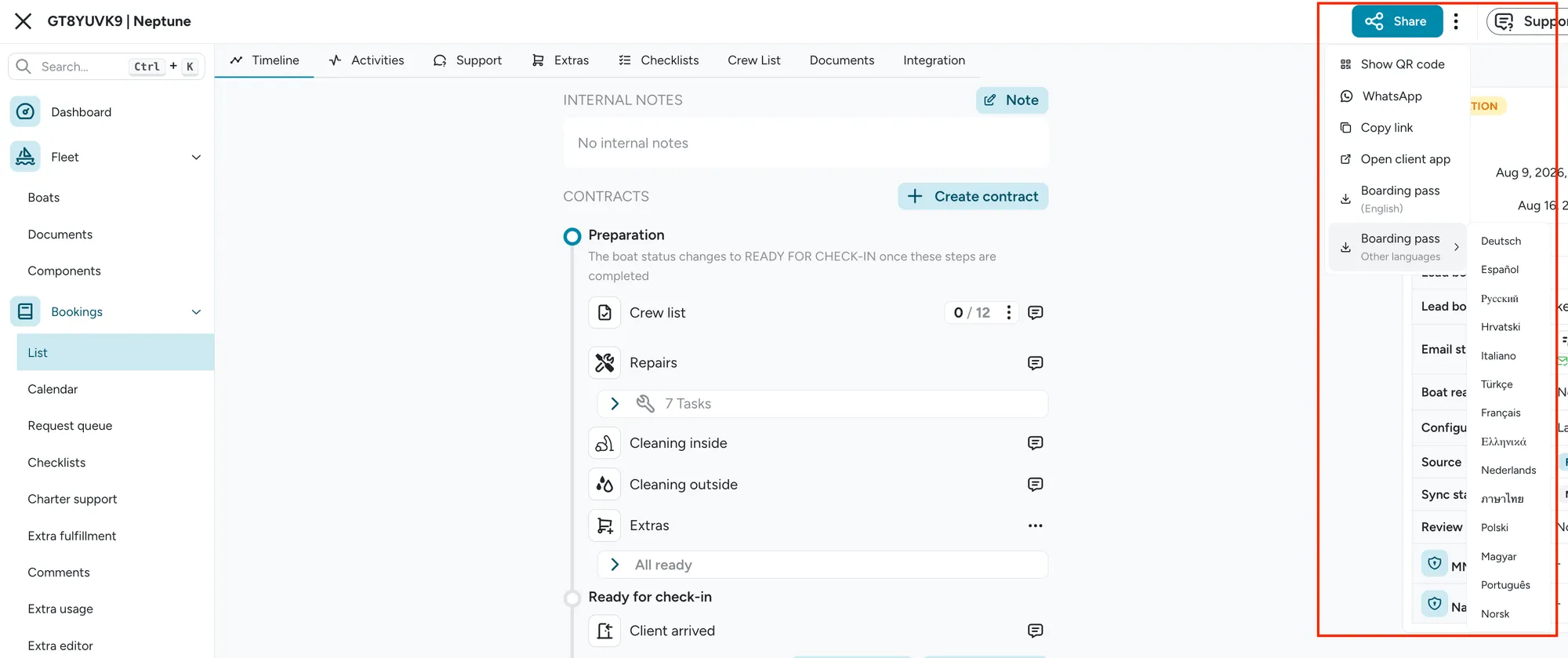
Section titled “Giving guests access to the app”Each booking has a Share button that gives you several ways to share the guest app with your
client:
- Show the QR code: useful when you are standing next to the client and want to show them on your mobile phone
- WhatsApp: sends the link directly via WhatsApp if you have an open conversation with the client
- Copy link: copies the magic login link so you can paste it anywhere, such as in an email
- Open client app: opens the guest app directly in a new tab, useful for previewing what the guest sees
- Boarding pass: downloads a PDF boarding pass in English by default, or pick any other Floatist-supported language from the Other languages submenu
- Send emails: emails the boarding pass straight to the guest; not part of this menu, it’s a separate action from the bookings table (see the tip below)
What’s on the boarding pass
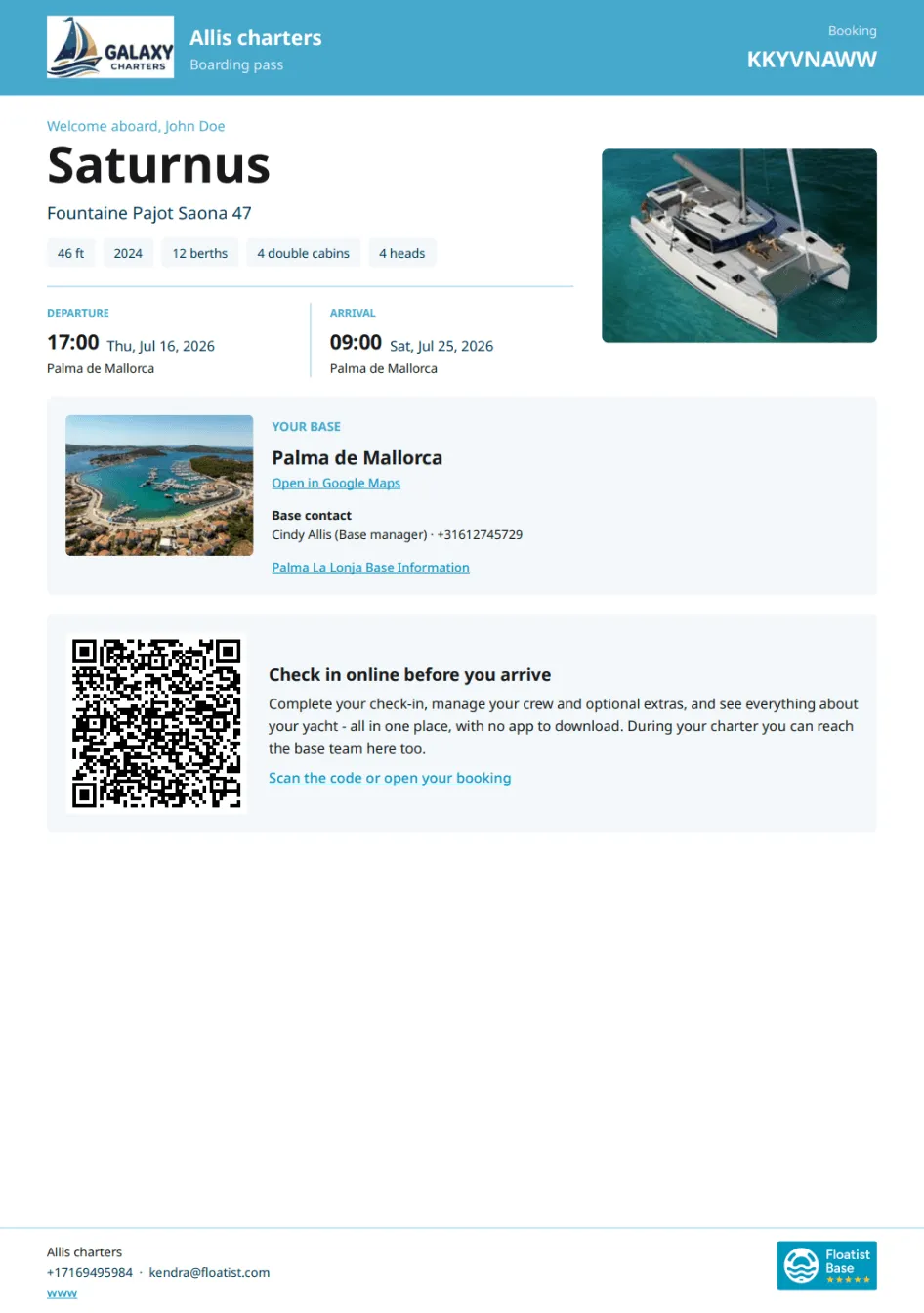
Section titled “What’s on the boarding pass”The boarding pass, whether downloaded as a PDF or sent by email, is a complete charter briefing, not just a QR code. It includes:
- The yacht: name, model, manufacturer, length, build year, and cabin layout
- Departure and arrival base details for each end of the charter: address, boarding time, a link to open the marina in Google Maps, and the base’s support contact
- The operator’s branding, office hours, and contact details
- The QR code and login link to the guest app
It can be downloaded in every Floatist-supported language, and any section with nothing to show is simply left out rather than shown empty.
Guest review ratings
Section titled “Guest review ratings”After a charter, guests are prompted in the guest app to rate their experience across four categories (trip, check-in, yacht, and support), each on a 1 to 5 scale, where 5 is the highest rating, plus an optional comment. Every category starts at 5.
If the average across all four categories is 4 or higher, guests are also prompted to copy their comment and add it to your Google review page, using the Google Review URL set at Settings > Global settings.
Charter Support Issues
Section titled “Charter Support Issues”While the customer is on charter, they can request support from the app. Filling in the request form will create a Charter Issue, which will send a notification to all staff assigned to that boat and/or base. For customers, the button is called Contact Support.
The Charter issues are available at Bookings > Charter support. On mobile, there is an Issues quick menu in the footer.
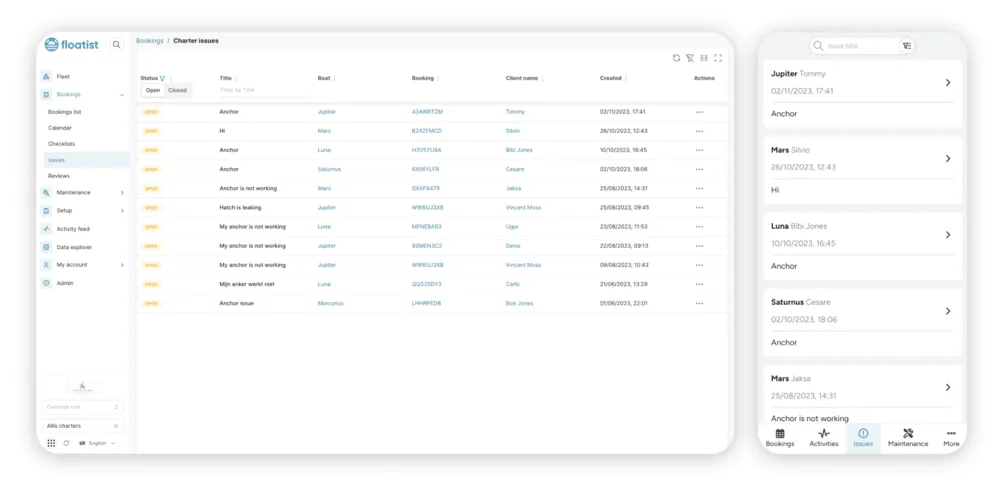
Issues work essentially as a chat with the customer, and they let you centralize all communication and stop using your team’s personal WhatsApp to support your charter guests.
Outstanding repairs on booking timeline
Section titled “Outstanding repairs on booking timeline”On each booking, on the mobile app, we automatically show the repairs that are still outstanding for the boat. This is so that you have an immediate overview of things to fix right from the booking detail view on the mobile app.
How this works is that every task that is linked to that boat, with a due date on or before the start day of the booking, will be shown.
For example, on the screenshot below, there are 3 outstanding tasks for the boat of this booking. You can click the task to see the detail view, and complete them from there.

Booking summary in the guest app
Section titled “Booking summary in the guest app”If you’ve populated the boat’s Registration number and Port of registration in Boat Details, guests now see them in their booking summary, so they don’t need to ask your staff.
Guest app language and checklist language
Section titled “Guest app language and checklist language”Guests can set the language on the home screen of the client app or from the more menu. This
language will be reflected in the languages displayed in checklists, manuals, base descriptions etc.
How can I redo a check-in or check-out submission?
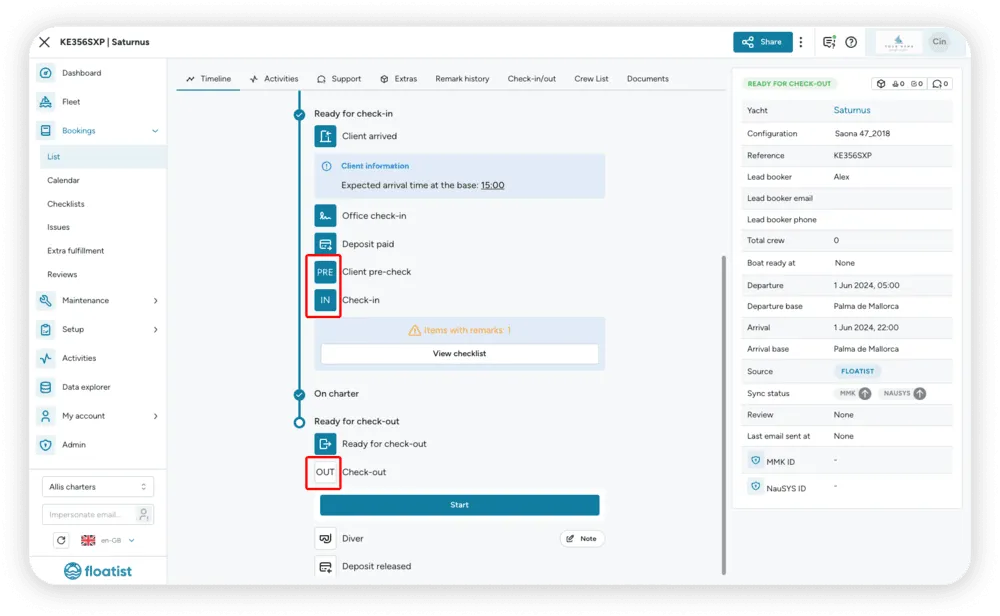
Section titled “How can I redo a check-in or check-out submission?”The three icon buttons, for Client pre-check, Check-in, and Check-out, as marked in red on the image below, serve as manual override buttons, which can help you in case of a scenario like this.
For example, if you have submitted a check-in, but want to make a change to submit it again, then you can click the IN icon button for Check-in, which unlocks the checklist again. You can then make changes and submit it again. Please be aware that all signatures will be removed when manually undoing a check-in, and you will have to ask the customer for a signature again.
To prevent mistakes, we have limited the permissions to these buttons to Admins, Booking managers, and Base managers only.
How to configure signatures on the checklists
Section titled “How to configure signatures on the checklists”Signatures are configured per booking configuration, not as a global setting. In your configuration, add signature items to the check-in and check-out checklists as needed, specifying which role should sign (charterer, skipper, staff, other) and whether the signature can be skipped.
See Signatures for the full guide, including recommended setup, which device is used for signing, and what happens when a signature is skipped or refused.