Task Linking
It is possible to link tasks to each other and other objects within Floatist. This allows you to keep more information about where tasks originated from. The following links are possible:
- From a task to another (follow-up) task
- From a booking comment to a task
- From a charter issue to a task
After creating a task from another object, you can always see where the task originated in the “Originates from” part that will be displayed in the Relationships card on the task. This will lead you right back to the originating object.
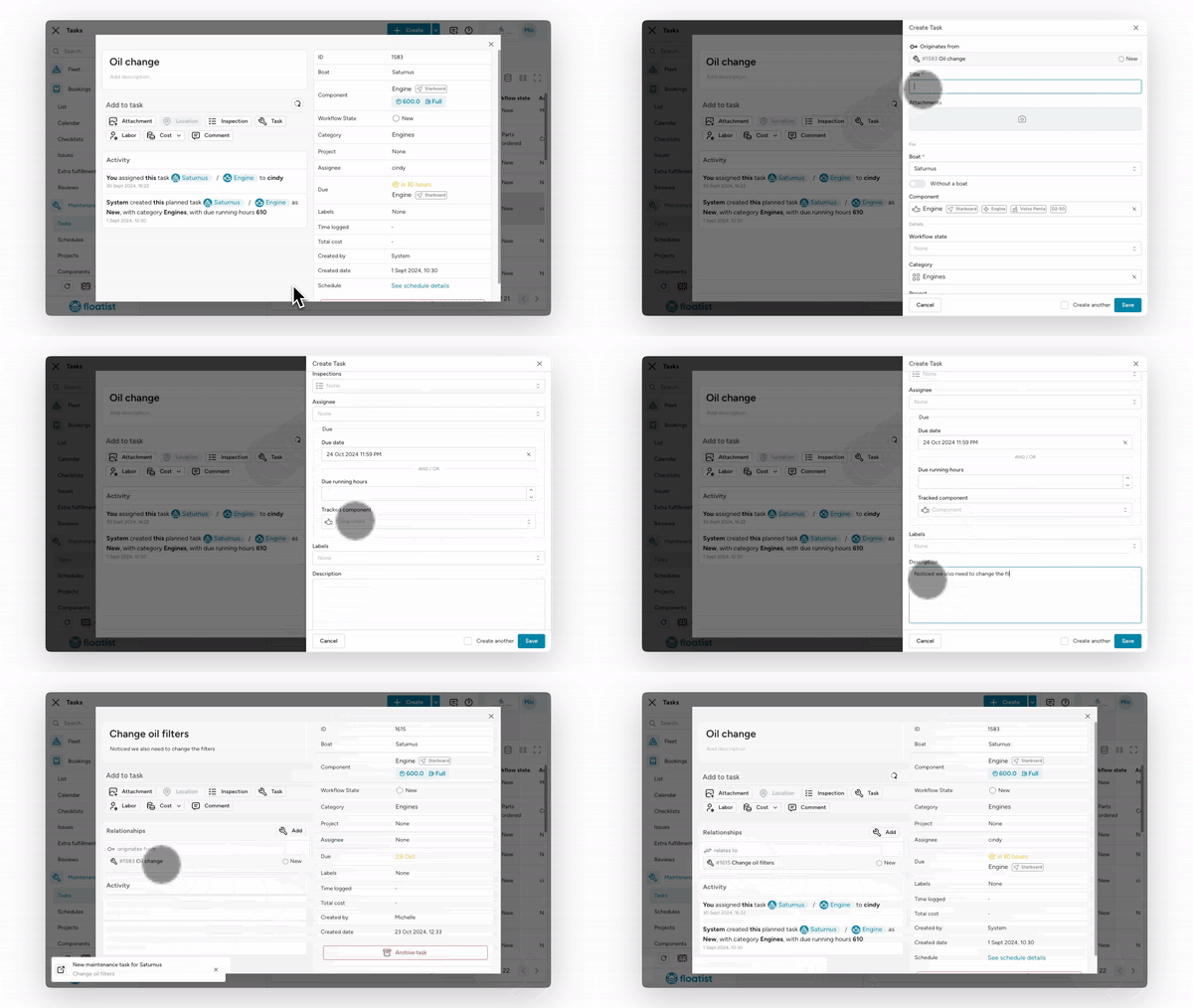
Task link from task
Section titled “Task link from task”On the task where you want to create a follow-up task, click the Task button under the Add to task section. This will open a new form where some of the information of the originating task like the yacht and the project is already prefilled, and you can adjust or add any information there, just like in a normal task.
Click Save and the new task is created. You can see the relationship in both the new as well as the originating task.
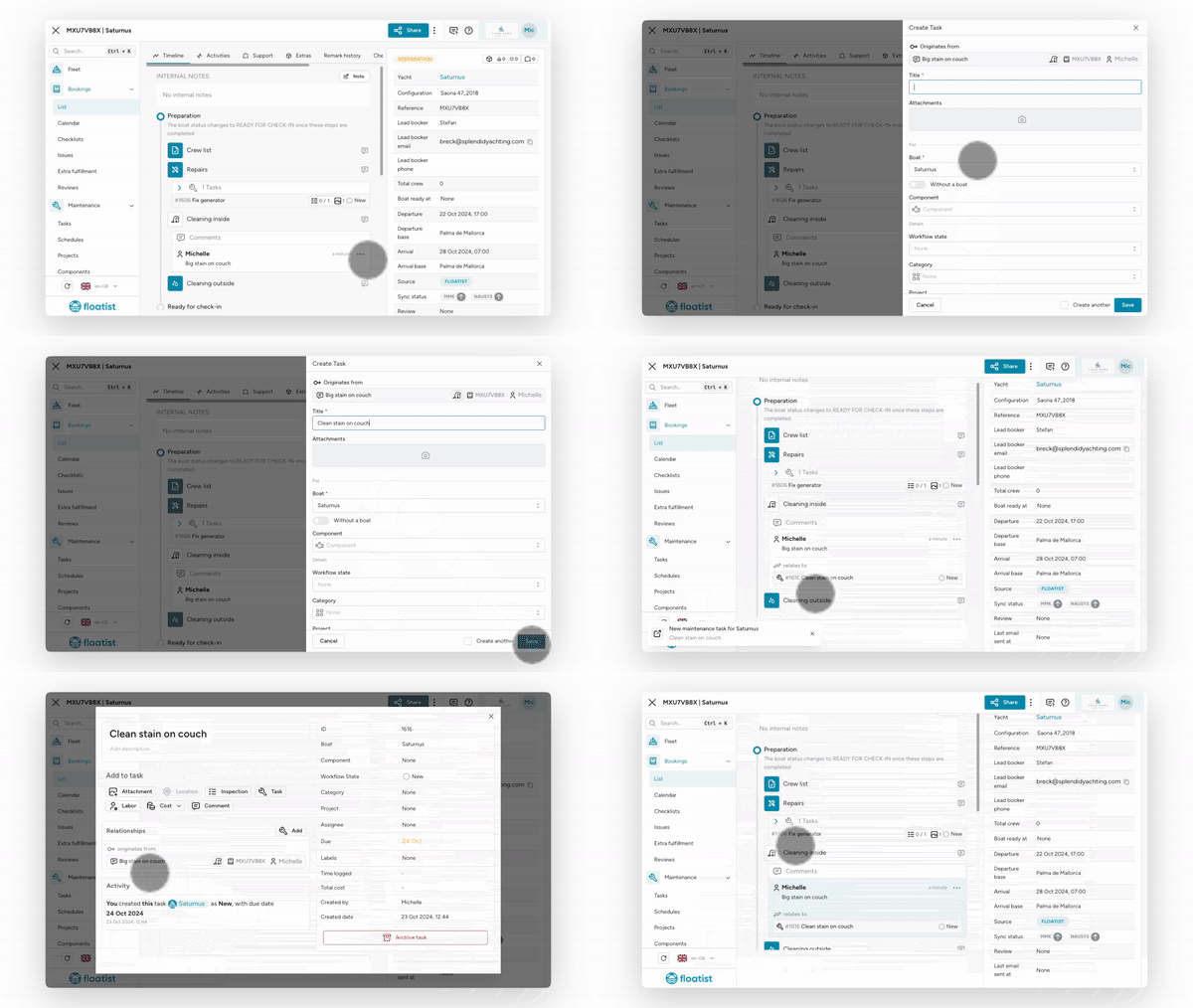
From the booking comment where you want to create a new task, click the three dots and click Create task. This will open a new form where some of the information like the yacht is already prefilled, and you can adjust or add any information there, just like in a normal task.
Click Save and the new task is created. You can see the relationship in the new task as well as in the booking comment.
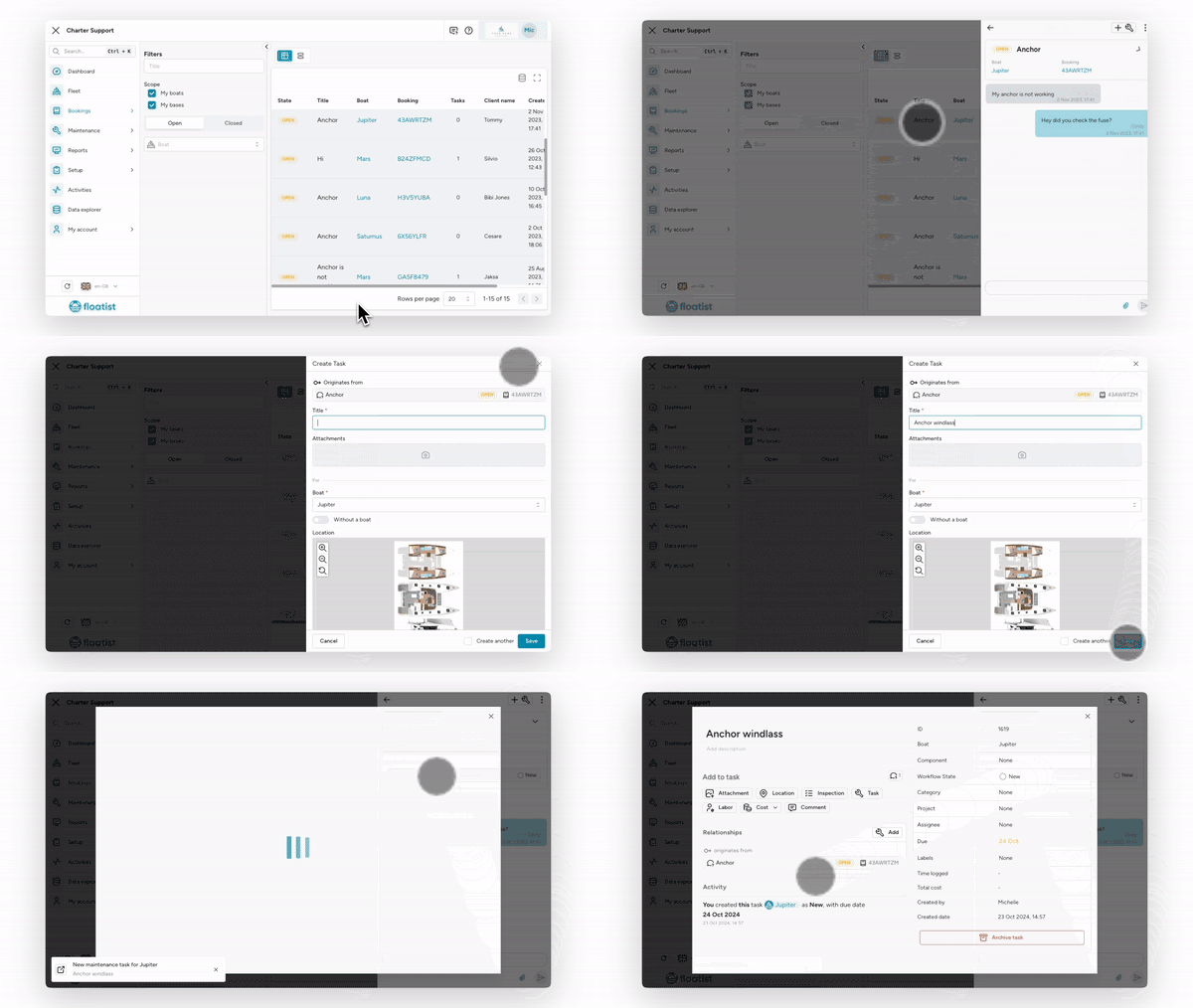
Task link from Charter issue
Section titled “Task link from Charter issue”From the charter issue from which you want to create a follow-up task, click the Task icon on the top right of the chat of the charter issue. This will open a new form where some of the information of the originating task like the yacht is already prefilled, and you can adjust or add any information there, just like when creating a normal task.
Click Save and the new task is created. You can see the relationship in the new task as well as in the charter issue.