Usage
When units are consumed, Floatist creates a usage line for each unit, so you can follow it after it leaves the shelf. The Inventory > Usage page lists them all.
Usage statuses
Section titled “Usage statuses”| Status | What it means |
|---|---|
| Pending | The stock left the warehouse but isn’t on a task yet. This is the one to act on |
| Used for task | The stock is linked to a task. It stays this way while the task is still in progress |
| Returned | The stock came back to the warehouse unused |
| Lost | Nobody knows what happened to it |
Pending usage shows up everywhere in inventory (the dashboard banner, Awaiting a task, Data health and the Unlinked usage column) because stock that isn’t on a task can’t be traced to a boat or billed. See Inspect pending items to clear it.
Why stock goes on tasks
Section titled “Why stock goes on tasks”A task is what links stock to a boat. Once consumed stock is on a task, you know which boat it went on, who used it and what it cost, and you can include it in the boat’s costs and on owner bills. See Why tasks matter for the full picture, including what it means when stock is awaiting a task.
Using items on a task
Section titled “Using items on a task”To use stock on a task, you can either:
- Add it from your consumables, if you have consumed it first
- Add it directly to the task
1. Add stock from your Pending Consumables
Section titled “1. Add stock from your Pending Consumables”To add stock to a task from your pending consumables, follow the steps below:
- Open the task you want to add the stock to
- On the task, under the Add to task section, click Item
- You will see all the items that you have taken from your warehouse already (consumed) in Pending, simply pick the right item from there to add it to the task
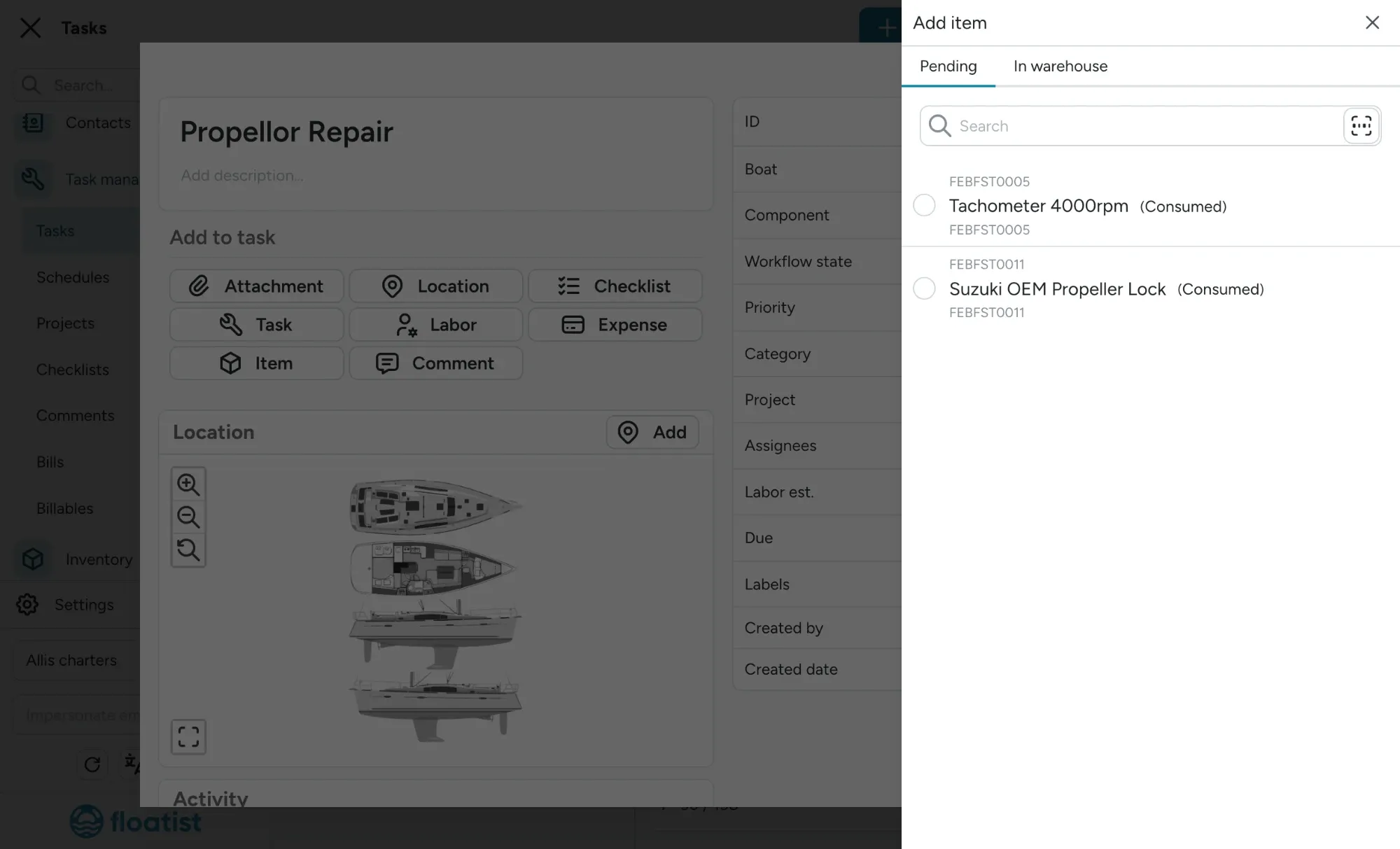
2. Add stock directly from the Warehouse
Section titled “2. Add stock directly from the Warehouse”To add stock to a task directly from the warehouse, follow the steps below:
- Open the task you want to add the stock to
- On the task, under the Add to task section, click Item
- Navigate to the In warehouse tab, where you can search for the right item and select it. It will directly be added to the task. You can also search by scanning an item’s barcode.
Inspect pending items
Section titled “Inspect pending items”It can happen that stock is taken out of the warehouse, and never used on a yacht. When this is the case, you want to make sure that items are being set as returned accordingly. You can set an item as returned by clicking the three dots next to the transaction row > Click Set returned.
The same menu has Link to task, Set lost for stock nobody can account for, and Set pending to undo a status set by mistake. Ideally consumed stock is on a task within a week of being consumed. Anything older shows in Data health on the dashboard.
You can also use the Inventory > Usage page to check if there are any items unaccounted for (still Pending despite the fact that everyone returned their items physically). By setting the Status filter to Pending you quickly see all pending items.
To deal with several at once, select the rows and click Link to task to add them all to the same task, or Bulk return to return them to stock.
Usage summary
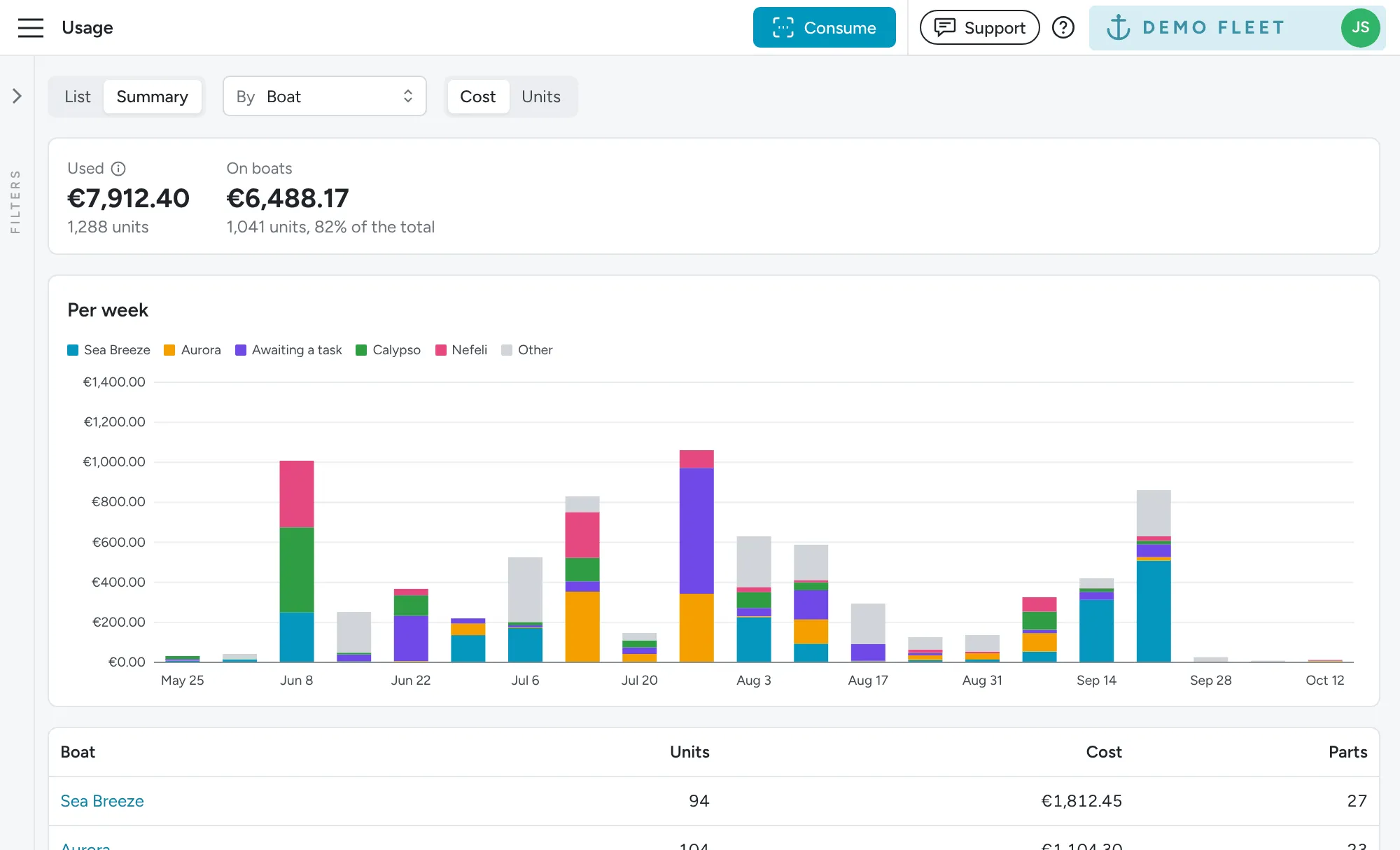
Section titled “Usage summary”Switch the Inventory > Usage page from List to Summary to see units and cost grouped by Part, Boat, Warehouse or Person, with the top groups charted over time. The summary uses the same filters as the list, including the Boat filter. Click a row to narrow the filters to it: a boat shows the stock it used, an item shows the boats it went on. Switch between Cost and Units to chart either one. At the top, Used shows the total for the period and On boats how much of it is on a boat’s task.
Use it to answer questions like which boat used the most stock last season, or who is consuming the most stock. See Reporting use cases for more.