
Setup
Floatist integrates with NauSYS so you can retrieve your confirmed bookings from NauSYS automatically. You just need your NauSYS API credentials, and we’ll handle the rest.
Set up
Section titled “Set up”1. Request your API credentials from NauSYS
Section titled “1. Request your API credentials from NauSYS”Contact NauSYS at danijel.levak@nausys.com for your API credentials.
To: danijel.levak@nausys.com
Dear Danijel,
We would like to integrate with Floatist. Could you please send over the API contract and API key?
Thanks in advance,Kind regards,[YOUR NAME]
2. Add your credentials and switch NauSYS on
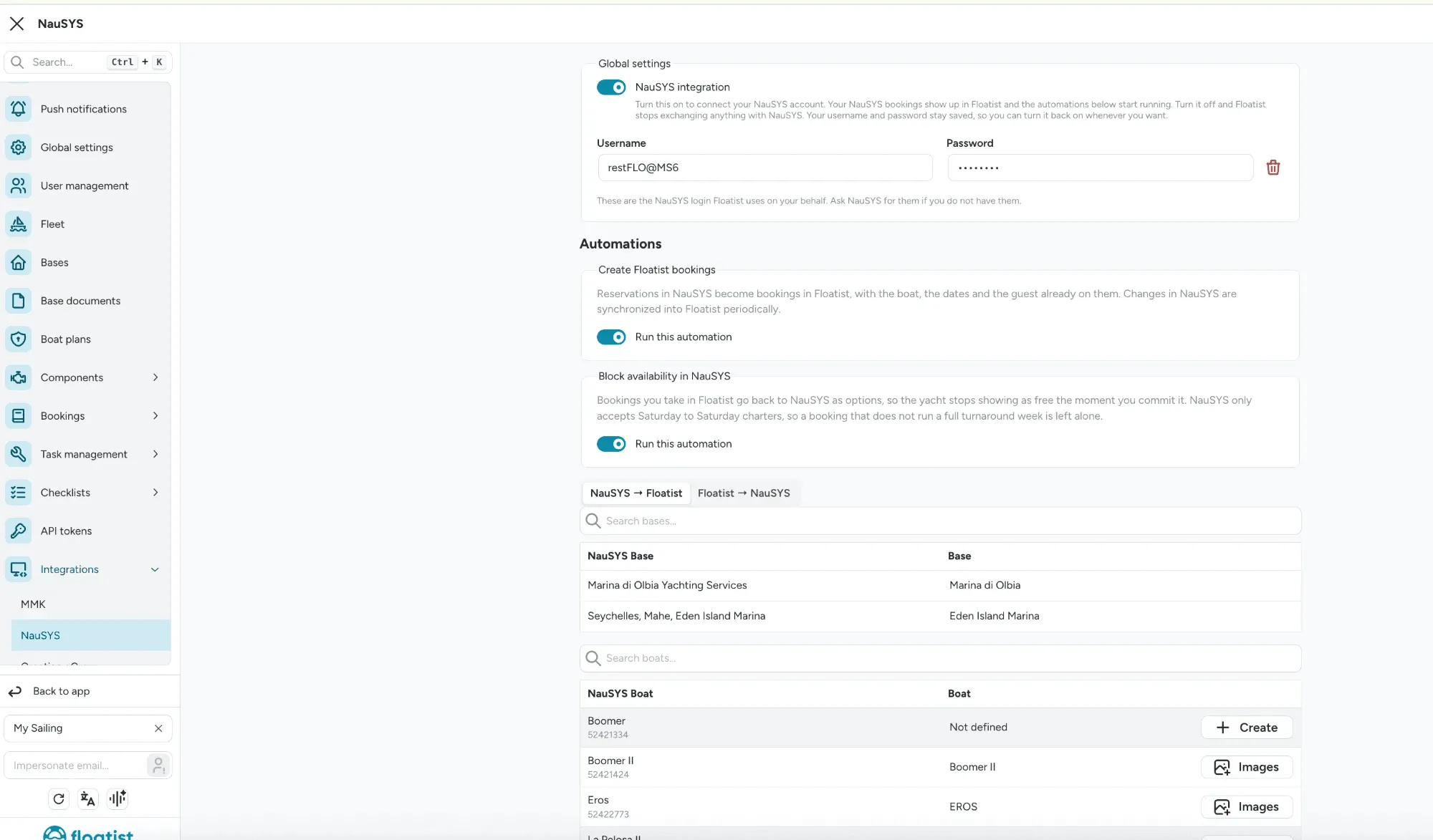
Section titled “2. Add your credentials and switch NauSYS on”In the Floatist desktop app, go to Settings > Integrations > NauSYS. In the Global settings card, enter the NauSYS login Floatist uses on your behalf under Username and Password, then turn on NauSYS integration. Your NauSYS bookings start showing up in Floatist and the automations below start running.
Turning NauSYS integration off stops Floatist exchanging anything with NauSYS. Your username and password stay saved, so you can turn it back on whenever you want. To remove the saved login, click the bin icon next to the password.
Under Automations there are two cards, each with a Run this automation switch:
- Create Floatist bookings: reservations in NauSYS become bookings in Floatist, with the boat, the dates and the guest already on them. Changes in NauSYS are synchronized into Floatist periodically.
- Block availability in NauSYS: bookings you take in Floatist go back to NauSYS as options, so the yacht stops showing as free the moment you commit it. Useful for fleets that also use MMK, see the MMK & NauSYS bridge. NauSYS only accepts Saturday to Saturday charters, so a booking that doesn’t run a full turnaround week is left alone.
3. Check your bases
Section titled “3. Check your bases”Below the automations, the NauSYS → Floatist tab lists each NauSYS Base next to the Floatist Base it’s linked to. Use Search bases… to find one. The Floatist → NauSYS tab shows the same links the other way round. If a base isn’t linked, contact our support team and we’ll set it up for you.
4. Synchronize your boats
Section titled “4. Synchronize your boats”Scroll down to the boats table. Each NauSYS Boat is listed with its NauSYS ID, next to the Floatist Boat it’s linked to. Boats already in Floatist show an Images button. Boats not yet in Floatist show Not defined and a Create button. Use Search boats… to find one.
Click Create for each boat you want to add to Floatist. Boats you don’t click Create for are simply never added, so there’s nothing to synchronize or archive separately.
5. Scheduled & Manual Syncs
Section titled “5. Scheduled & Manual Syncs”Bookings sync automatically on a regular schedule:
- 4 times a day (9am, 1pm, 5pm, 9pm): bookings up to 1 month ahead.
- Once a night (1am): bookings up to 12 months ahead.
To force an immediate sync, go to Bookings > List and click Synchronize bookings. The button is only available to Admins and Booking managers.
You can find the NauSYS ID of a booking in the booking detail view.
If you delete a booking in Floatist, it will not be deleted in NauSYS. It also will not reappear in Floatist on the next sync. If you need it back, add it manually via Bookings > List using the + button.
Adding new yachts to your integration
Section titled “Adding new yachts to your integration”If you’re adding new yachts to your fleet that you want to sync via NauSYS, follow these steps. Only admins can update integration settings.
- Go to Settings > Integrations > NauSYS.
- Scroll to the boats table. New yachts from NauSYS that aren’t yet in Floatist show Not defined and a Create button next to them.
- Click Create for each yacht you want to add. Yachts you don’t click Create for are simply never added, so there’s nothing to archive afterward.
- Verify the NauSYS ID is correct on each yacht. If an ID is missing, find it in NauSYS and add it manually. Without the ID, bookings for that yacht won’t sync.
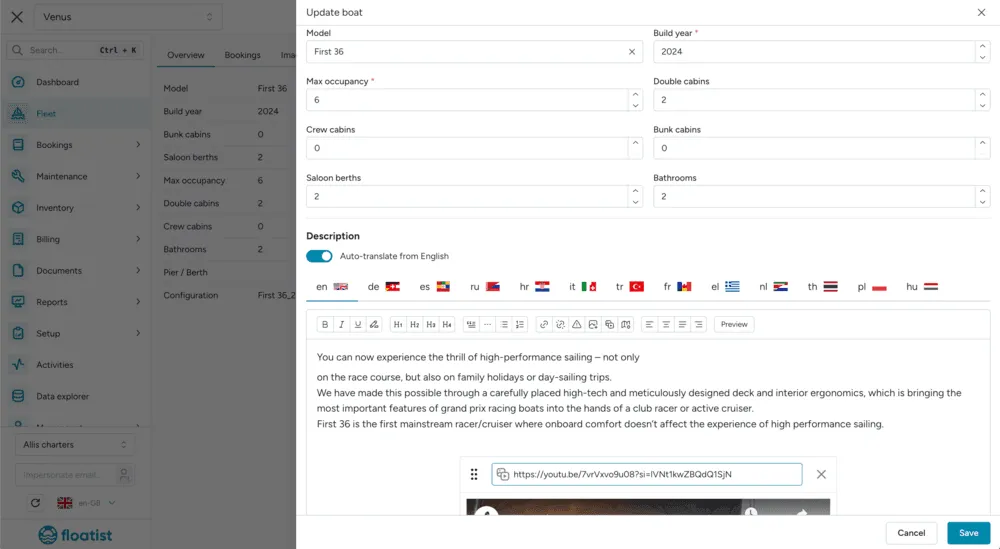
- On the Fleet page, open each new boat and click Edit to add additional details such as model, description (we recommend toggling Auto-translate from English so the description is translated into all supported languages), and registration details.
Importing boat images from NauSYS
Section titled “Importing boat images from NauSYS”You can pull a boat’s photos straight from NauSYS into Floatist instead of uploading them by hand.
- Go to Settings > Integrations > NauSYS and find the boat in the boats table.
- Click Images on that boat to open the Import NauSYS images dialog.
- The dialog shows two columns: your Current images already in Floatist, and the NauSYS images available for that yacht.
- Tick the NauSYS images you want and click Import.
A few things worth knowing:
- Photos you’ve already imported are marked Imported and greyed out, so you can’t create duplicates. Floatist remembers which NauSYS image each imported photo came from.
- Importing adds to your existing Floatist images; it never replaces them.
- You can drag to reorder your Floatist images right in the dialog. That order is the order shown on your marketing website, so put your best shot first.
Custom systems and CSV import
Section titled “Custom systems and CSV import”We can also import bookings from CSV for various booking systems. If your system isn’t yet supported, send us a message and we can implement it for you.
NauSYS import by CSV
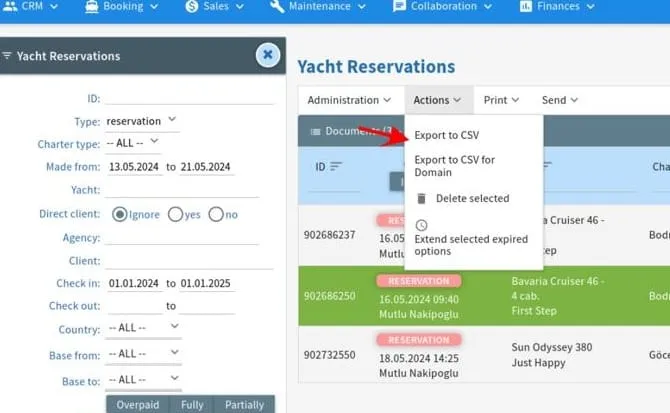
Section titled “NauSYS import by CSV”In NauSYS, go to Bookings > Reservations and filter to the bookings you want to export. Under Actions, click Export to CSV.
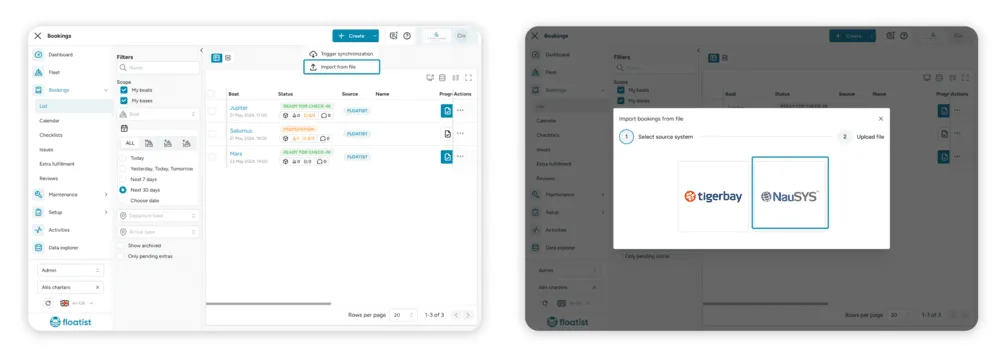
In Floatist, go to Bookings > List and click the arrow next to Create > Import from file. Select NauSYS and upload the file.
NauSYS push limitation: Saturday to Saturday
Section titled “NauSYS push limitation: Saturday to Saturday”When the MMK & NauSYS bridge is enabled and Floatist pushes availability into NauSYS, NauSYS only accepts options that run Saturday to Saturday. A booking on any other date range will not sync to NauSYS, and an error will appear on the booking detail page. This is a NauSYS platform constraint, not a Floatist limitation.
Common questions
Section titled “Common questions”For sync-related questions (bookings not appearing, editing imported bookings, guest-name changes), see the Common questions page.