
Contacts
Contacts is your contact directory: every guest, client and agency Floatist knows about, in one list. A booking’s contact is picked from this directory, and it’s the name and details Floatist uses for emails, boarding passes, crew lists, checklists and contracts.
If you use MMK, the directory is your MMK address book, imported into Floatist and kept up to date every night. That’s what lets an MMK booking arrive with the guest’s email, phone and address, not just a name.
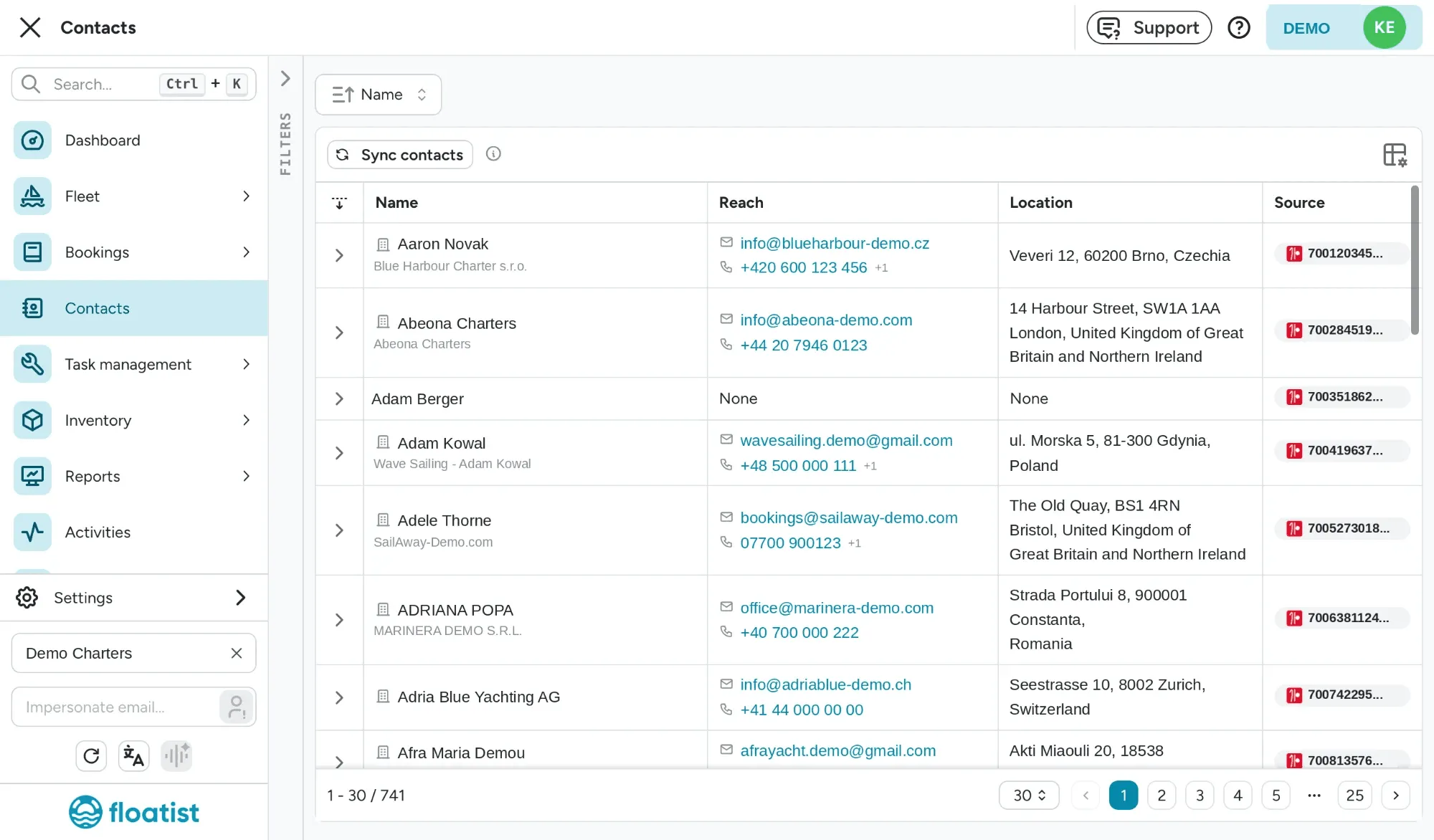
The contact list
Section titled “The contact list”Each row shows the contact’s Name, Reach (emails and phone numbers), Location and Source. The source is shown as a small MMK icon with the contact’s MMK ID, so you can find the same person in MMK straight away. Sort by Name or by when the contact was Added.
Filters cover:
- Name (person, company or agency), Email, Phone, and Source ID (the ID in MMK)
- Source and Country
- Is a company
- Duplicate: contacts where another contact has the same first and last name
- Added and Is archived
The Duplicate filter is worth a look now and then. MMK address books often hold the same person several times, with the email on one entry and the phone on another. See how Floatist picks between them.
Click a contact to open its details: Identity (name, company, VAT number), Reach (emails, mobiles, phones), Address, Source (where it came from and its ID there), Record (when it was added and last synced) and Notes.
The directory is read-only in Floatist. To change a contact that came from MMK, edit it in MMK. The change comes through on the next sync.
Syncing contacts
Section titled “Syncing contacts”Contacts sync from MMK automatically every night while the MMK integration is on. To pull in changes right away, click Sync contacts at the top of the list. Importing a whole address book can take a few minutes. If you get “Contact import failed”, an import is probably already running for your fleet, so wait for it to finish and try again.
The button only appears once an MMK integration is set up. For a new integration, the first import is part of the MMK setup.
A booking’s contact
Section titled “A booking’s contact”Every booking has a Contact section with the Name, Email and Phone number Floatist uses for that charter. You can fill it in two ways:
- Link a contact from the directory. Start typing in Search contacts… and pick the person. Their name, email and phone fill in, and the booking also gets everything else on file for them, such as company and address, for your contracts.
- Type the details on the booking. Useful for a guest who isn’t in your directory. The fields show Typed on this booking. The booking works as normal, but fields like address stay empty on contracts because there’s no contact behind them.
Overriding a detail for one booking
Section titled “Overriding a detail for one booking”When a contact is linked, each field shows From the contact. If this charter needs something different, say the guest wants the boarding pass sent to another email, click Override and type the new value. The field then shows what the contact has on file, so it’s clear what you changed. Click Reset to go back to the contact’s value.
Picking a different contact clears all overrides. Unlinking a contact keeps the current name, email and phone on the booking as typed values, so nothing is lost.
On the booking detail page the same details appear under Client contact. A small icon marks a contact that comes from your directory, with its MMK ID on hover.
Bookings synced from MMK
Section titled “Bookings synced from MMK”On a booking that’s synced from MMK, the contact is filled in for you and the Contact section is locked while Sync contact is on. To change the contact or override a detail, switch Sync contact off on the booking first. See Keeping a booking in sync.