
Creating and tracking contracts
Once your templates are set up (see Setting up contract templates), sending a contract is a matter of a few clicks from any booking.
Creating a contract on a booking
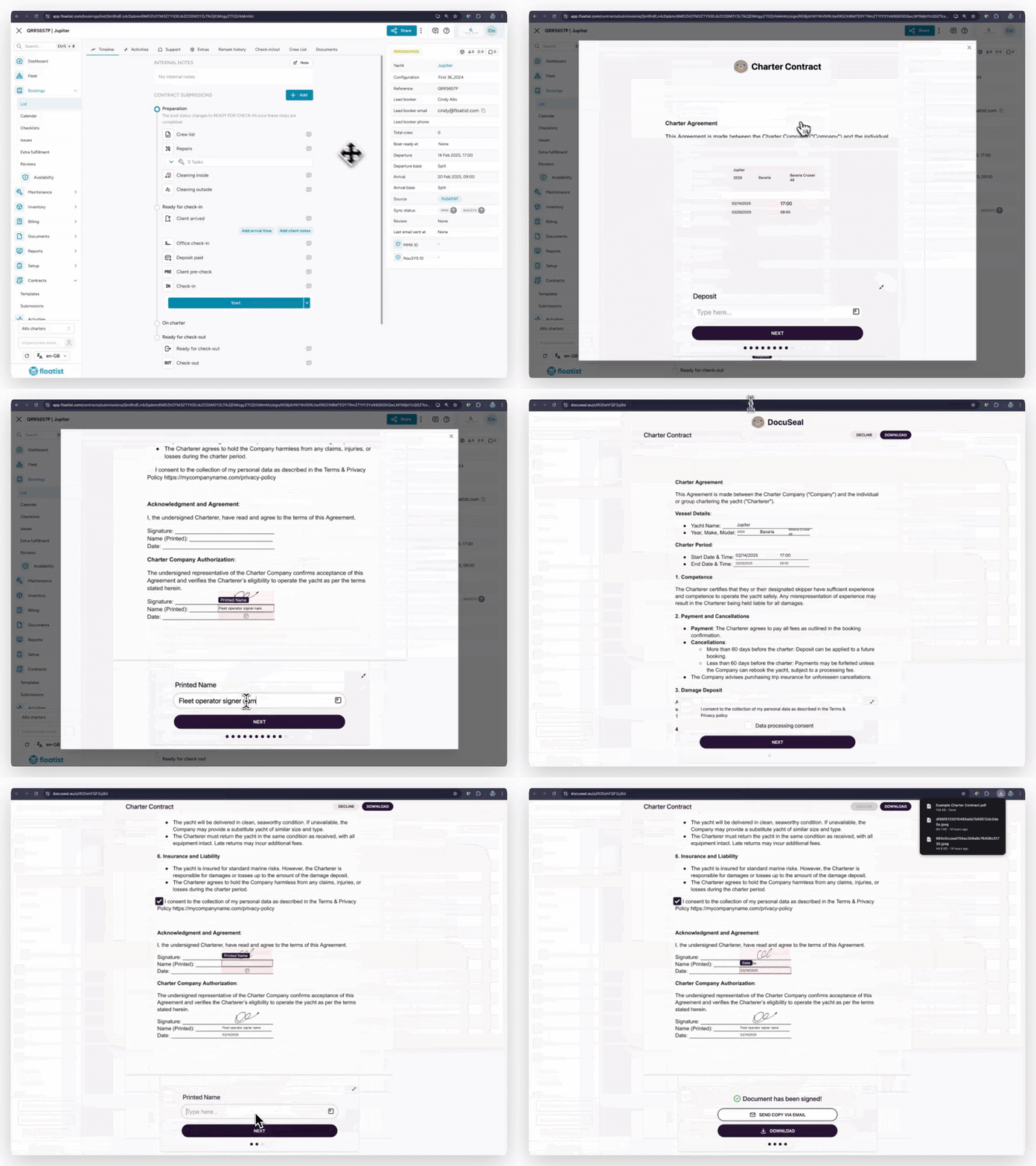
Section titled “Creating a contract on a booking”- Open the booking and go to the Timeline tab.
- In the Contract section, click Create.
- Select the contract template you want to use.
- Fill in the details for each party. Click Use client info to prefill the second party (the charterer) from the booking’s client fields. You can leave the Charter company signer field empty if you’re going to sign it directly in the Floatist app.
- Click through to create the contract.
Once created, the contract enters the signing flow. If your template preserves the signing order (see Signing order), you sign first (as the first party), and only then is the contract sent to the next party. Each subsequent party sees the previous signatures before their own turn.
Tracking status
Section titled “Tracking status”The contract’s current status is shown in the booking timeline and updates immediately as each party signs:
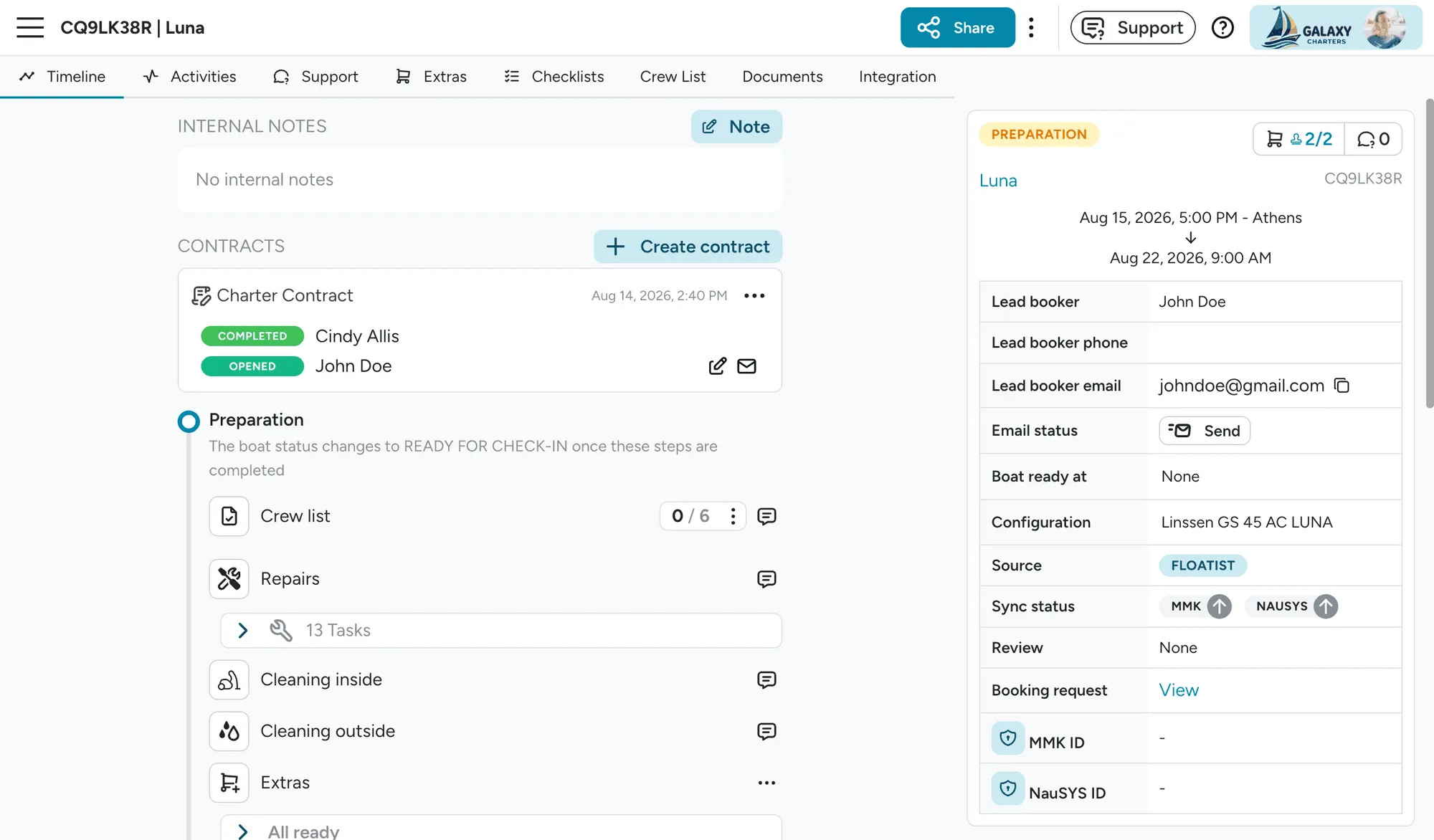
- Draft: created but not yet sent.
- Sent: waiting on the next party’s signature. You can also see whether the recipient has opened the signing email, a useful signal when you’re deciding whether to follow up or resend.
- Signed: every party has signed. The finalised PDF is stored on the booking and emailed to all parties automatically.
You can re-download the signed contract PDF from the booking’s Contract section at any time.
Resending a contract
Section titled “Resending a contract”If a party claims they didn’t receive the contract (it went to spam, the email address was mistyped, they deleted it by accident, or the tracking shows they never opened it), you can resend it from the booking without starting over. The contract stays in the same signing state; the resend just triggers a fresh email with the signing link.
Resending is safe to do multiple times if needed. No new contract is created and no signatures are lost.
Bookings with sync switched off
Section titled “Bookings with sync switched off”If Sync contact or Sync booking is
switched off on a booking, that part of the
booking stops updating from MMK or NauSYS, and contracts use whatever is on the booking in Floatist.
For example, if you override the guest’s email with Sync contact off, {client.email} prints
your override. Client fields are read from the booking’s contact, so they keep
working whatever the booking’s source.
Hiding the contract timeline stage
Section titled “Hiding the contract timeline stage”The Contract stage on the booking timeline is optional. If you handle contracts earlier in your workflow (for example, sending them at inquiry time rather than at booking time), you can hide the stage so it doesn’t clutter the timeline for bookings where it isn’t needed. Contact support@floatist.com to have it hidden.