
Setup
Defining extras
Section titled “Defining extras”To begin using extras in Floatist, you first need to specify which extras are available for your charter guests. Go to Settings > Bookings > Extra definitions and click Create in the top right corner to add your first extra.
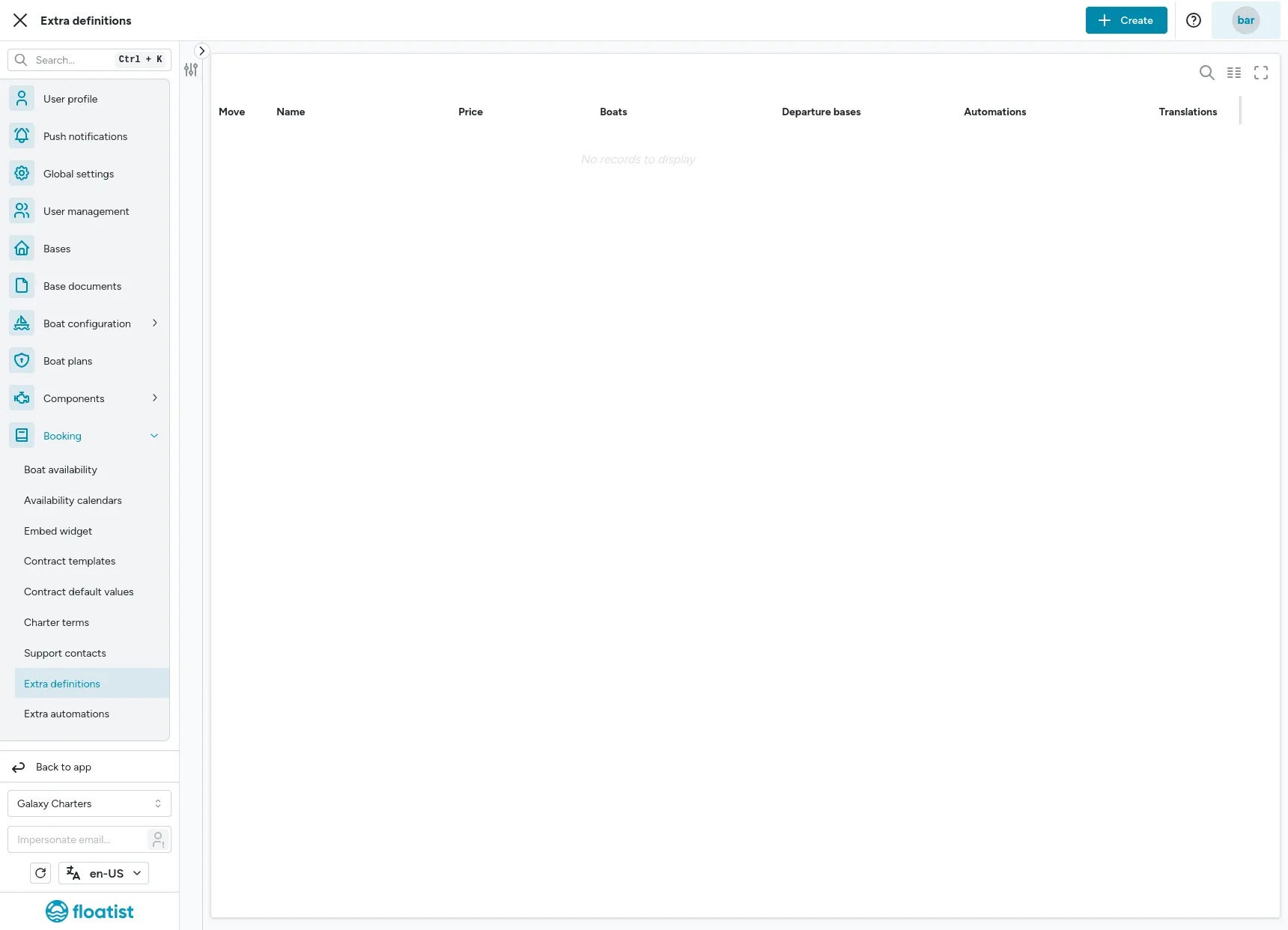
Once you click Create, a drawer will appear containing three main sections.
Basic information
Section titled “Basic information”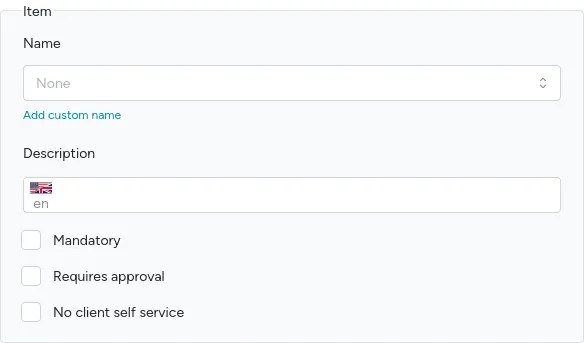
Start by setting the extra’s name and description, which will be visible to both you and your charter guests.
For the name, we strongly suggest choosing one from the predefined list. This helps Floatist provide detailed reports on extra usage and revenue, among other advantages.
The description is optional but highly recommended. Use it to briefly highlight key details about the extra. A good description gives charter guests just the information they need to decide whether to include it or not.
Next, configure these options:
- Mandatory: When enabled, Floatist automatically adds this extra to any new booking, and guests cannot remove it. Examples include Transit log or Final cleaning.
- Requires approval: If checked, a manager must approve the extra before it’s confirmed on a booking. This suits extras needing prior setup, such as hiring a skipper or arranging airport transfers, or limited items like ice makers or coffee machines to avoid overbooking. Learn more about approving or rejecting extras in Operations.
- No client self-service: When enabled, charter guests cannot add or remove this extra on their own. Only managers can add or remove it. Guests will not see the extra unless a manager includes it in their booking. Unlike mandatory extras, which are automatically added to every booking, these extras are included selectively. This option is ideal for special packages or offers reserved for specific guests and added manually by managers.
Pricing
Section titled “Pricing”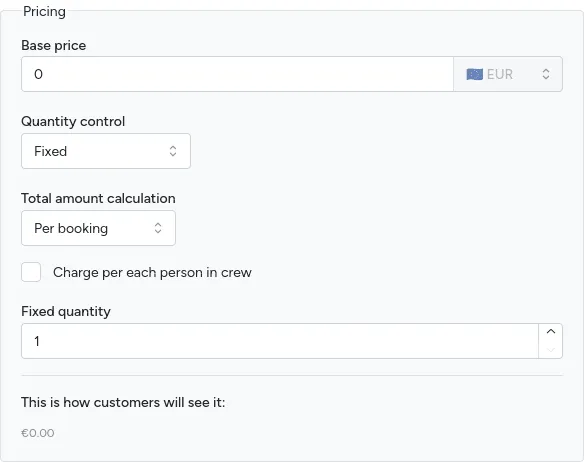
Here, you determine how the total price of an extra is calculated for a booking.
Pricing formula
Section titled “Pricing formula”The total price is calculated as:
Total price = Unit price × Quantity × Frequency × Crew
Each factor is explained below.
Unit price
Section titled “Unit price”The base price per unit of the extra. All extras use the currency configured on your account.
Quantity
Section titled “Quantity”- Fixed: Set to a specific number (usually 1). Guests cannot adjust this.
- Flexible: Lets guests select a quantity within a range you define. Great for items like extra towels, where they might want more than one.
Frequency
Section titled “Frequency”Determines how the booking duration affects the price:
-
Per booking: The price applies once for the entire booking, regardless of duration. The frequency multiplier is 1.
-
Per day: The price is multiplied by the number of charter days. Days are calculated by taking the total hours between departure and arrival, dividing by 24, and rounding up to the next whole number.
Examples:
- Jan 1, 5:00 PM → Jan 7, 9:00 AM = 7 days
- Jan 1, 9:00 AM → Jan 7, 5:00 PM = 8 days
-
Per night: The price is multiplied by the number of calendar nights (based on dates only, ignoring times).
Examples:
- Jan 1, 5:00 PM → Jan 7, 9:00 AM = 7 nights
- Jan 1, 9:00 AM → Jan 7, 5:00 PM = 7 nights
-
Per week: The price is expressed as a weekly rate, then adjusted proportionally based on the number of charter days. For example, a base price of 700/week on a 4-day booking results in a price of 400 (700 × 4/7).
Determines whether the price depends on the number of people in the crew:
- Per crew: The price applies once, regardless of crew size. The crew multiplier is 1.
- Per person: The price is multiplied by the number of crew members.
Pricing examples
Section titled “Pricing examples”Combining these factors:
- WiFi router: 50/booking, per crew, fixed quantity 1 → always 50, regardless of duration or crew size.
- Bed linen: 15/booking, per person, flexible quantity → 15 × crew size × quantity selected.
- Skipper: 700/week, per crew, fixed quantity 1 → 700 for a 7-day charter, 400 for a 4-day charter.
- Tourist tax: 1.50/night, per person, fixed quantity 1 → 1.50 × nights × crew size.
Availability
Section titled “Availability”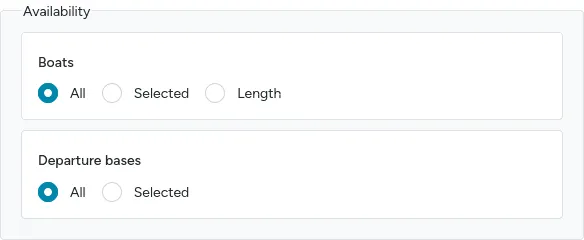
Not every extra needs to be offered for all boats. In this section, you can set conditions that determine whether an extra is available for a booking. If no filters are set, the extra is available for all bookings.
The following filters are available:
- Boats: Restrict the extra to specific boats. If boats are selected, the extra is only available for bookings on those boats.
- Departure bases: Restrict the extra to bookings departing from specific bases.
- Boat length range: Set a minimum and/or maximum boat length. The extra is only available for boats within this range. Useful for size-dependent equipment or pricing tiers.
Internationalization
Section titled “Internationalization”Extras appear to charter guests in the app in their preferred language. Because of this, the name and description must be provided in all languages Floatist supports.
By default, you’ll enter the name and description in English, and Floatist will automatically translate them into all supported languages. To tweak the translations yourself, disable automatic translation at the top of the drawer.

Updating extras
Section titled “Updating extras”Over time, you might want to adjust your extras, such as raising prices before a new season. You can edit them at Settings > Bookings > Extra definitions.
To modify an extra, click its action menu and select Edit. This opens a drawer identical to the one used for creating extras. After making your changes, click Save.
Version locking
Section titled “Version locking”When you save changes to an extra, Floatist creates a new version. This is important because the version of an extra is locked to each booking at the moment the extra is added. This means:
- New bookings will use the updated version.
- Existing bookings keep the version that was active when the extra was added, preserving the price the guest originally saw.
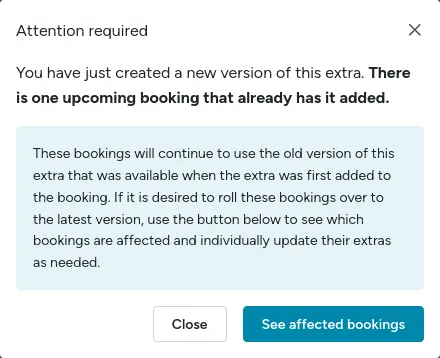
To apply the latest version of an extra to a specific booking, remove the extra from the booking and add it back.
Finding bookings with outdated extras
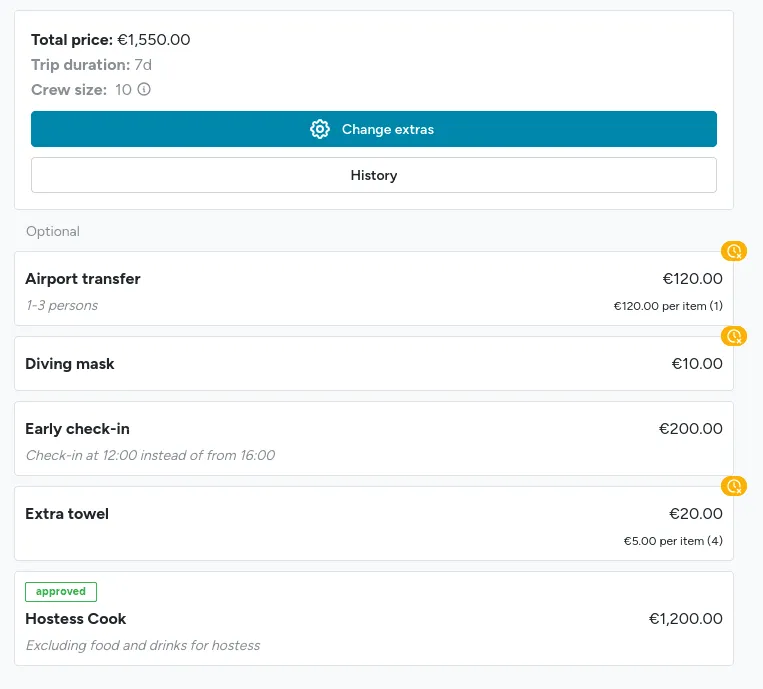
Section titled “Finding bookings with outdated extras”To find upcoming bookings that use older versions of extras, go to Bookings > List and use the Outdated extras view. Select a booking, go to the Extras tab, and any outdated extra will be marked.
Archiving extras
Section titled “Archiving extras”When an extra is no longer available, you can archive it through Settings > Bookings > Extra definitions. Click the action menu for the extra and choose Archive.
Archived extras stay visible in bookings where they were already included, preserving the accuracy of past records. For upcoming bookings with an archived extra, check each one individually and, if needed, remove it.