
Greek eCharter integration
For operators in Greece, the Greek eCharter integration covers two ways to get crew and charter data to Greek authorities: a per-booking XLSX export, and a bulk JSON export covering multiple bookings at once.
Per-booking XLSX export
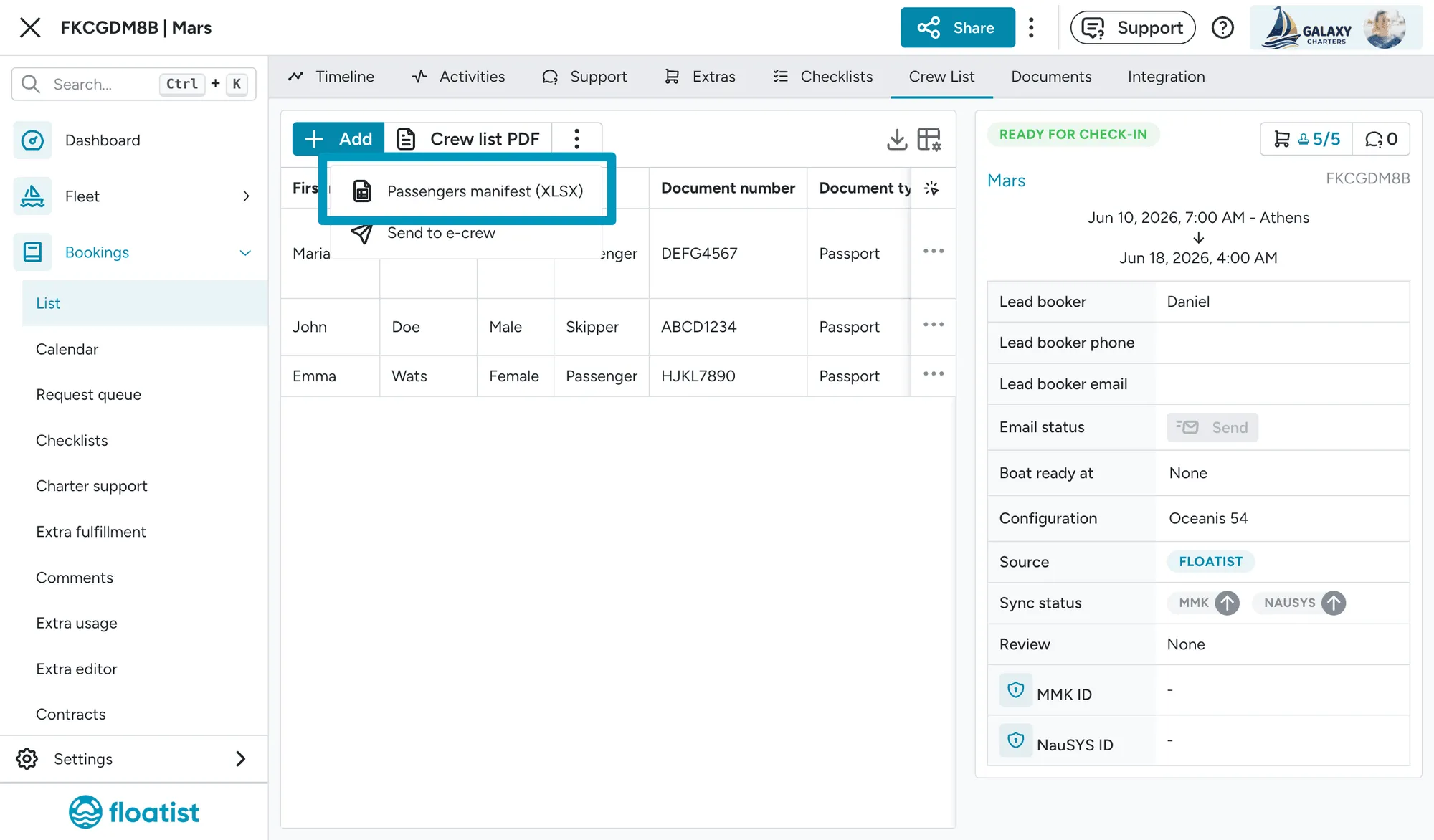
Section titled “Per-booking XLSX export”The portal requires the guests and the skipper to be submitted separately, so Floatist
downloads a single ZIP (greek-manifest-<date>-<boat>.zip) containing two XLSX files:
| File | Contents |
|---|---|
passengers.xlsx |
The charter guests. |
crew.xlsx |
The skipper. |
Both files use the identical column layout below. Upload each to its matching section in the eCharter portal.
The export includes the 8 columns the portal requires:
| Column | Content |
|---|---|
| A | Full name |
| B | Document number |
| C | Sex (M / F) |
| D | Nationality (using the portal’s nationality codes) |
| E | Date of birth (YYYY-MM-DD) |
| F | Embarkation date (auto-filled with the booking’s check-in date, YYYY-MM-DD) |
| G | Embarkation time (always 17:00) |
| H | Embarkation port (always the booking’s departure base) |
| I | (left blank) |
Use Floatist as the source of truth for the crew list, then download the XLSX from the booking’s crew-list view and upload it to the Greek eCharter portal. No double entry.
Bulk export to Greek eCharterParty (JSON)
Section titled “Bulk export to Greek eCharterParty (JSON)”Floatist can build a JSON file for the Greek eCharterParty portal’s bulk-upload format, covering multiple bookings at once. You review each booking’s readiness in Floatist, download the file, then upload it yourself on the eCharterParty portal, no manual reformatting.
1. Enable the eCharter integration
Section titled “1. Enable the eCharter integration”Go to Settings > Integrations > eCharter and check Enable eCharter bulk export.
2. Set up your company details
Section titled “2. Set up your company details”Fill in your Legal name and Tax ID (VAT) at Settings > Global settings, under Company details: the export blocks any booking until both are set. Company email, Company phone, and Address are also sent in the JSON when set.
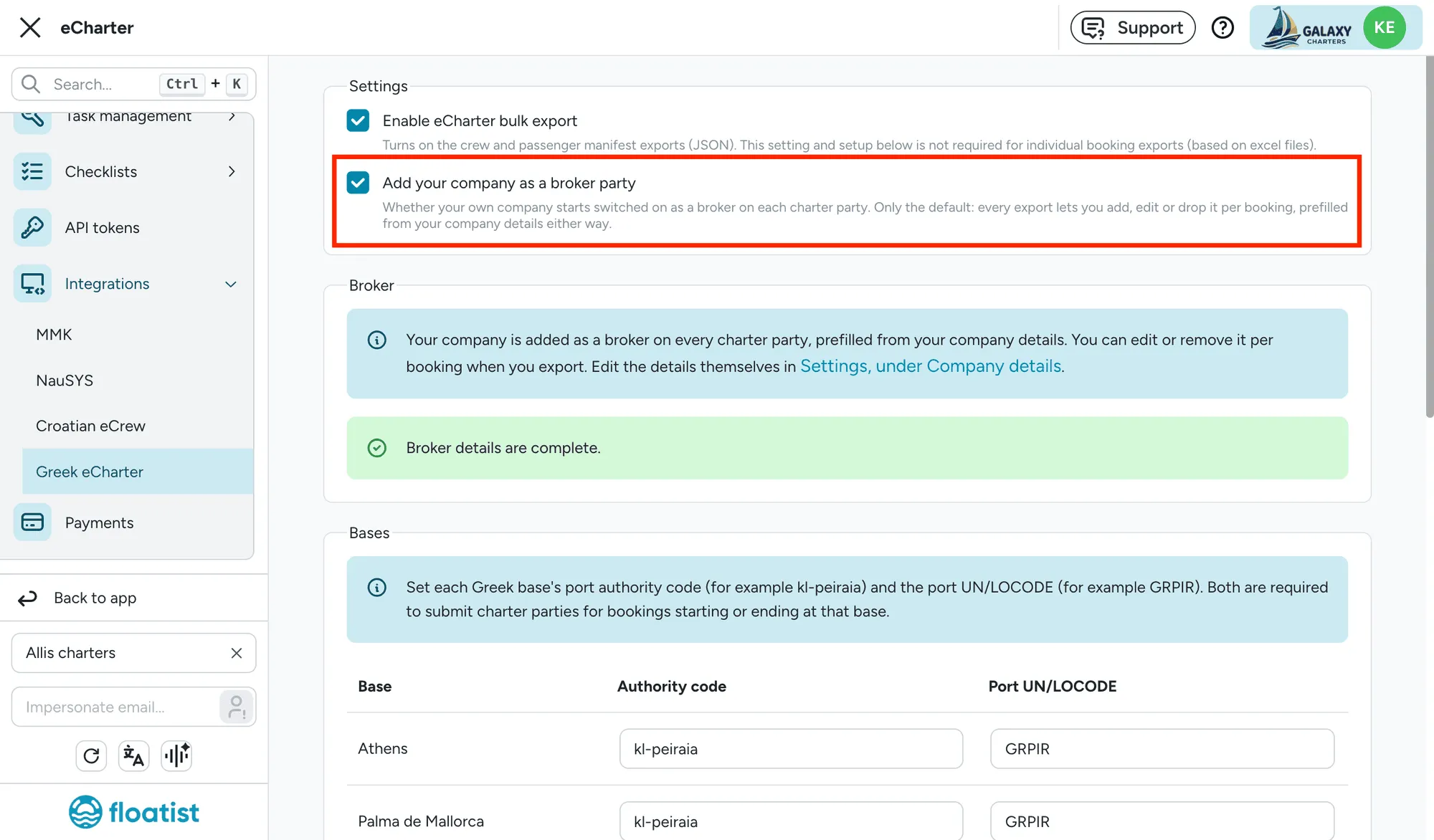
By default, your company is added to every charter party as a broker. Turn this off at Settings > Integrations > eCharter with Add your company as a broker party if you don’t want it added automatically. Either way, you can add, edit, or remove your company’s row on a booking-by-booking basis in the Charterer & broker step.
3. Set up your bases
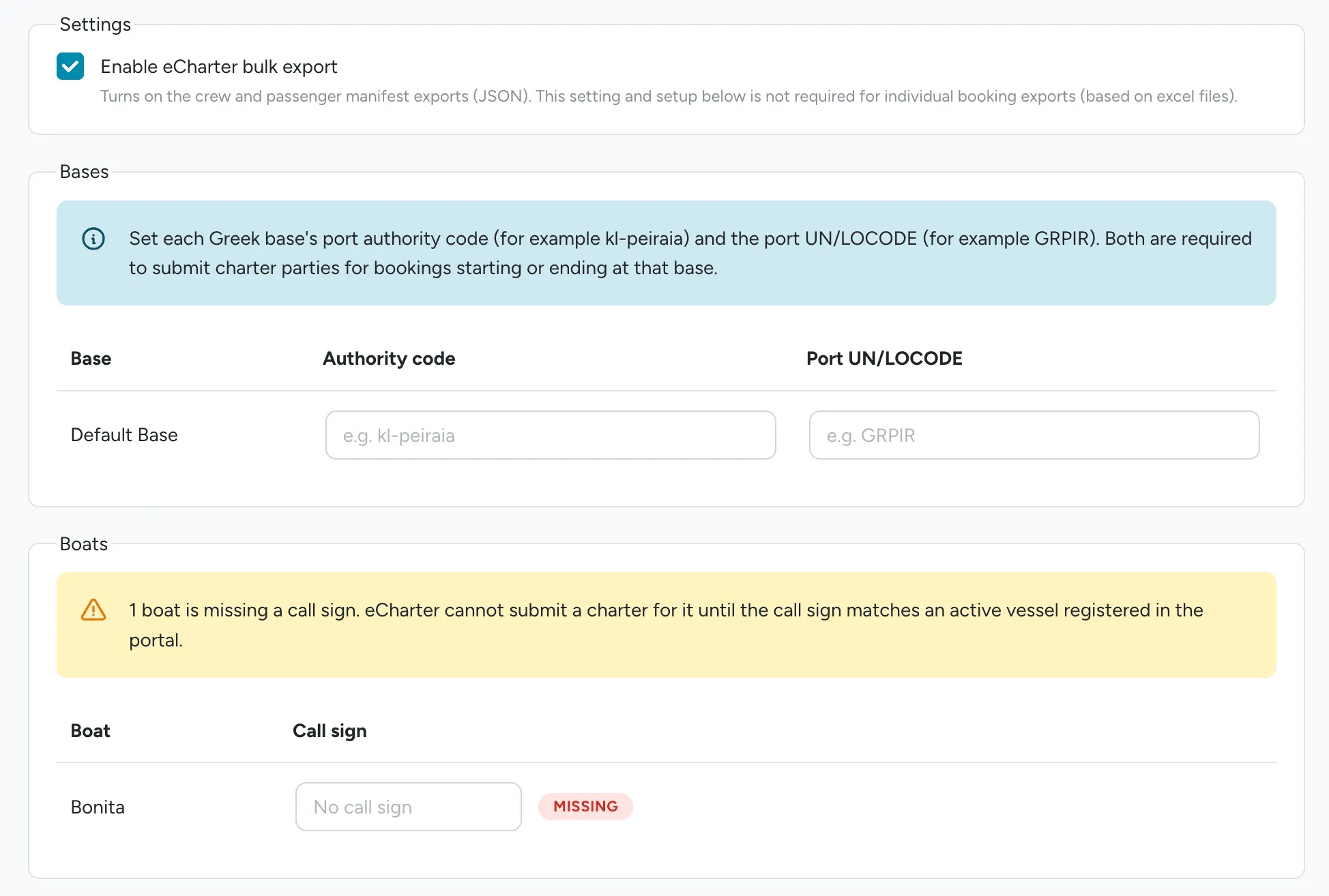
Section titled “3. Set up your bases”Back on the eCharter integration page, under Bases, fill in each Greek base’s Authority
code (the port authority’s system code, for example kl-peiraia) and Port UN/LOCODE (for
example GRPIR). Both are required for any booking starting or ending at that base.
4. Set up your boats
Section titled “4. Set up your boats”Under Boats, make sure every boat has a Call sign. eCharterParty checks the call sign against the vessel already registered in the portal, so a boat without one, or with a mismatched one, cannot be submitted.
5. Add your charter terms (optional)
Section titled “5. Add your charter terms (optional)”If you have Charter terms set at Settings > Bookings > Charter terms, the export
includes them in each charter party’s additional_terms field. Your terms are converted from rich
text to plain text automatically. A booking with no charter terms configured exports normally;
the field is simply left out.
6. Export bookings in bulk
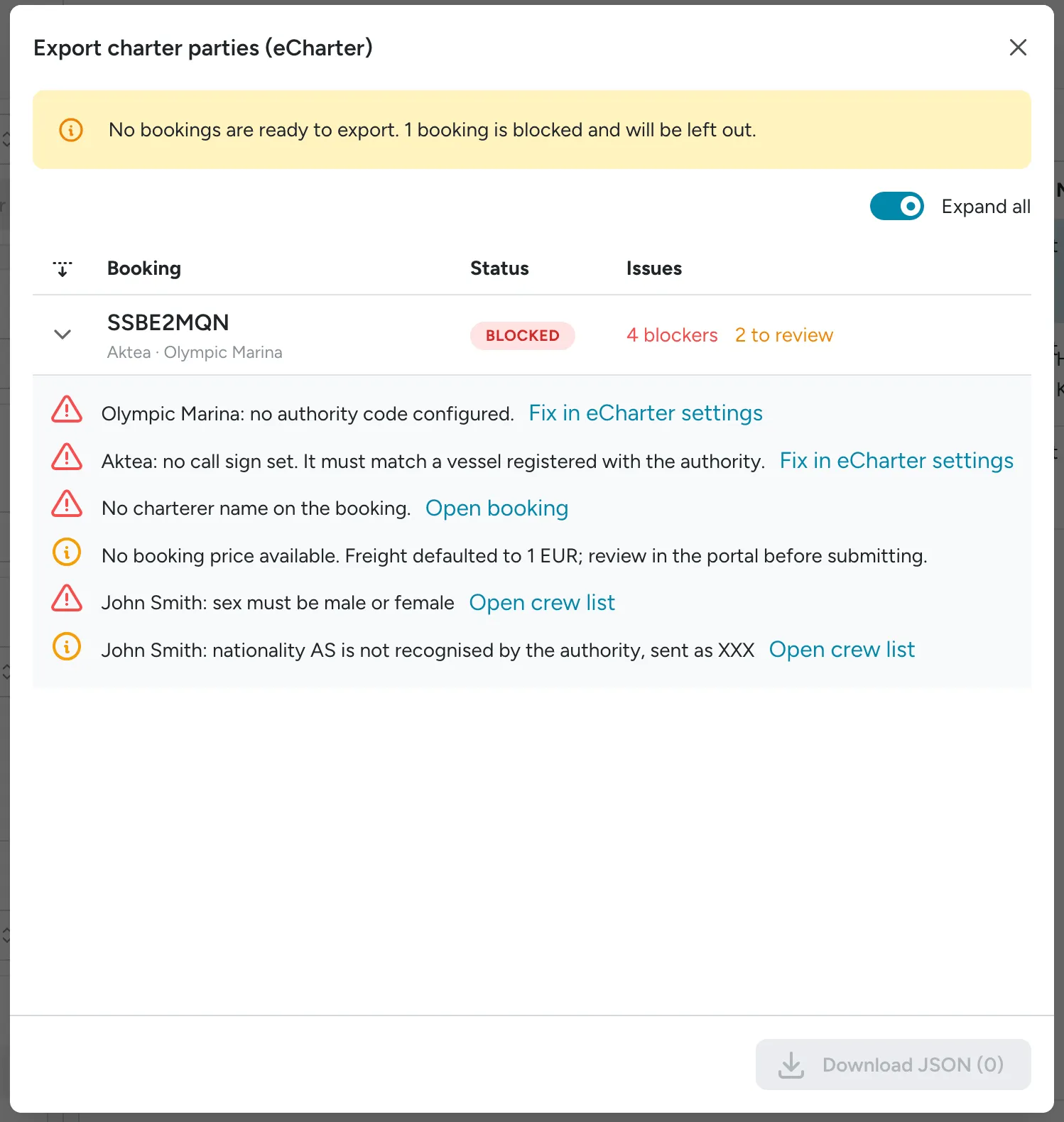
Section titled “6. Export bookings in bulk”From the bookings list, select the bookings you want to export (up to 200 at a time), open Actions, and choose eCharter export. Floatist checks each booking and shows its status:
- Ready: everything needed is present.
- Review: the export will include the booking, but something was defaulted or looks unusual, for example no invoice price was found, so the freight defaults to 1 EUR.
- Blocked: required information is missing, with a link to fix it directly in eCharter settings, the crew list, or the booking.
Expand a row to see its specific issues and jump straight to the fix.
Click Continue to move past the ones that aren’t blocked.
7. Review the charterer and broker
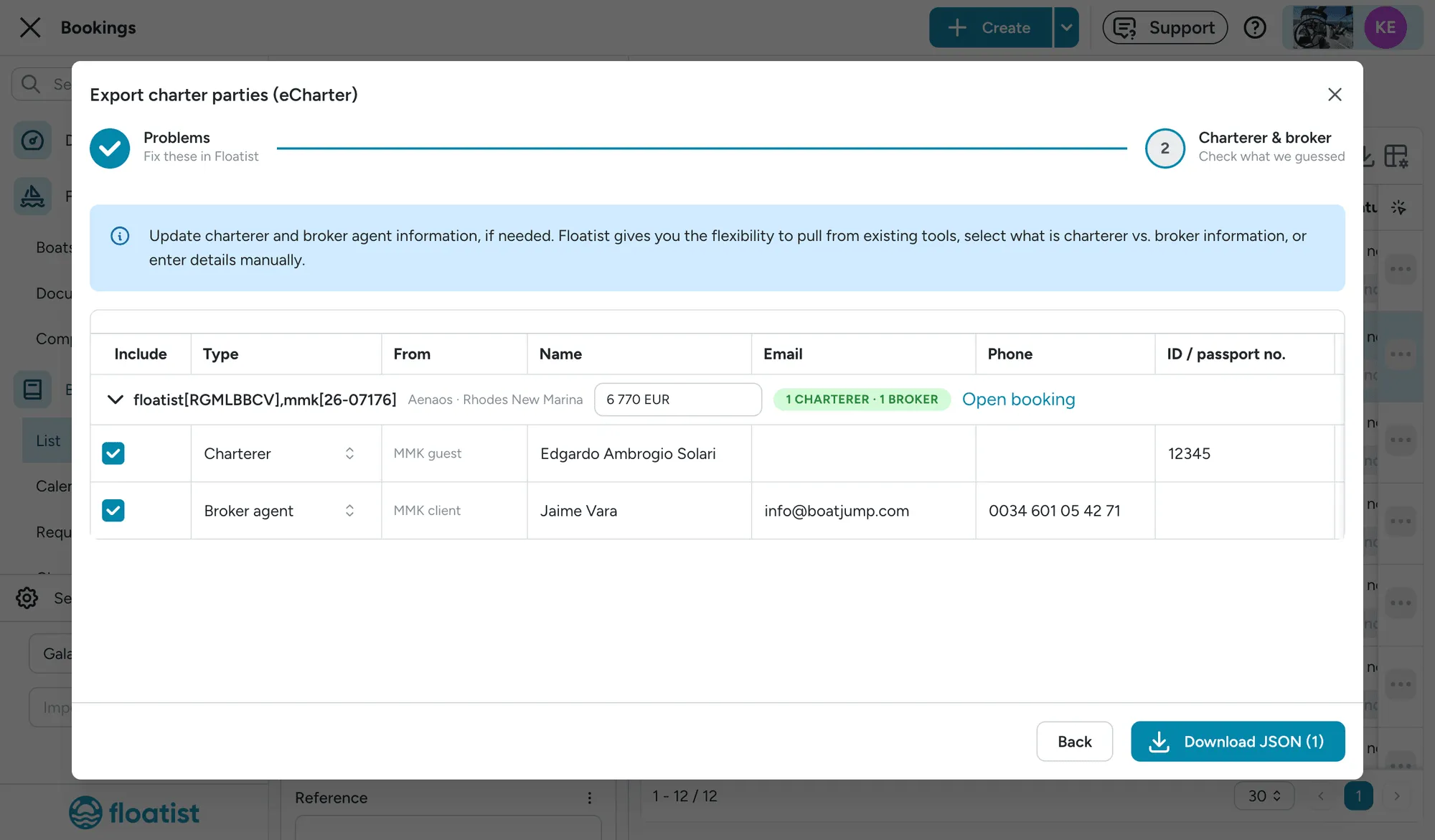
Section titled “7. Review the charterer and broker”The second step, Charterer & broker, lists one group per booking with the parties Floatist pre-filled for it: a charterer, where applicable a broker agent, and your own company if you’ve added it, so you can check what was guessed before it’s exported. Each row shows:
- Type: Charterer or Broker agent.
- From: where the row’s values came from: MMK client, MMK guest, Booking contact, Your company, or Not in Floatist when nothing could be pre-filled and it needs to be entered manually.
- Name, Email, Phone, ID / passport no., VAT / tax ID, Address, and (for a broker) Contact person.
Use Add party to add a blank row, or a row’s trash icon to remove it. Every row still there when you export gets sent, so remove any you don’t want rather than leaving it half-filled. If your company isn’t already on the booking, an Add your company button adds it, prefilled from your company details. A row with no name blocks the export.
Every booking also needs a charter price, entered in the group’s header. It’s required because the port authority needs a real price, not a default.
A booking group starts expanded if it’s missing a charterer or a price; otherwise it starts collapsed, with a summary badge (e.g. “1 charterer · 1 broker”) in its header.
8. Core Terms
Section titled “8. Core Terms”Every exported charter party sets the same Core Terms values, for all fleet operators: execution type is set to bareboat, fuel is set to charterer’s expense, and additional expenses are not on the owner. These aren’t yet configurable per operator. If your charter terms need different values, contact support.
9. Download and upload
Section titled “9. Download and upload”Click Download JSON to save charter-parties.json, containing every booking that isn’t blocked
and has a charterer and a price. Upload that file to the Greek eCharterParty portal’s
bulk-charter-party upload tool. Floatist does not submit the file on your behalf.