
Using checklists on tasks
Checklists can be attached directly to tasks for maintenance routines, cleaning routines, or any check that needs to be performed and recorded as part of a task. They use the same reusable checklists defined at Settings > Checklists > Definitions, so any checklist available for booking configurations is also available on tasks. No separate library, no flag to set.
Unlike bookings (which wrap checklists inside a configuration tied to phases), tasks reference a checklist directly.
Attaching a checklist to a task
Section titled “Attaching a checklist to a task”There are two ways a checklist gets onto a task:
1. Manually, from the task
Section titled “1. Manually, from the task”Open the task, click Checklists, and select the checklist to add. A task can have multiple checklists attached. Remove one at any time from its menu on the task.
2. Automatically, via a schedule
Section titled “2. Automatically, via a schedule”Recurring tasks (for example, a monthly cleaning or an engine-hour-based service) can have a checklist linked to the schedule at Task management > Schedules. Every time the schedule spawns a new task, the linked checklist is attached automatically.
See Task schedules for how to set up schedules.
Submitting a checklist
Section titled “Submitting a checklist”Any user with the Task CRU permission can submit a checklist on any task. No assignment is required: anyone on staff with the permission can submit. Guests cannot submit task checklists.
See Users and permissions for the role details.
Save and resume
Section titled “Save and resume”Partially-filled checklists are saved on the device the user started them on, so it’s fine to step away and come back later.
Re-opening a submitted checklist
Section titled “Re-opening a submitted checklist”If a checklist was submitted by mistake or needs changes, open it, click the three-dot menu next to the checklist, and choose Restart. The previous answers load into the editable form so you can adjust and submit again. The re-submission gets a new timestamp.
Flagged items
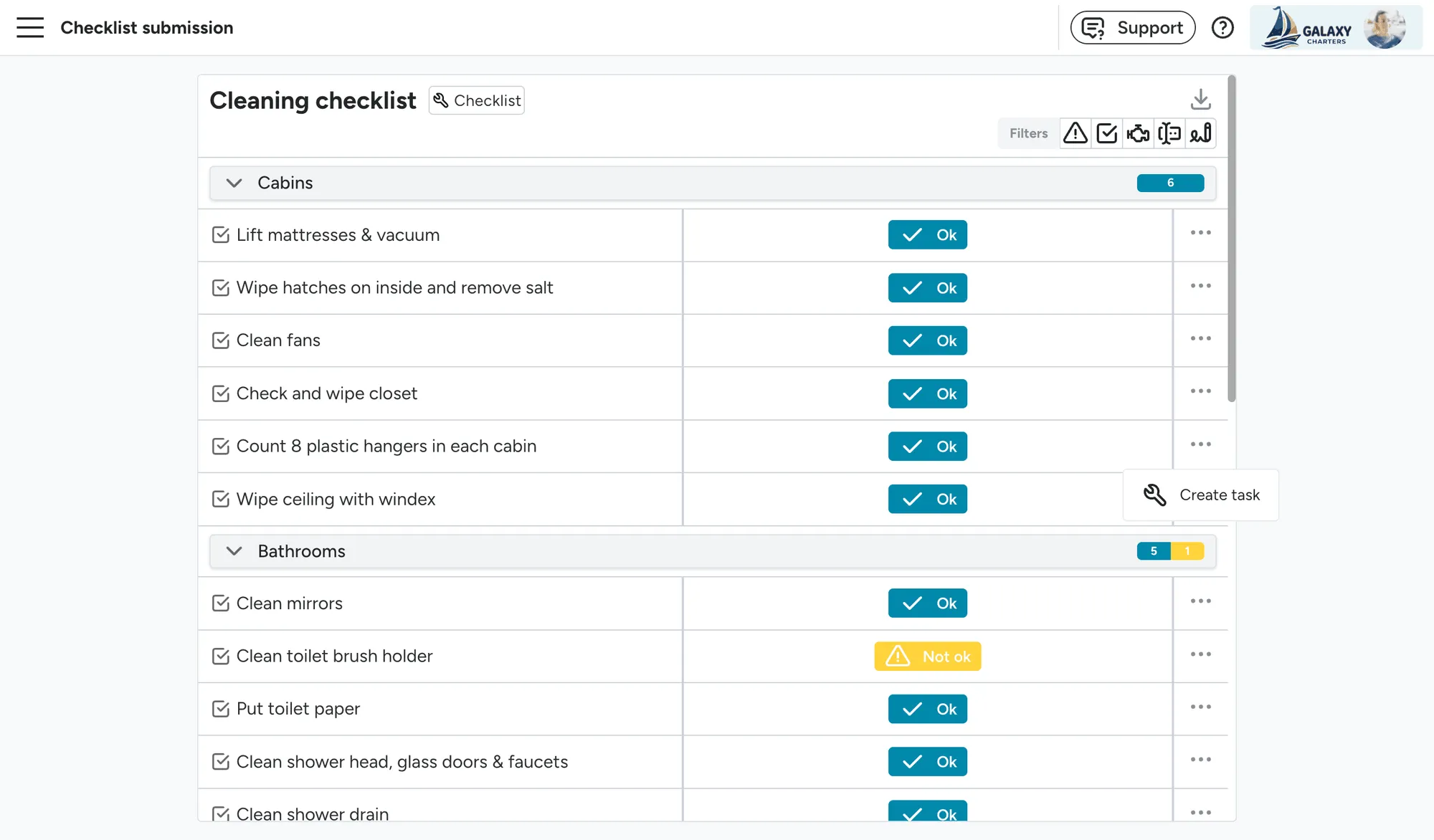
Section titled “Flagged items”Any item marked Not OK, or any item with a comment, flags the whole submission for attention.
There is no automatic follow-up: no task is spawned, no notification is sent. Reviewing flagged submissions and acting on them is a manual step. The submissions page is designed for this review: flagged rows are highlighted yellow so they’re easy to spot.
Creating follow-up tasks from flagged items
Section titled “Creating follow-up tasks from flagged items”On any individual item in a submission, the three-dot menu offers Create task. This is the recommended way to turn a flagged item into actionable work.
Viewing submissions across tasks
Section titled “Viewing submissions across tasks”Every checklist submission across the fleet lives at Task management > Checklists. This is the working surface for reviewing flagged checklists and staying on top of outstanding work.
The submissions table
Section titled “The submissions table”Each row is a checklist instance on a task. Rows with flagged items or comments are highlighted yellow. That’s the signal that something needs follow-up.
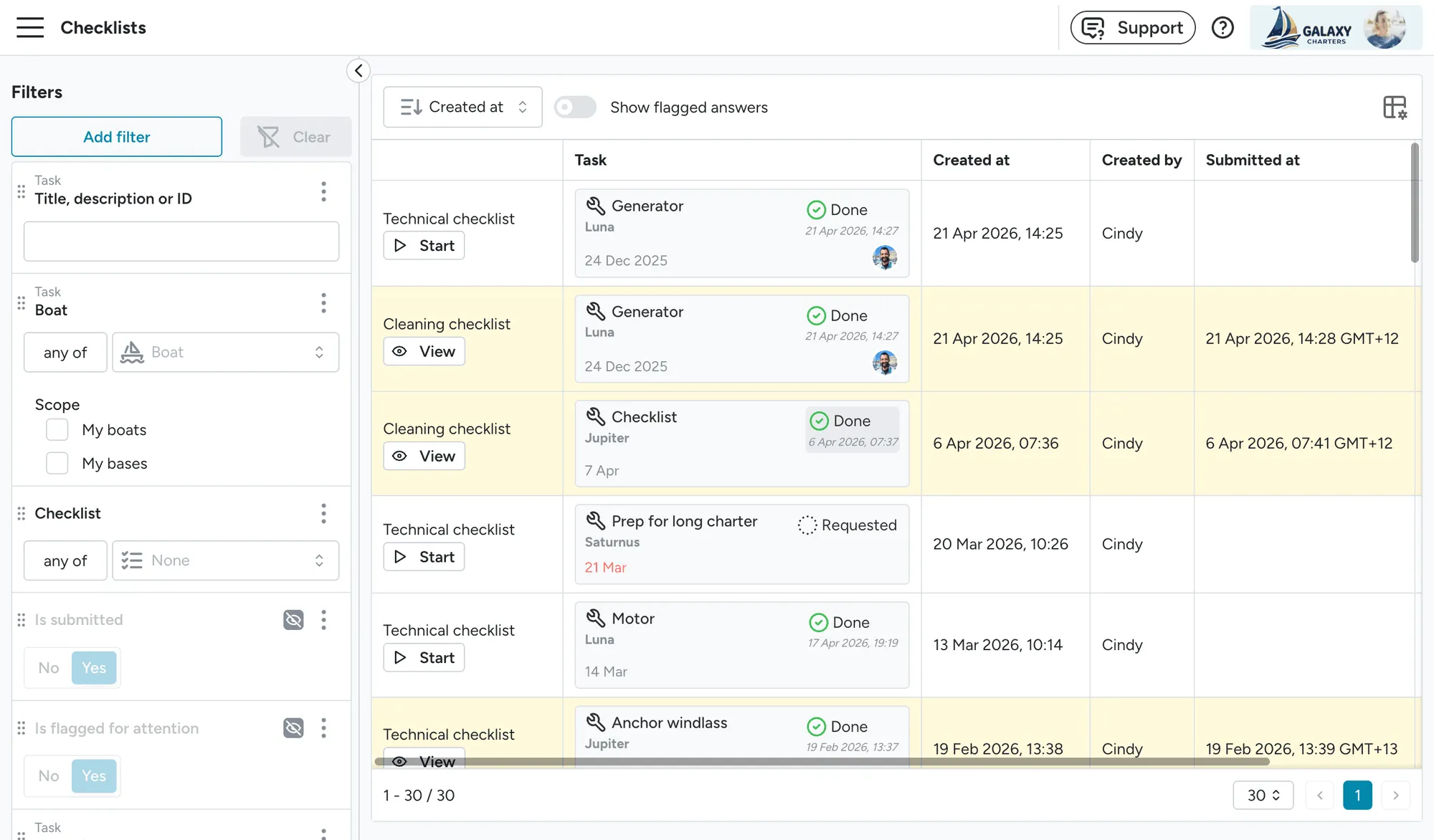
From a row you can:
- Start: begin filling in a checklist that hasn’t been submitted yet.
- View: open a submitted checklist to review answers and create follow-up tasks from flagged items.
- Click the task: jump to the originating task.
Filters
Section titled “Filters”The left panel provides filters for:
- Task: search by title, description, or ID.
- Boat and Scope (My boats / My bases): narrow to boats or bases you care about.
- Checklist: filter to a specific checklist (e.g., only Cleaning checklist).
- Is submitted: show submitted or not-yet-submitted instances.
- Is flagged for attention: show only submissions with Not OK answers or comments.
- All the regular task filters (status, assignees, dates, etc.) are also available.
A Show flagged answers toggle at the top of the table is a quick shortcut to the flagged-only view without setting the filter.
Signatures on task checklists
Section titled “Signatures on task checklists”Signature items are a booking-only feature. Checklists attached to tasks do not support signatures. See Signatures for the booking flow.
Printing a submitted checklist
Section titled “Printing a submitted checklist”Submitted checklists can be printed from the submission view. Task-checklist printing is single-language: it uses whichever language is currently set. Multi-language PDF download is currently a booking-checklist feature only.
Permissions
Section titled “Permissions”Checklist actions on tasks are gated by existing task permissions, with no separate checklist role:
- Task CRU: attach, submit, re-open, and delete checklists on tasks and schedules.
- Task admin: define new checklists and reusable sections at Settings > Checklists > Definitions.
See Users and permissions for the full matrix.