User management
Roles and permissions
Section titled “Roles and permissions”We have implemented the following fundamental roles:
- Admin
- Booking manager
- Base manager
- Technician
- Cleaner
Each of the roles has access to a set of permissions, shown in the table below. The different permissions and what they can do are listed below the table. This overview will be kept up to date as we add more permissions or roles.
It is important to note that the Permissions Framework is a large and complex project, and it will evolve over time so that it works for everyone. Your feedback is greatly appreciated so we can make sure it fits your needs.
All current users and roles have not changed, so please make sure to go into your user management page at Settings > User management to assign the appropriate roles.
If you notice something is not right, for example if someone cannot perform an action that they should be able to perform, please let us know and we will fix it right away. Also, if this happens you can always assign a role with more permissions to that user to solve it.
Roles and permissions matrix
Section titled “Roles and permissions matrix”Permissions explained
Section titled “Permissions explained”-
Fleet operator user: Basic permission for all the members of a fleet operator. Allows users to perform, among many others, the following actions:
- Read boat, bookings, manufacturers, user profile information, filters and all other basic information you need for the app to function
- Add boat component hours
- Push notifications for booking states
-
Admin:
- User management: Create/Edit/Delete users, change roles.
- Edit terms of service and cancellation policy
- Edit global settings: Fleet operator name, logo, currency
- Base management: Create/Edit/Delete
- Read system activities
-
Booking admin: Create/Edit/Delete bookings
-
Booking state office:
- Allows users to set/unset booking’s office related states and/or operations (office check-in, deposit paid…)
- Are the only users that can mark a pre-check-in, check-in, check-out as submitted or revert the submission without doing the real checklist submission
-
Booking state crew
- Read submitted crew lists. Create/Edit/Delete members from it.
- Update booking’s state denoting that the crew list has been submitted or not
-
Booking state clean
- Update booking’s cleaning inside/outside + cleaning notes
-
Booking state diver
- Update booking’s diver check + diver notes
-
Booking state common
- Check-in/out functionality (Submit/View checklist)
- Set booking’s ETA
- Set booking’s repair state
-
Booking share link: Allows users to retrieve the booking share link. Take into account that the link gives access (indirectly) to the crew list
-
Booking issues
- Read/Create/Edit charter issues
- Push notifications for charter issues
-
Booking reviews: Read booking reviews
-
Booking sync: Switch Sync contact and Sync booking on or off on MMK and NauSYS bookings. See Syncing with an external source.
-
Booking calendar integrations: See the Integrations view in the booking calendar, with each boat’s MMK schedule under its Floatist bookings. See Seeing MMK schedule in the booking calendar.
-
Contacts: See and manage the Contacts directory. See Contacts.
-
Boat admin: Create/Edit/Delete boats, boat configurations, boat documents, base documents, boat components, boat logs, mmk configuration, base support contacts…
-
Task CRU: Give access to the task module.
- Read/Create/Update tasks, and delete the ones created by the user itself.
- Push notifications for tasks
- Create/Delete/Submit checklists on a task or a schedule
-
Task admin:
- Create/Edit labels, workflow states, project template
- Delete any task
- View Reports
- Define checklists and reusable sections in Checklist Definitions
-
Activity feed: Gives read access to the activity feed
-
Extra definitions: Create/Edit extra definitions
-
Extra requests: Add/Cancel extras on bookings
-
Extra approvals:
- Approve or reject extras on bookings
- Push notifications for extras
-
Extra fulfillments: Mark extras as fulfilled or not on bookings
Assigning boats and bases to team members
Section titled “Assigning boats and bases to team members”In order to keep your staff’s view uncluttered, you can assign a base or one or more boats to team members.
By doing this, their view of bookings and tasks will automatically get filtered by the assigned boats or bases.
Assigning an entire base will override any assigned boats. This means that if boat Jupiter is part of the base, assigning the boat will have no effect, if the entire base is also assigned. If you want to filter a team member’s view to specific boats, you should only assign those boats, and not the entire base.
How To Assign Boats and Bases
Section titled “How To Assign Boats and Bases”Navigate to Settings > User management.
There you will see your user accounts table where you can assign bases and boats.
Note that assigned bases have priority over assigned boats. This means that if someone is assigned to 5 boats, but also the entire base, that person will still receive all notifications for the entire base.
Assignment guidelines
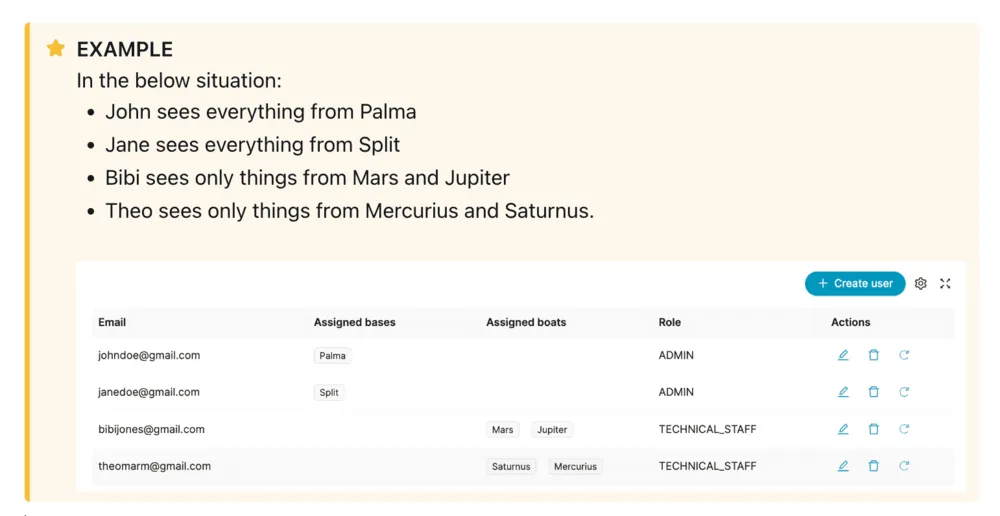
Section titled “Assignment guidelines”- If a user is not assigned to anything, this user will see nothing. Push notifications are the exception: a user with no assignments gets them for the whole fleet. See Which boats and bases you hear about.
- If a user is assigned to base Palma de Mallorca only, this user will see all boats, bookings and tasks from this base
- If a user is assigned to base Palma de Mallorca AND boats Saturnus and Mercurius, this user will still see all boats, bookings and tasks from this base, so it’s the same outcome as the situation above.
- If a user is assigned to no base and boats Saturnus and Mercurius, this user will see all boats, bookings and tasks only from these boats.
- This means if you want to assign a specific few boats to a staff member, you probably need to assign boats.
- Base assignment is useful if you have multiple bases and multiple base managers whose view you don’t want to clutter.
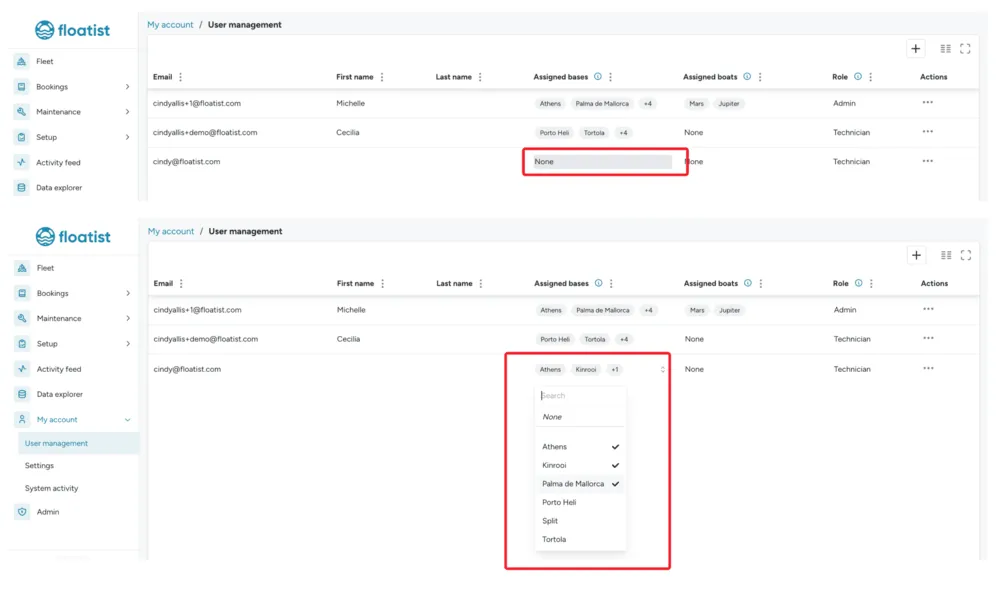
How to assign boats and bases: in the table, in the row of the user you want to edit, click on the cell in the correct column, either Assigned bases or Assigned boats, to have the dropdown appear. You can then select the correct ones per user.
By default, each new user is assigned to all of your bases.
Giving access to a boat owner
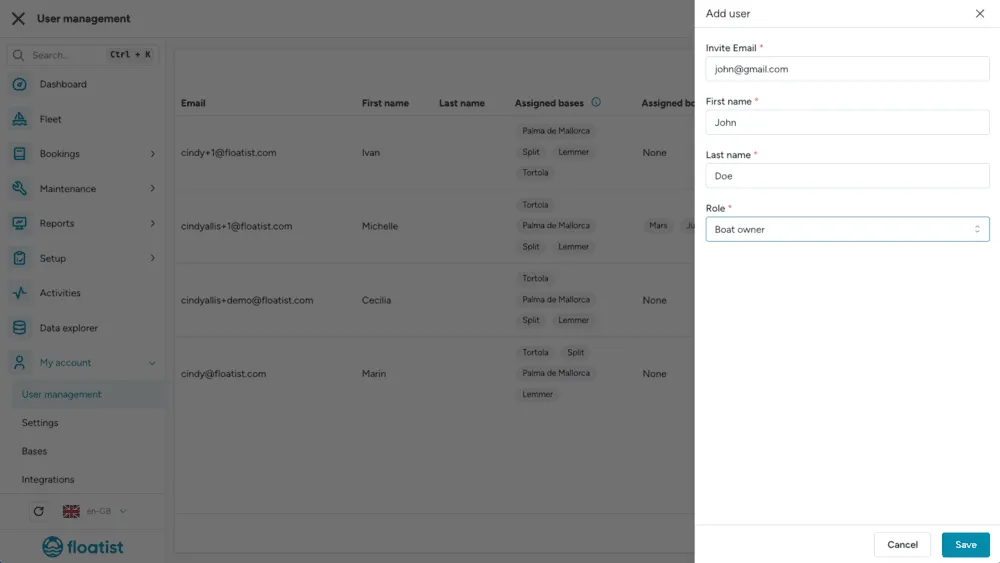
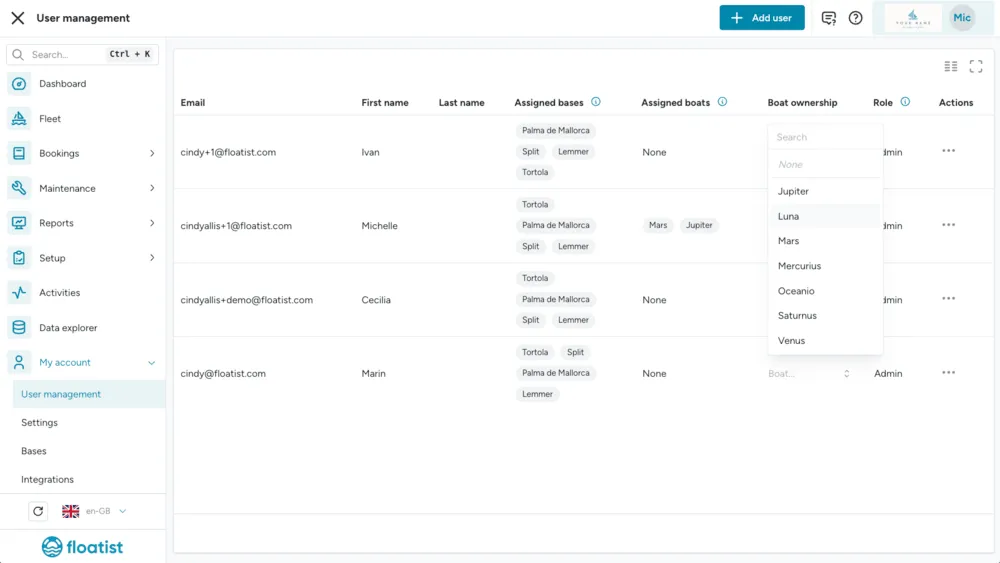
Section titled “Giving access to a boat owner”The Boat Owner role will give an external boat owner access to the calendar of their yacht. You can set it up for them by following the steps:
- Invite the boat owner from the Settings > User management page like you would invite any other user in their team
- Select as role ‘Boat owner’
- After inviting them, assign the correct boat(s) in the Boat ownership column