
Boat availability
Before boats appear on your marketing website, you need to configure when they can be booked, how long each booking can be, and what windows check-in and check-out fall into. All of this lives in availability calendars at Settings > Marketing > Availability and pricing.
If your fleet takes both multiday charters and single-day day-charter bookings, both models live inside the same calendar.
Pricing (nightly rates that apply to availability windows) is covered on a separate page: Boat pricing.
How calendars work
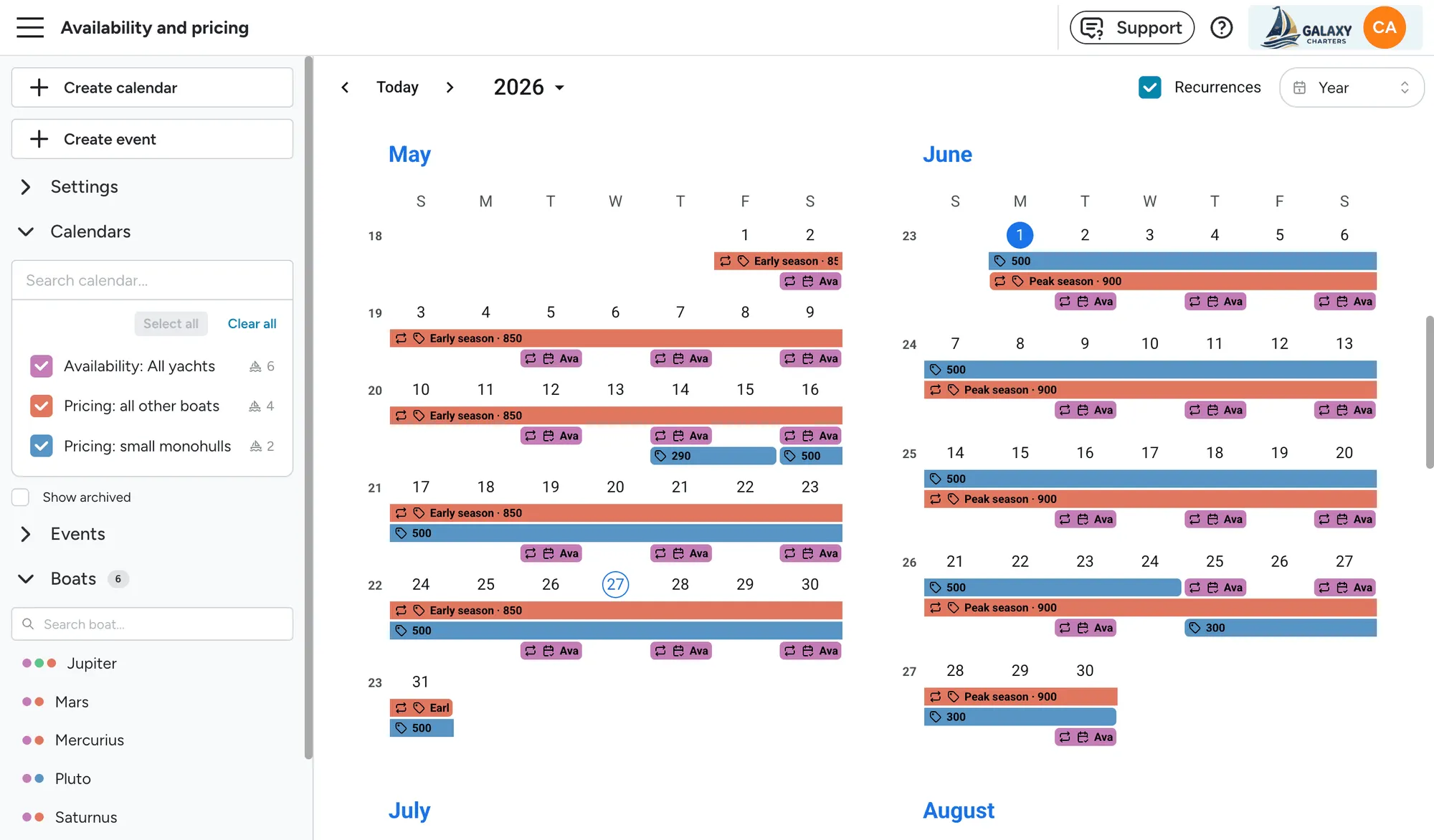
Section titled “How calendars work”A calendar is a named container for rules that describe what guests can do on a given date. A freshly created calendar is empty. You bring it to life by adding events to it.
There are five kinds of events, split across two booking models:
| Booking model | Event type | Purpose |
|---|---|---|
| Multiday | Availability | “Between these dates, guests can check in and/or check out.” |
| Multiday | Block | “These dates are unavailable.” |
| Multiday | Price | “Between these dates, the nightly rate is X.” See Boat pricing. |
| Day charter | Availability | “On these days, slots run from A to B.” |
| Day charter | Block | “These slots cannot be booked.” |
You build a calendar up by layering events:
- An Availability event opens a window.
- A Block event punches holes in it.
- A Price event tags the window with a rate (covered on the Boat pricing page).
You can have multiple calendars (e.g. Summer 2026, Winter 2026/27), and each can be assigned to specific boats or left unassigned to apply across the whole fleet.
Reading the calendar
Section titled “Reading the calendar”Each event on the calendar is shown as a bar with one or more icons that indicate what the event represents at a glance:
| Icon | Meaning |
|---|---|
| Multiday | |
| Day charter | |
| Block | |
| Price |
The exact time of a slot is not shown in the bar label. The calendar grid already shows it, so it stays out of the label to keep things clean.
Creating a calendar
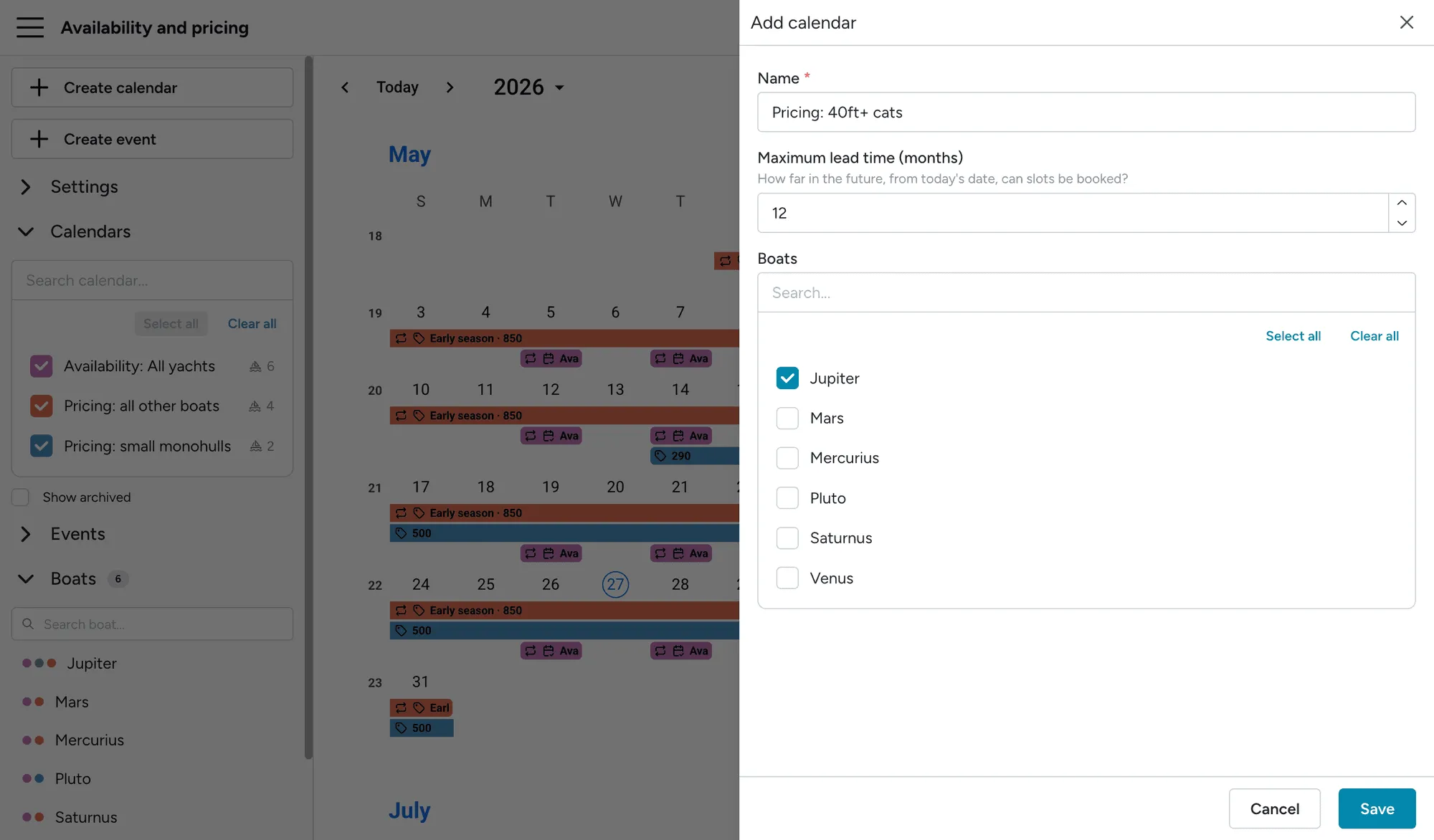
Section titled “Creating a calendar”Click Create calendar in the sidebar (or use the empty-state button if you have no calendars yet). The Add calendar drawer opens with these fields:
| Field | Required | Notes |
|---|---|---|
| Name | Yes | Up to 128 characters. Pick something descriptive like Summer 2026 Standard fleet. |
| Maximum lead time (months) | Yes | How far in the future, from today’s date, slots can be booked. Defaults to 24, minimum 1. |
| Boats | No | Multi-select of fleet boats. Leave empty to apply across the whole fleet, or pick specific boats. |
Click Add calendar to save. The new calendar appears in the Calendars section of the sidebar and is selected by default.
Adding events
Section titled “Adding events”Click Create event in the sidebar, or click and drag in the calendar area to draw a new event. A modal opens to pick the event type. The options shown depend on context:
- Dragging across whole days shows only Multiday options.
- Dragging across hours within a day shows only Day charter options.
- Clicking the sidebar button shows both groups.
Multiday: Availability event
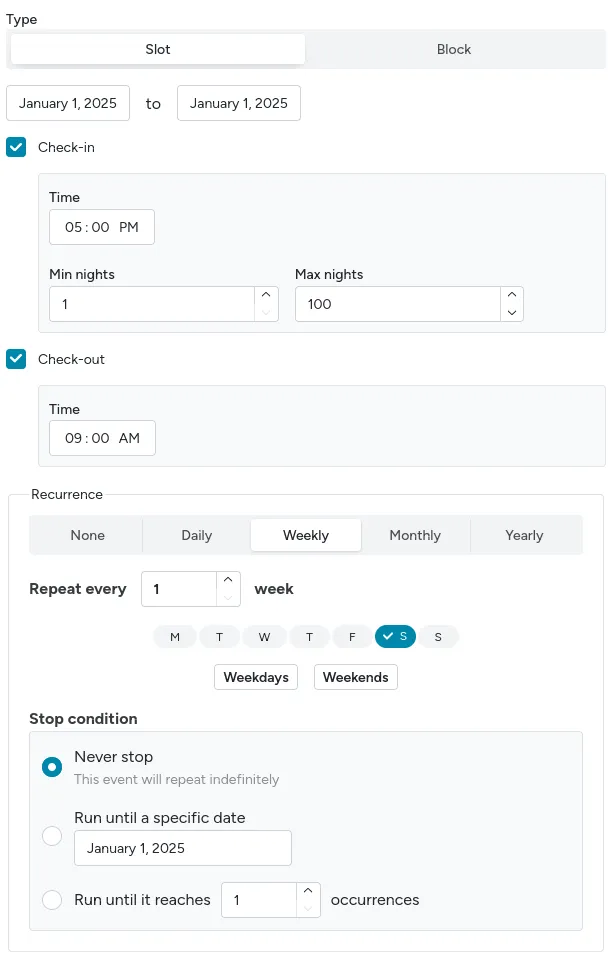
Section titled “Multiday: Availability event”The bread-and-butter event for multiday charters. Defines a window during which guests can begin a stay (check-in), end one (check-out), or both.
| Field | Notes |
|---|---|
| Start / End date | Inclusive date range. The end picker auto-disables days before the start. |
| Check-in | If checked, guests can start a booking inside this window. |
| Time | Earliest time of day guests can check in (e.g. 16:00). |
| Min nights | Minimum stay length for a booking that starts in this window. |
| Max nights | Maximum stay length. Must be ≥ Min nights. |
| Check-out | If checked, guests can end a booking inside this window. |
| Time | Latest time of day for check-out (e.g. 10:00). |
| Recurrence | Optional. See Recurrence rules. |
If you uncheck either Check-in or Check-out, the corresponding time and nights inputs are visually disabled so you can see they won’t apply.
Recipe: weekly Saturday-to-Saturday charter:
- Create an Availability event: Start = first Saturday of the season, End = last Saturday.
- Check Check-in, Time
16:00, Min nights7, Max nights7. - Check Check-out, Time
10:00. - Add a Weekly recurrence on Saturday, ending on the last Saturday.
Multiday: Block event
Section titled “Multiday: Block event”A Block event subtracts dates from your availability. Use it for owner holidays, dry-dock periods, maintenance, etc.
| Field | Notes |
|---|---|
| Start / End | Inclusive date range. |
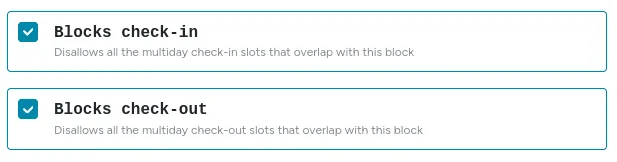
| Blocks check-in | If checked, guests cannot start a booking on any blocked date. |
| Blocks check-out | If checked, guests cannot end a booking on any blocked date. |
| Recurrence | Optional. |
You can block only check-ins, only check-outs, or both. Blocking both is the most common: the date is fully off-limits.
Multiday: Price event
Section titled “Multiday: Price event”Price events attach nightly rates to date ranges. They’re documented in detail on the Boat pricing page, along with the Booking Preview tool you can use to validate your pricing.
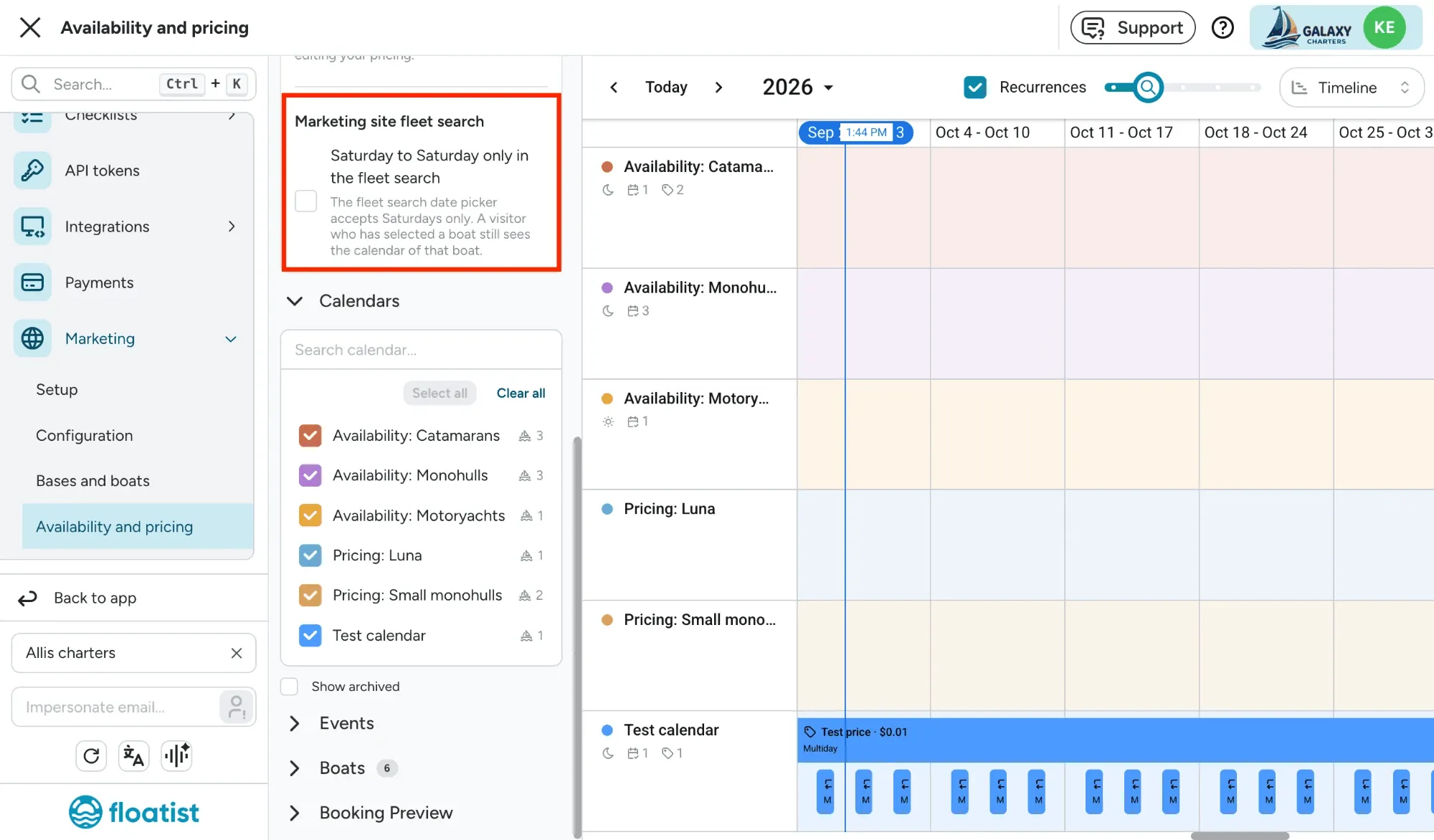
Saturday-to-Saturday fleet search
Section titled “Saturday-to-Saturday fleet search”If your fleet only sells Saturday-to-Saturday charters, you can make the marketing site’s fleet search say so up front. In the Settings panel on the Settings > Marketing > Availability and pricing page, under Marketing site fleet search, turn on Saturday to Saturday only in the fleet search.
Recurrence rules
Section titled “Recurrence rules”Every event type supports a Recurrence section based on the iCalendar RRULE standard. Without recurrence, you’d need to create dozens of nearly identical events; with it, one event can represent an entire season’s worth of weekly slots.
| Frequency | Extra controls |
|---|---|
| None | Single-occurrence event. |
| Daily | Repeat every N days. |
| Weekly | Repeat every N weeks; pick one or more weekdays (Mon–Sun). |
| Monthly | Two sub-modes: absolute day (“the 15th of every month”) or weekday (“the second Tuesday of every month”). |
| Yearly | Pick the month and either an absolute day or weekday-of-month pattern. |
Every frequency has a Stop condition:
- None: runs forever (rarely what you want).
- End date: stops after a specific date. Must be on or after the event’s start.
- After N occurrences: stops after a count.
The form renders a human-readable summary like “Every 2 weeks on Monday and Friday, until 31 Oct 2026” so you can sanity-check the rule before saving.
Managing calendars
Section titled “Managing calendars”Each calendar row in the sidebar has a three-dot menu:
- Edit calendar: opens the Update calendar drawer (same fields as Add).
- Archive: hides the calendar from default views and locks it from edits. Existing events are preserved but cannot be modified.
- Unarchive: restores an archived calendar.
A Show archived checkbox below the list toggles visibility of archived calendars. They’re unchecked by default so events in them don’t clutter the calendar view.
Filtering the calendar view
Section titled “Filtering the calendar view”You can narrow what appears in the main calendar without modifying any data:
- Calendars checkboxes: show events from selected calendars only.
- Events checkboxes: show only specific event types (e.g. just Prices and Blocks). Grouped by Multiday and Day charter.
- Boats section: clicking a boat row filters the Calendars list to those assigned to that boat. Each boat row also has an Assign calendars button (the gear icon) for managing which calendars apply to it. See Assigning calendars to your fleet.
You can switch the calendar between four views: Month, Week, Year, and Timeline (a zoomable, Gantt-style view with one row per calendar). Your chosen view, selected event types, and selected calendars are remembered across page navigation.
Assigning calendars to your fleet
Section titled “Assigning calendars to your fleet”Calendars only take effect on a boat once they’re assigned to it. You do this from the Boats section of the sidebar on the same Settings > Marketing > Availability and pricing page:
- Each boat row has an Assign calendars button (the gear icon). Click it to tick the calendars that should apply to that boat.
- Every boat can have zero, one, or multiple calendars. When a boat has several, their events are merged: Availability windows combine, and Blocks from any calendar still apply.
- Clicking a boat row filters the calendar view to its assigned calendars, so you can see its merged picture at a glance.
Exposing boats on your marketing site
Section titled “Exposing boats on your marketing site”Whether a boat (or base) appears on your public site is controlled at Settings > Marketing > Bases and boats:
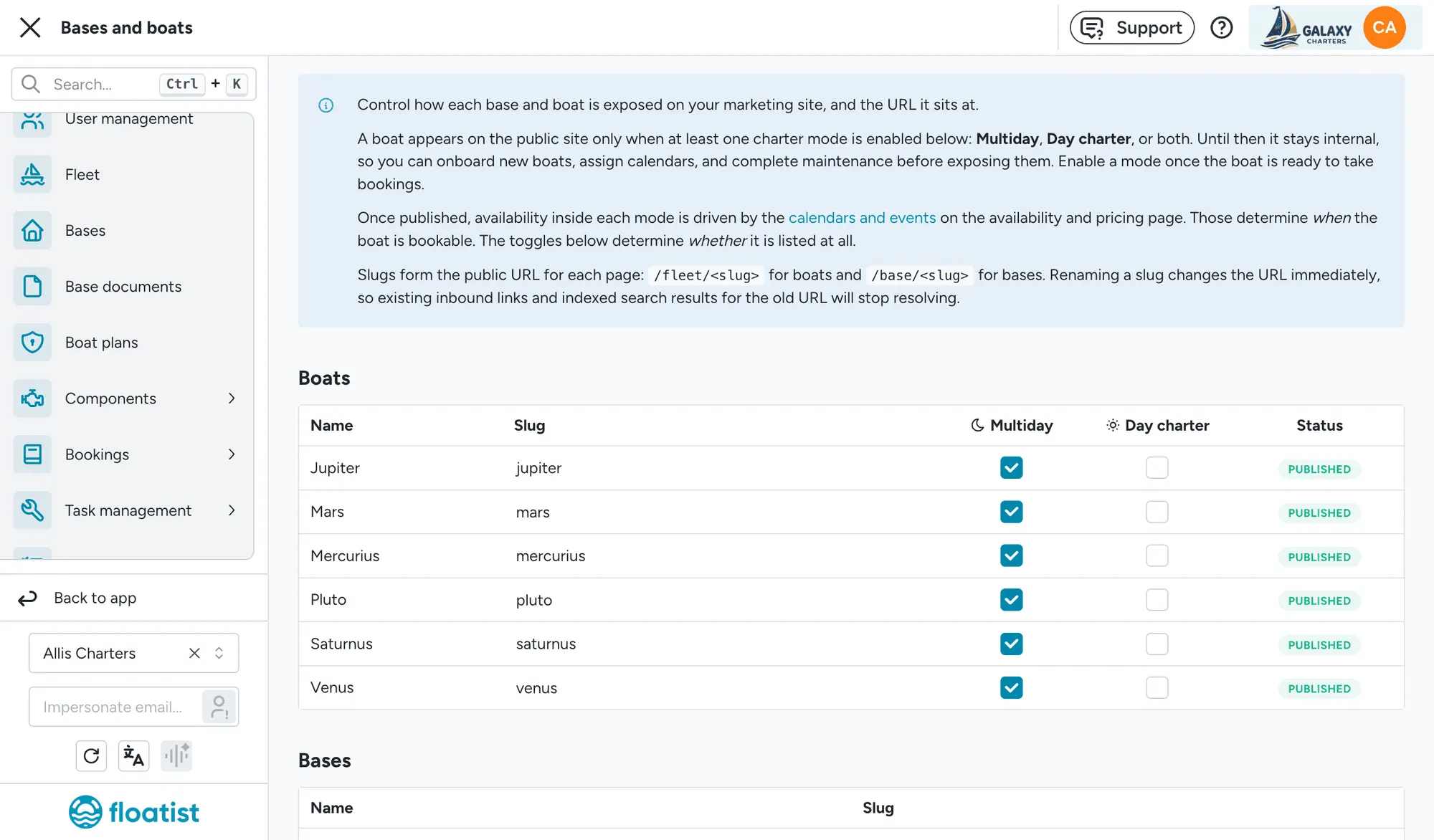
- A boat appears on the public site only when at least one charter mode is enabled: Multiday (), Day charter (), or both. Until then it stays internal, which is handy while you onboard a boat, assign its calendars, and finish maintenance before it goes live.
- Once a mode is enabled, the availability inside that mode is driven by the calendars and events from the availability and pricing page. In other words: these toggles decide whether a boat is listed; the calendars decide when it can be booked.
- The Slug sets the public URL:
/fleet/<slug>for boats and/base/<slug>for bases. Renaming a slug changes the URL immediately, so old inbound links and search results for the previous URL will stop resolving.
Disabling both modes is also the cleanest way to take a boat off the market temporarily without losing any of its calendar configuration.
Tips and gotchas
Section titled “Tips and gotchas”Layering order
Section titled “Layering order”Events layer on top of one another:
- Availability opens a window.
- Block carves holes in it.
- Price tags the dates with a rate.
If a guest’s requested dates overlap a Block, the booking is refused regardless of any overlapping Availability event.
Drag-and-drop saves immediately
Section titled “Drag-and-drop saves immediately”Dragging an event in the calendar to move or resize it saves immediately. There’s no Save/Discard prompt. If you drag by accident, drag back to the original position before doing anything else.
Lead time vs. availability
Section titled “Lead time vs. availability”Even with availability rules stretching years out, guests can’t book past the calendar’s Maximum lead time. If you tell your marketing team that bookings are open through 2028 but your lead time is 12 months, the booking flow will silently refuse anything past today + 12 months. Audit this whenever you start a new season.
Unassigned calendars apply fleet-wide
Section titled “Unassigned calendars apply fleet-wide”A calendar with the Boats field empty applies to every boat in your fleet. This is convenient for shared fleet-wide rules (e.g. “no bookings on Christmas Day”), but easy to forget when you later want a boat with different rules. Consider always assigning at least one boat explicitly to avoid surprises.
Glossary
Section titled “Glossary”| Term | Definition |
|---|---|
| Calendar | A named container of rules (events) that defines when boats are bookable and at what price. |
| Maximum lead time | The booking horizon: how far ahead of today a guest can book. |
| Event | A rule attached to a calendar: an Availability, Block, or Price. |
| Multiday booking | A stay that spans one or more nights, with explicit check-in and check-out. |
| Day charter | A booking that occupies one or more time slots within a single day, with no overnight component. |
| Slot | A single bookable time block within a day-charter Availability event. |
| Recurrence | An iCalendar-style repetition pattern that turns one event definition into many occurrences. |
| Price event | An event that tags a date range with a nightly rate and a (translatable) name. |
| Block event | An event that removes dates (multiday) or time slots (day charter) from availability. |
| Booking Preview | A sidebar tool for simulating what a guest sees when requesting a date range, including the line-item receipt and total price. |
| Archive | A reversible soft-delete for calendars: hides them and freezes their events without losing historical data. |