Operations
The typical lifecycle of an extra for any given booking follows these steps:
-
Extra is added to a booking: This can happen automatically if the extra is mandatory, by a manager on behalf of the charter guest, or by the guests themselves through their dedicated app.
-
(Optional) Extra is approved or rejected: If the extra requires approval, a manager must review and decide whether to approve or reject it.
-
Charter preparation begins: Before the charter departs, the extra must be fulfilled. This could involve prearranging services (e.g. hiring a skipper or organizing an airport transfer), bringing items like towels or linen to the boat, or installing equipment such as an ice maker.
-
Charter clean-up: After the charter, some extras may require clean-up tasks, such as returning equipment like an ice maker to the warehouse.
-
Finished: The process is complete once all tasks are done.
In this chapter, you’ll learn about the tools available in Floatist to help you manage and stay on top of all tasks related to extras.
Prerequisites
Section titled “Prerequisites”Before managing extra operations in Floatist, ensure that two key steps are enabled in your booking timeline:
- Extras preparation
- Extras clean up
These timeline steps are essential for handling extra operations.
To enable them, go to Settings > Global settings and verify that both are activated, as highlighted in the image below:

Managing extras on a booking
Section titled “Managing extras on a booking”As a manager, you can adjust extras on individual bookings on top of (or instead of) the changes guests make from their app. Guests’ changes happen in the guest app. See Guest experience for the guest-side view.
Adding and removing extras
Section titled “Adding and removing extras”To update extras for a booking, go to that booking’s detail page, head to the Extras tab, and click Change extras. A drawer pops up where you can pick which extras to add or remove.
If a change requires approval, you’ll be informed about it beforehand:
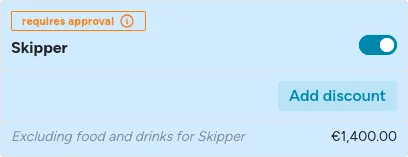
You can read more about the approval process in Approvals below.
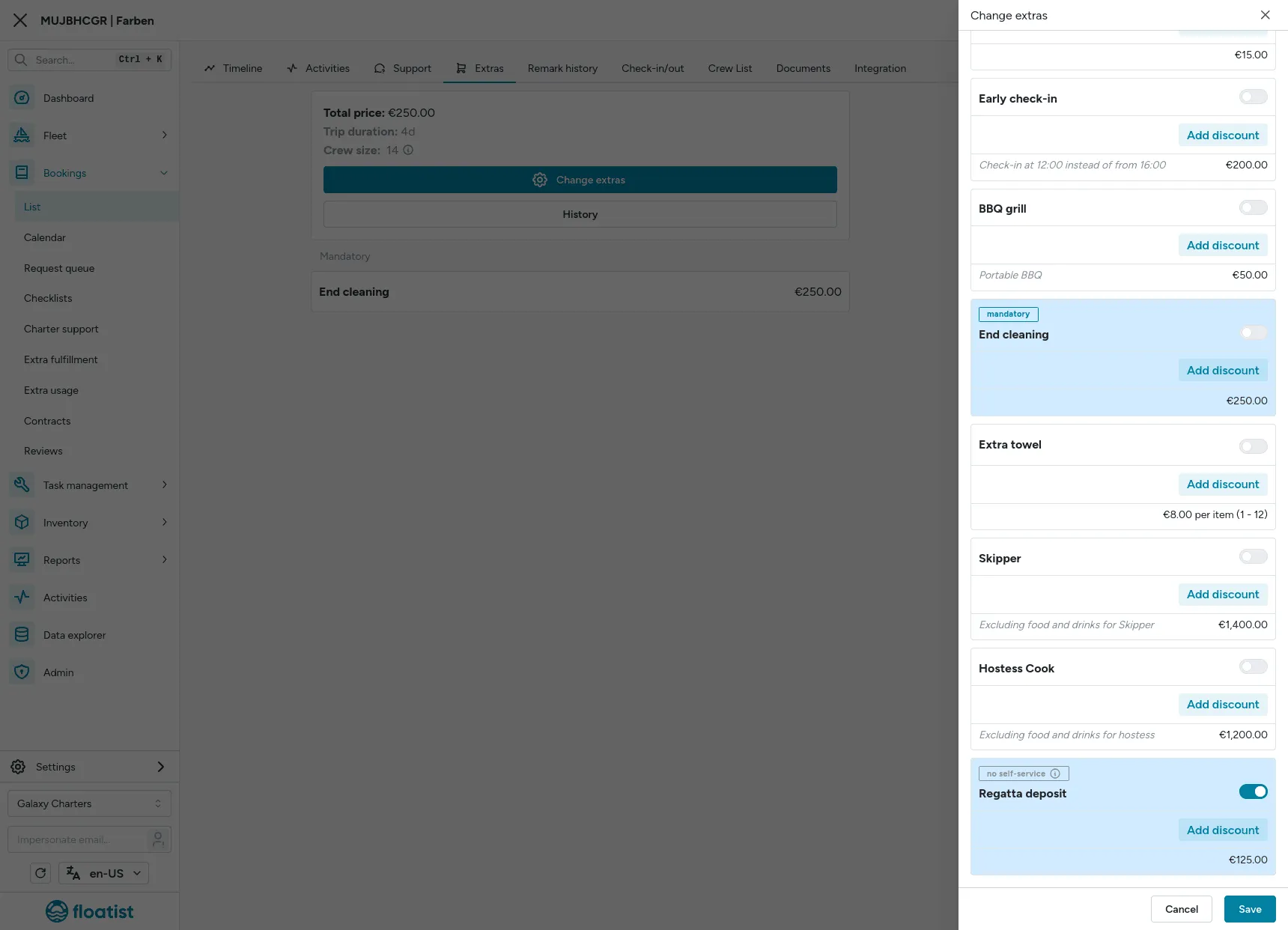
Discounts
Section titled “Discounts”To give a discount to a specific guest, open the same drawer described in Adding and removing extras. Click Add discount, set the percentage, and Save changes.
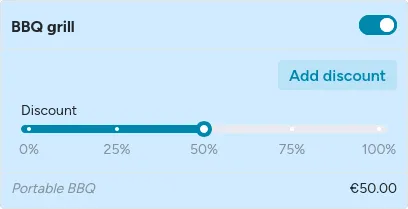
Discounts show up on the extras receipt:

Overriding the price
Section titled “Overriding the price”In some cases, the default price calculation for an extra may not be right for your situation. You can manually adjust the price of any extra that has already been applied to the booking.
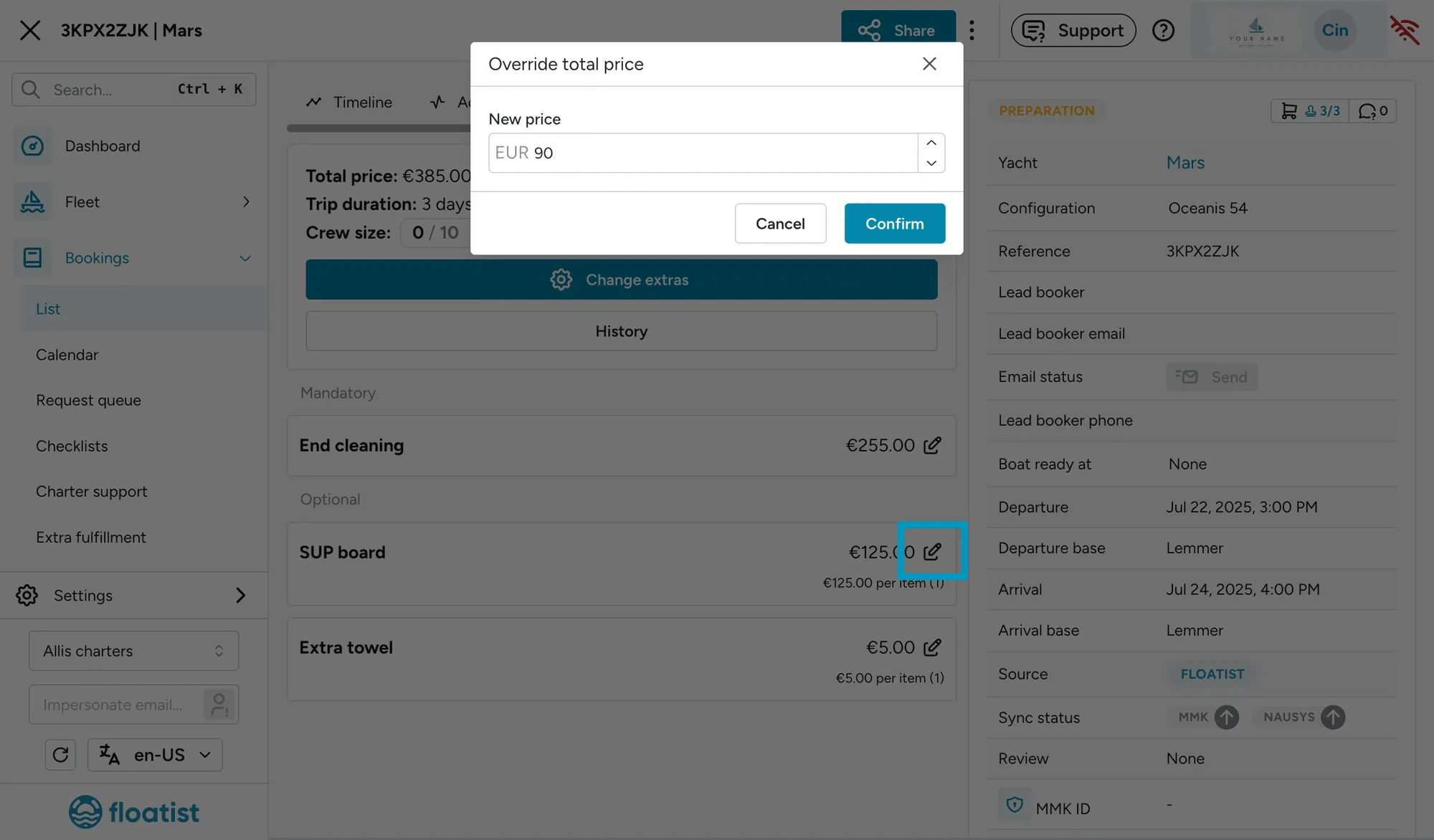
History
Section titled “History”All changes made to the extras on a specific booking are logged and visible in the history. This keeps things clear for both managers and guests.
Approvals
Section titled “Approvals”If an extra requires approval, any addition or modification must be manually approved by a manager before it’s confirmed on a booking. Managers should monitor pending extras and act quickly to ensure a seamless experience for charter guests.
Discovering pending extras
Section titled “Discovering pending extras”To locate bookings with pending extras, use the Bookings > List or Bookings > Calendar views:
- Check the extras badge: A blue badge means all extras are approved or didn’t need approval; an
orange badge indicates some extras are still pending.
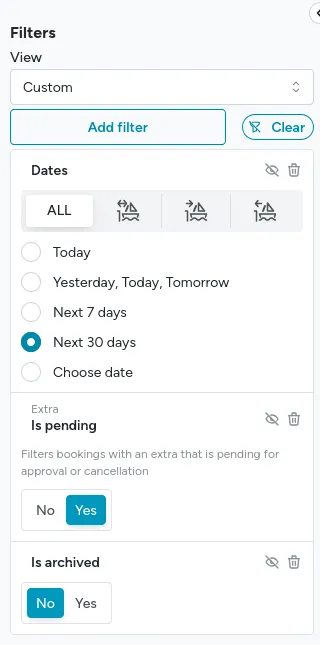
- Apply the Extra - Is pending filter to show only bookings with extras awaiting approval.
Reacting in real time
Section titled “Reacting in real time”Managers can respond to extra requests instantly by enabling push notifications. This alerts you immediately when an extra requiring approval is added or changed.
To set this up, go to Settings > Push notifications and enable the Extras notification:
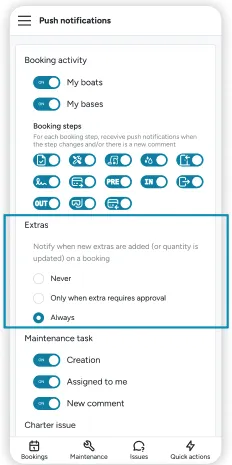
Once activated, you’ll receive real-time notifications. Tap them to open the relevant booking in the Floatist app.
Approving or rejecting
Section titled “Approving or rejecting”After identifying a booking with pending extras, go to its detail page. The timeline will list all extras, highlighting any that need approval. You can approve or reject them directly there:
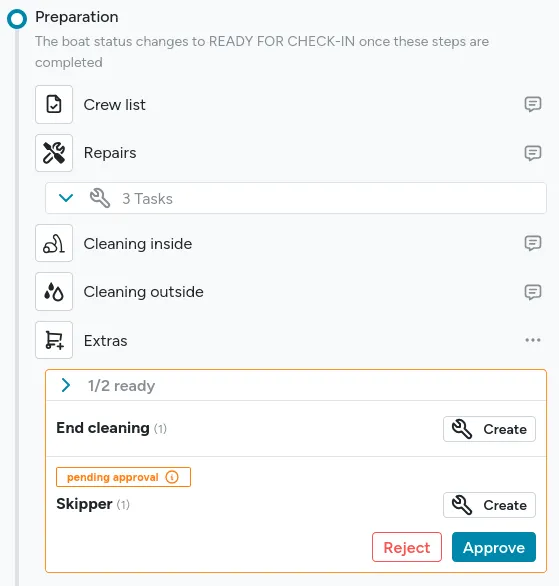
Alternatively, use the Extras tab on the booking details page to manage approvals:
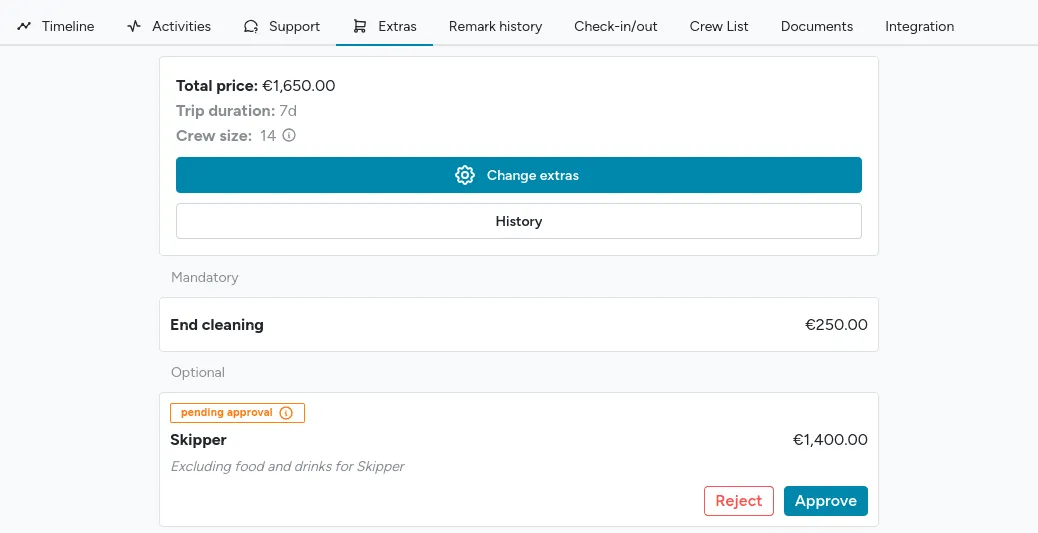
Gaining insight
Section titled “Gaining insight”To see which extras are booked and when, use Bookings > Extra usage. This view helps you assess availability and avoid overbooking when approving extras.
Extras preparation
Section titled “Extras preparation”Before a charter departs, various tasks must be completed to fulfill extras. Some, like arranging a skipper, are done in the office well ahead of time. Others, like bringing items onboard, happen on departure day.
Adding and completing tasks
Section titled “Adding and completing tasks”To manage these tasks, create them in the booking timeline and assign them to personnel. See Tasks overview for how tasks work in general:
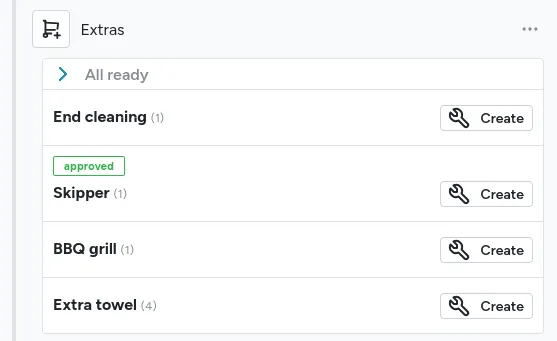
Once added, tasks appear in the timeline. Until completed, they’re marked with an orange outline, signaling that preparation is still in progress:
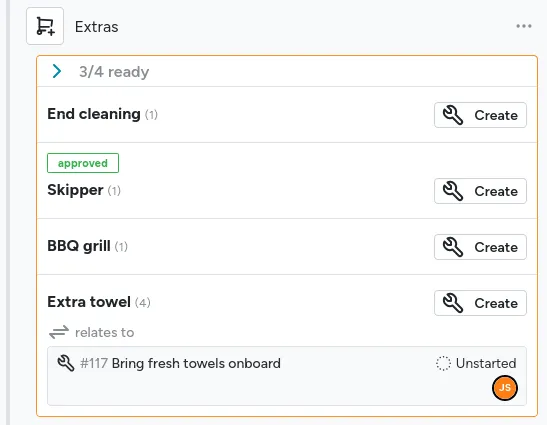
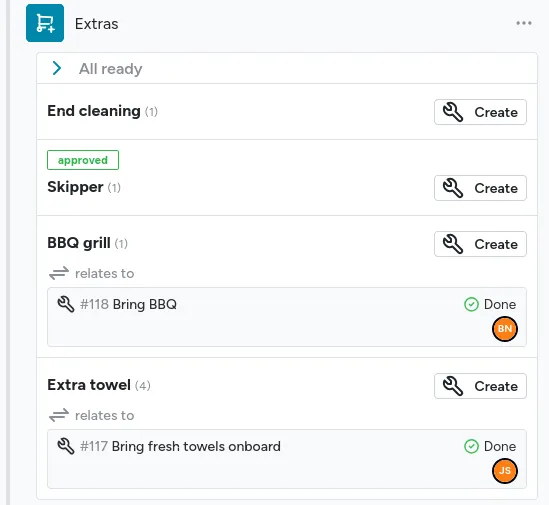
Personnel can view task details, including the extra’s status and booking information, to make informed decisions. Once all extras are approved and tasks are done, mark the extras preparation as complete:
Extras clean-up
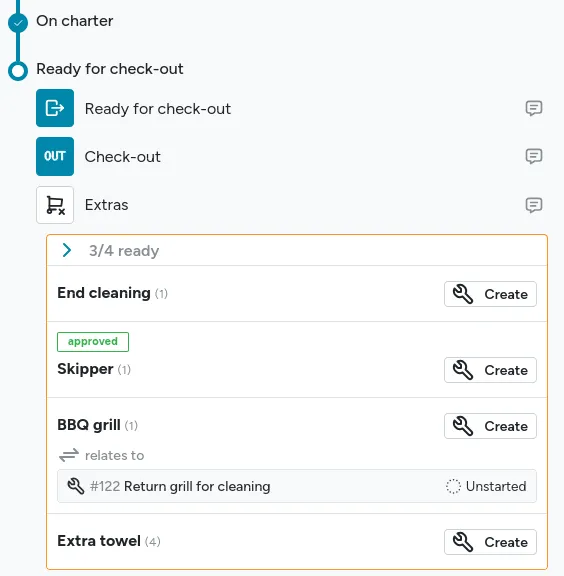
Section titled “Extras clean-up”When the boat returns to the marina, some extras may require clean-up tasks, like returning items to the warehouse. These are managed similarly to preparation but occur in the Ready for check-out phase after check-out:
Automating preparation and clean-up
Section titled “Automating preparation and clean-up”During busy periods, manually creating tasks for dozens of weekend departures can be overwhelming. Floatist’s extra automations solve this by generating tasks automatically at the right time.
Adding new automation
Section titled “Adding new automation”To create an automation, go to Settings > Bookings > Extra automations and click Create in the top right.
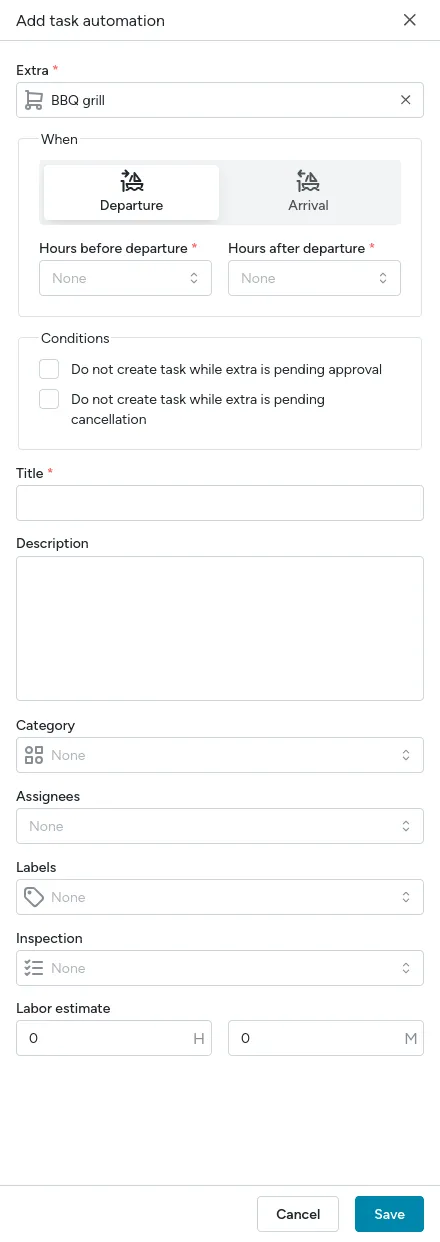
Select the extra and choose when the task should be created: before departure (for preparation) or after arrival (for clean-up). For example:
- Schedule a task a few hours before departure to bring items onboard.
- Create a task immediately when an extra like skipper is added, maximizing preparation time.
You can opt to delay task creation until the extra is approved. Set task properties, but leave the assignee blank for later assignment to personnel on duty.
Automations in the booking timeline
Section titled “Automations in the booking timeline”Automated tasks are previewed in the booking timeline:
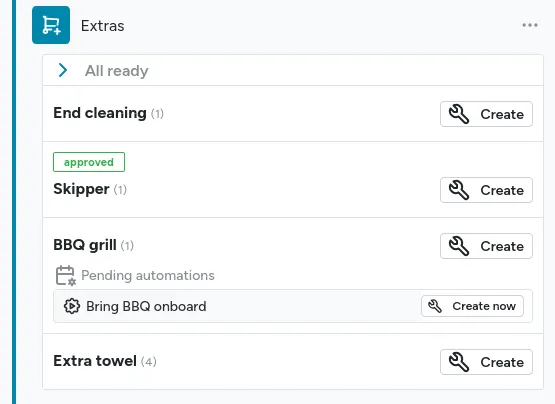
When the scheduled time arrives, previews become actual tasks (and appropriate people get notified). Managers can also create these tasks manually anytime, regardless of approval status.
Managing tasks across the fleet
Section titled “Managing tasks across the fleet”During high season, managers may oversee extras for dozens of bookings departing on the same day. Floatist offers two tools to handle this efficiently:
- Bookings > Extra fulfillment: A matrix view of boats and extras for upcoming bookings, allowing bulk task assignment or completion, with each extra’s quantity shown directly in the matrix. Use the bulk edit icon on an extra’s column or a booking’s cell to bulk edit all of its tasks at once, including moving them to another boat.
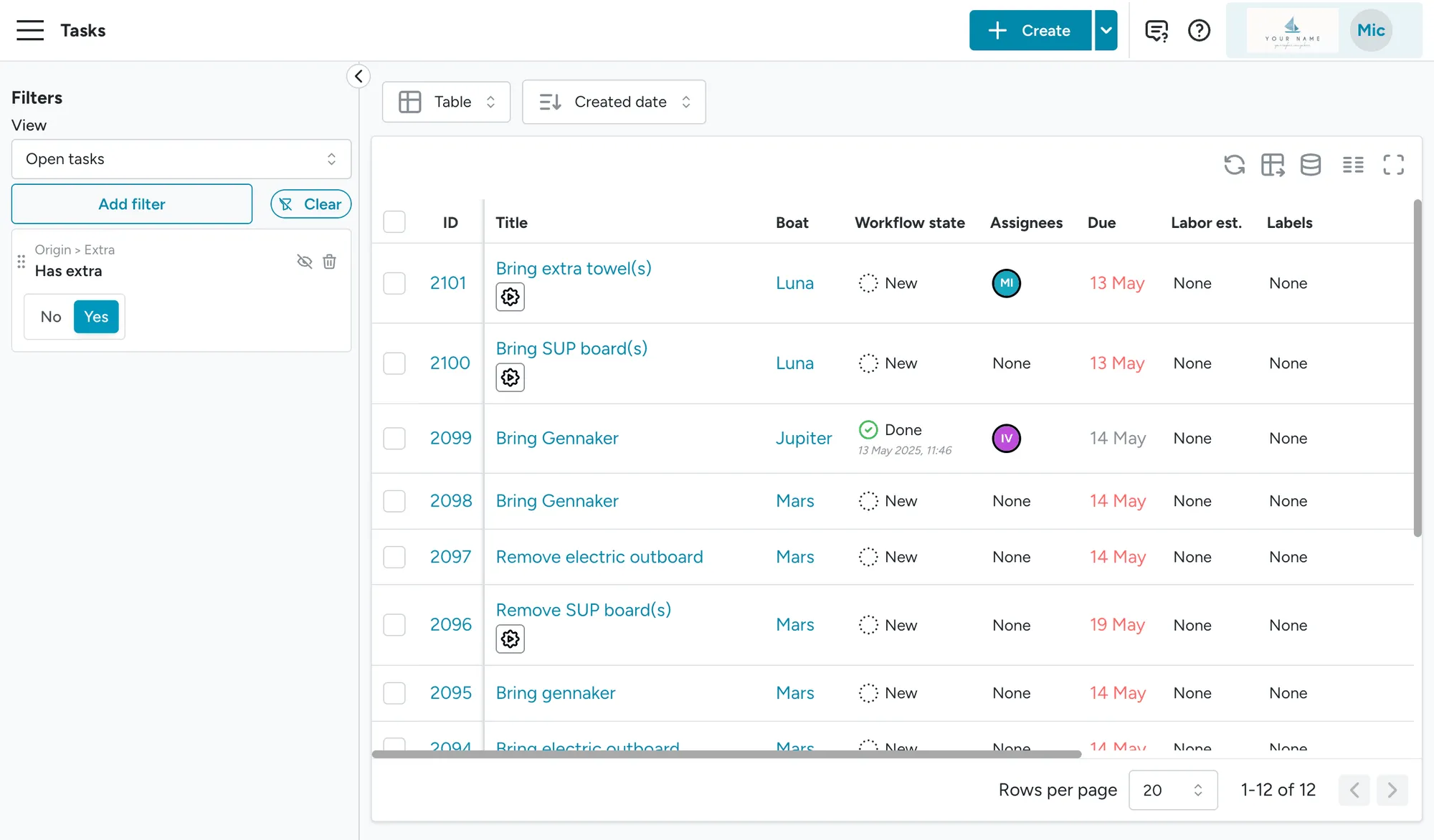
- Task management > Tasks with the Extra management view: A filtered list of extra-related tasks, with options to narrow it down and update tasks in bulk.
Optimizing operations
Section titled “Optimizing operations”To streamline operations from start to finish with minimal manual communication, follow these best practices.
Enable push notifications
Section titled “Enable push notifications”For real-time action, managers and personnel should enable push notifications:
- Managers: Get alerts when extras are added (for approvals) and when tasks are created (for assignment).
- Personnel: Receive notifications when tasks are assigned, enabling immediate action.
Notifications follow each user’s assigned boats and bases. A manager assigned to one base only hears about extras and extra tasks for boats and charters at that base, so a busy turnaround day at another base doesn’t flood their phone. See Which boats and bases you hear about.
Set up automations
Section titled “Set up automations”Automate all extras requiring tasks, ensuring they’re created just in time for completion: not too early and not too late.
Assign tasks at the right time
Section titled “Assign tasks at the right time”With notifications and automations, managing extras becomes effortless. For example:
- Early on booking day, automations generate tasks, notifying the manager instantly.
- The manager uses Bookings > Extra fulfillment to assign tasks to personnel, who are alerted immediately.
- Personnel view task details (e.g. how many towels to bring) and the booking’s status.
- The manager tracks progress via the matrix and booking timelines.
This approach divides responsibilities clearly and reduces the need for manual communication.
View all tasks related to extras
Section titled “View all tasks related to extras”If you want to see all tasks related to booking extras, you can use the filter Has extra on the task pages.