Push notifications
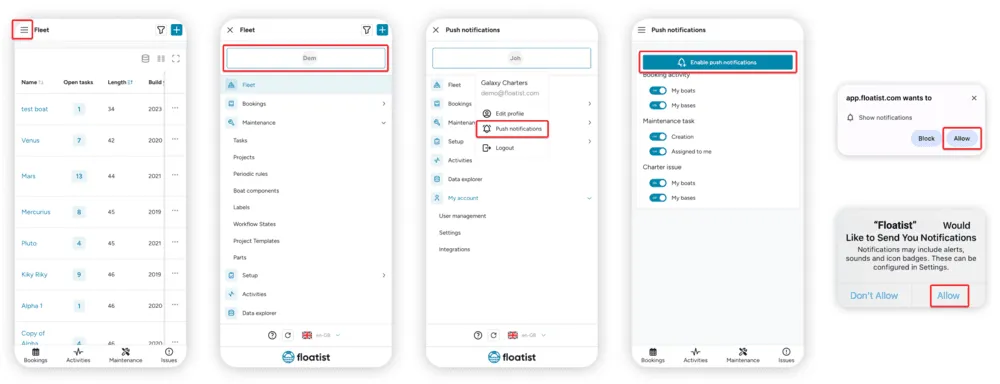
Enabling push notifications will allow you to get real-time notifications of several events that happen within Floatist. Every user decides what they want to be notified about. In order to configure push notifications:
- Navigate to Settings > Push notifications (You can find it in the menu by clicking the burger icon on the top left)
- Click the button on the top with part of your name in it
- Click Push notifications
- Click Enable push notifications
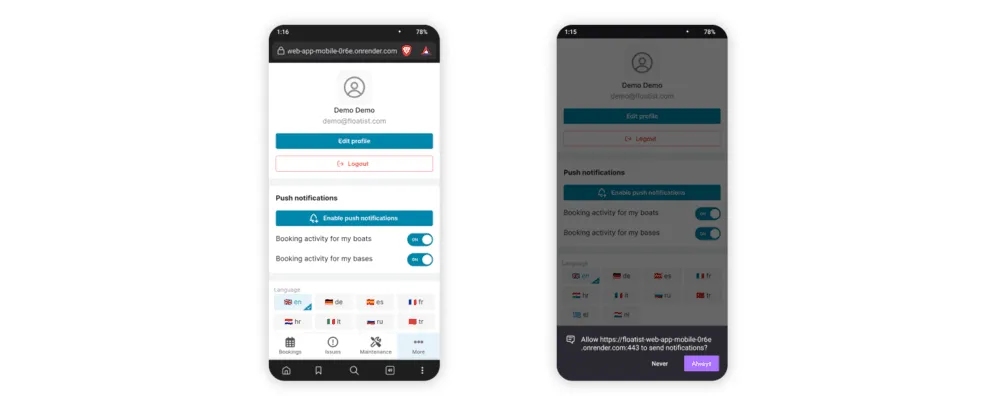
- Click Allow app > click on the More menu. Follow the steps below depending on your device and software.
Configure push notifications based on your preferences
Section titled “Configure push notifications based on your preferences”Each user picks which kinds of notification they want. The settings are personal: if you work for more than one fleet operator in Floatist, you set them separately for each. Which settings you see depends on your role’s permissions.
Bookings
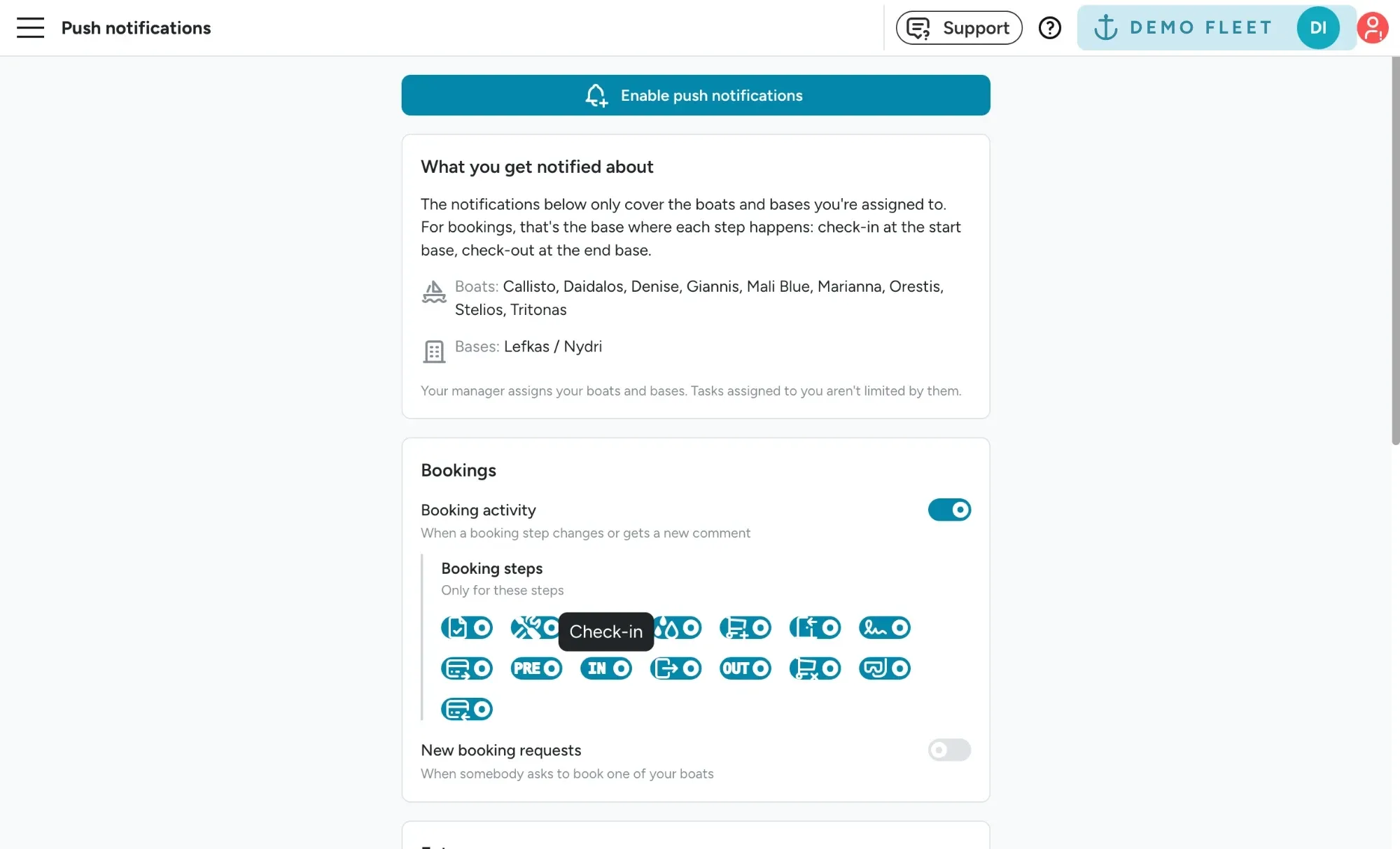
Section titled “Bookings”- Booking activity: get notified when a booking step changes or gets a new comment. Under Booking steps, pick the steps you care about. For example, if you only want updates about cleaning inside, turn off every step except cleaning inside (the vacuum icon).
- New booking requests: get notified when somebody asks to book one of your boats through your booking platform. Only users who can manage bookings can turn this on.
Extras
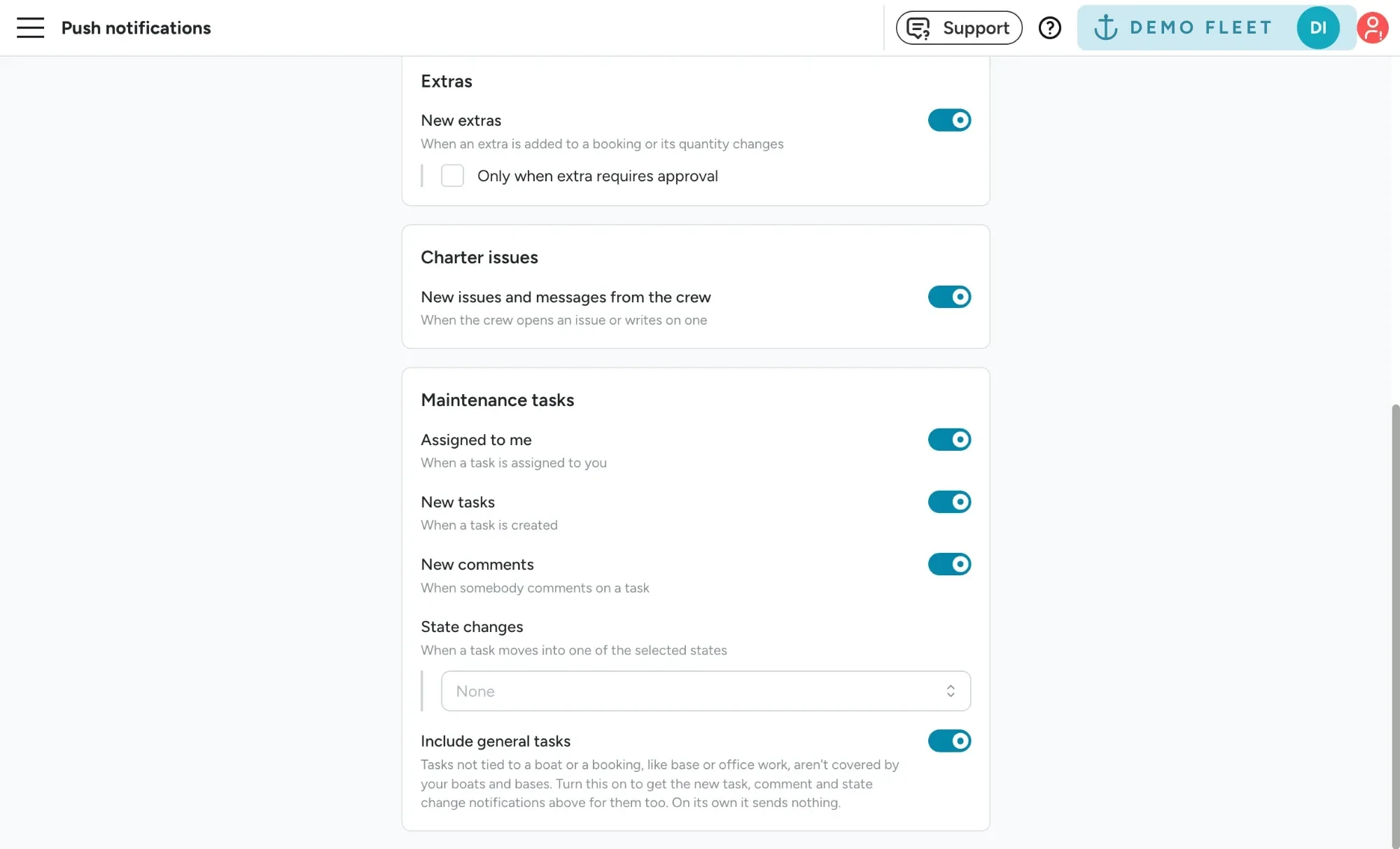
Section titled “Extras”- New extras: get notified when an extra is added to a booking or its quantity changes. Tick Only when extra requires approval to only hear about the ones waiting for you.
Charter issues
Section titled “Charter issues”- New issues and messages from the crew: get notified when the guests on a charter open an issue or write on one.
Maintenance tasks
Section titled “Maintenance tasks”- Assigned to me: get notified when a task is assigned to you.
- New tasks: get notified when a task is created.
- New comments: get notified when somebody comments on a task.
- State changes: pick one or more workflow states, grouped by Unstarted, Started and Done. You get notified when a task moves into one of them, for example when a task is marked Done.
- Include general tasks: general tasks are tasks with no boat and no booking, like office or base work. They don’t belong to any boat or base, so your assignments can’t match them. Turn this on to get New tasks, New comments and State changes notifications for them too. On its own it sends nothing.
Which boats and bases you hear about
Section titled “Which boats and bases you hear about”The settings above choose what kind of notification you get. Which part of the fleet they cover follows the boats and bases you’re assigned to on the Settings > User management page. Your manager sets these, and you can see them at the top of your push notification settings, under What you get notified about.
| Your assignments | What your notifications cover |
|---|---|
| No boats and no bases | The whole fleet |
| Some boats and/or bases | Only those boats, plus everything at those bases |
| Only archived bases | No boat or booking notifications at all |
Boats and bases add up: if you’re assigned to the base in Split and to one boat based in Trogir, you hear about everything in Split plus that one boat.
A notification counts as yours when its boat is one of your boats, or when it happens at one of your bases:
| Notification | Matched on |
|---|---|
| Booking activity | The booking’s boat, or the base where that step happens (see below) |
| New booking requests | The boat, or its home base |
| New extras | The booking’s boat, or the charter’s start base |
| Charter issues | The booking’s boat, or the charter’s start or end base |
| New tasks, New comments, State changes | The task’s boat or its home base. For tasks that come from a booking, like extra tasks, also the booking’s boat and the base where that step happens |
| Assigned to me | Never filtered: a task given to you always reaches you |
On a one-way charter the start and end base are different, and so are the people. Booking steps are matched to the base where they actually happen:
- Start base: crew list, repairs, cleaning, client arrival, office check-in, deposit paid, pre check-in, check-in, and extras prepared.
- End base: ready for check-out, check-out, diver, deposit released, and extras cleaned.
So the team at the start base hears about check-in, and the team at the end base hears about check-out. The same goes for tasks created by extra automations: a task triggered by departure is matched to the start base, and one triggered by arrival to the end base.
When one action creates or updates tasks across several boats, everyone only hears about the tasks in their part of the fleet. For example, if you bulk create a task for the whole fleet, a base manager in Split is notified about the Split boats only.
Device setup
Section titled “Device setup”iPhone (Safari)
Section titled “iPhone (Safari)”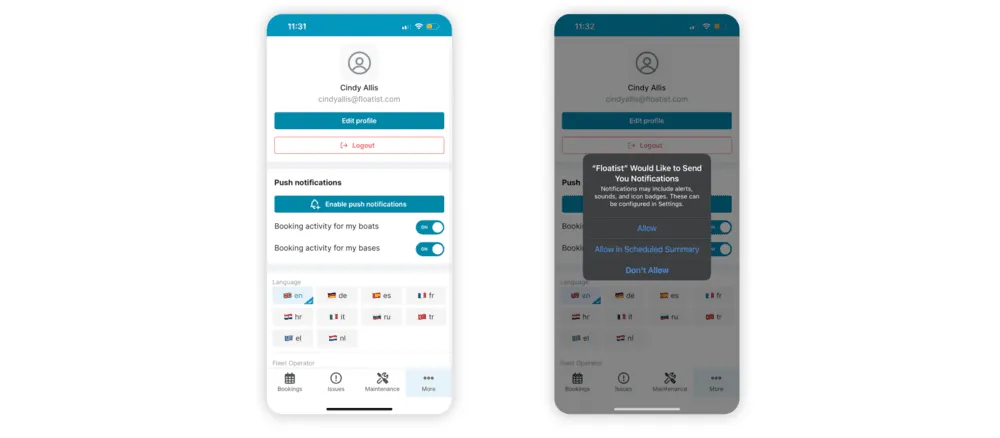
Android (Chrome)
Section titled “Android (Chrome)”If you are using Chrome, Chrome should not be optimized for low battery usage. This can prevent notifications from being delivered.
Android (Firefox)
Section titled “Android (Firefox)”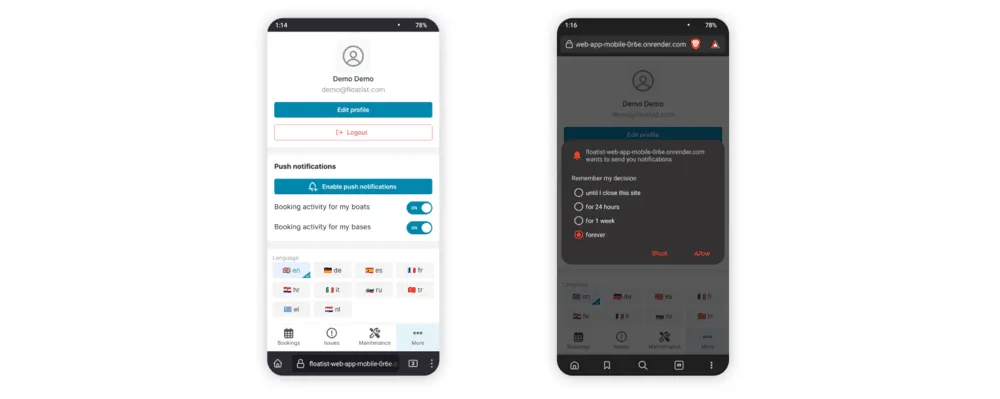
I’m seeing the message: ‘Your browser does not support push notifications’
Section titled “I’m seeing the message: ‘Your browser does not support push notifications’”If your browser does not support push notifications it most likely means you are running an outdated browser version or have not installed the app on your phone.
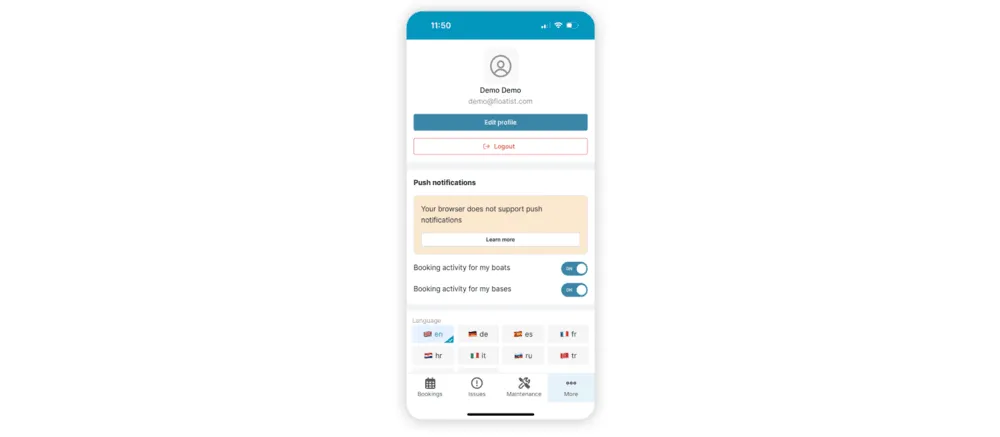
Please follow the steps below:
-
Use a common, well-supported browser. We recommend Chrome or Safari. Any other browsers can give unexpected problems
-
Make sure you have the latest software installed on your phone
- On iPhone go to General > Software Update > Make sure you have the latest installed
- On Android go to Settings > System > System Update > You will find your system status, follow any steps there
-
Navigate to this page for browser and system specific requirements https://caniuse.com/push-api.
-
If you still have issues please contact us via the chat or WhatsApp and we will be happy to assist you!
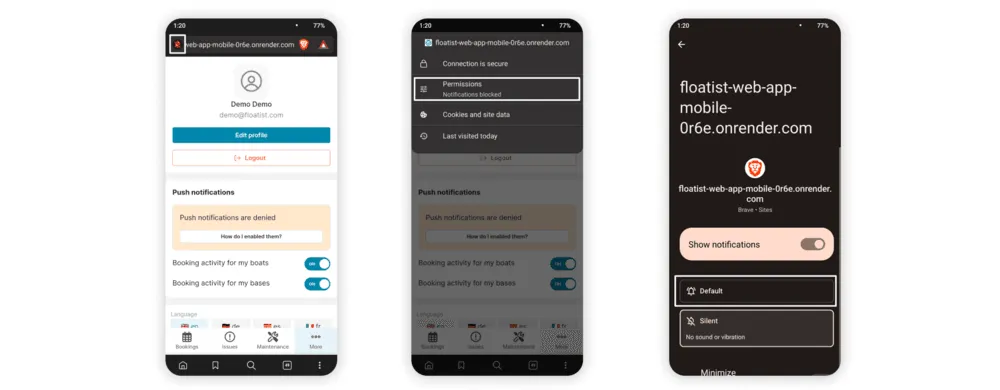
How to Enable Push Notifications After They Have Been Denied
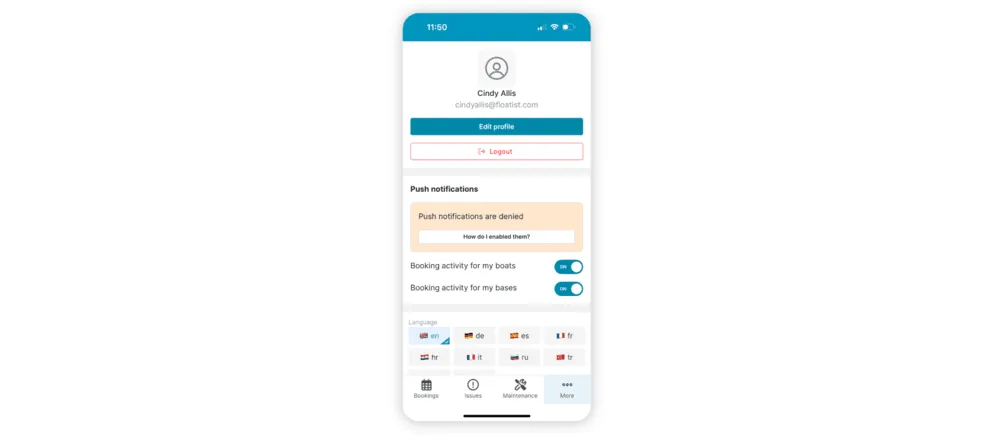
Section titled “How to Enable Push Notifications After They Have Been Denied”If you have accidentally denied push notifications, you can enable them again through your settings. If they are denied, you will see something like the image below displayed in your push notifications settings.
On iPhone:
- Go to Settings > Safari > Advanced > Experimental Features > Toggle Push API to ON
- You will need to refresh your page in the app, so either refresh your browser page or close the app and open it again. Then go back to the More menu > Click Enable push notifications > Follow the steps
On Android (Chrome)
- Click the Lock icon in the address bar > Click Blocked > Now it should toggle to Allowed
- You will need to refresh your page in the app, so either refresh your browser page or close the app and open it again. Then go back to the More menu > Click Enable push notifications > Follow the steps
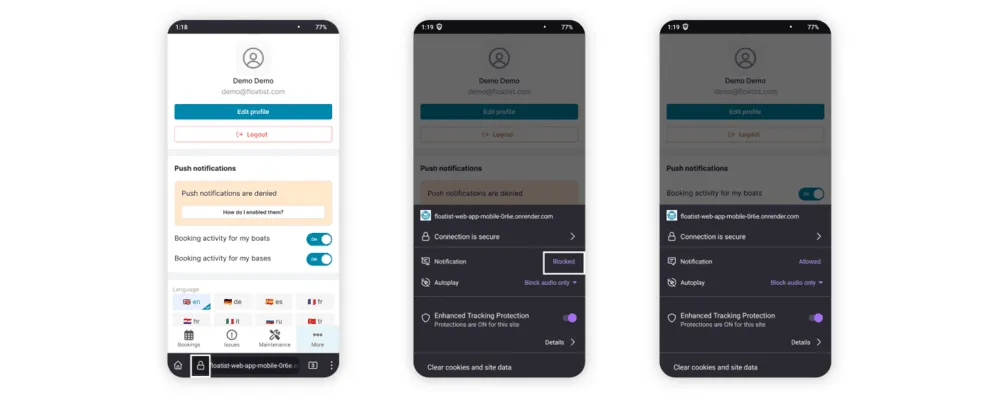
On Android (Firefox)
- Click the Bell icon with the diagonal stripe through it > Click Permissions > Click Default
- You will need to refresh your page in the app, so either refresh your browser page or close the app and open it again. Then go back to the More menu > Click Enable push notifications > Follow the steps.