
Crew list
Floatist makes it easy to gather and manage all essential crew information for your booking. Accurate crew details are crucial for:
- Meeting port authority requirements for a complete onboard personnel list
- Determining the pricing of certain extras, which may vary based on crew size
With Floatist, you can efficiently compile the crew list before departure:
- Guests can conveniently add crew members via the guest app
- Booking managers have the option to manually input crew details
In Floatist, every base can configure separately how to collect a crew list submission. We support the following types:
- Floatist: if you want to use our mobile app to collect your guest’s details
- Source: Every booking has a creation source (the Floatist platform, MMK, NauSYS…). With this
option, the guest app will use:
- MMK source: The guest app will show a link to open MMK’s crew list functionality. If a client clicks on Add passengers in the guest app, they will be redirected to the MMK crew list.
- Other sources: Use Floatist’s native lists
- None: If you have another way of collecting your guest’s details and do not want to use any crew list functionality. The crew list can still be submitted via Floatist’s staff desktop app.
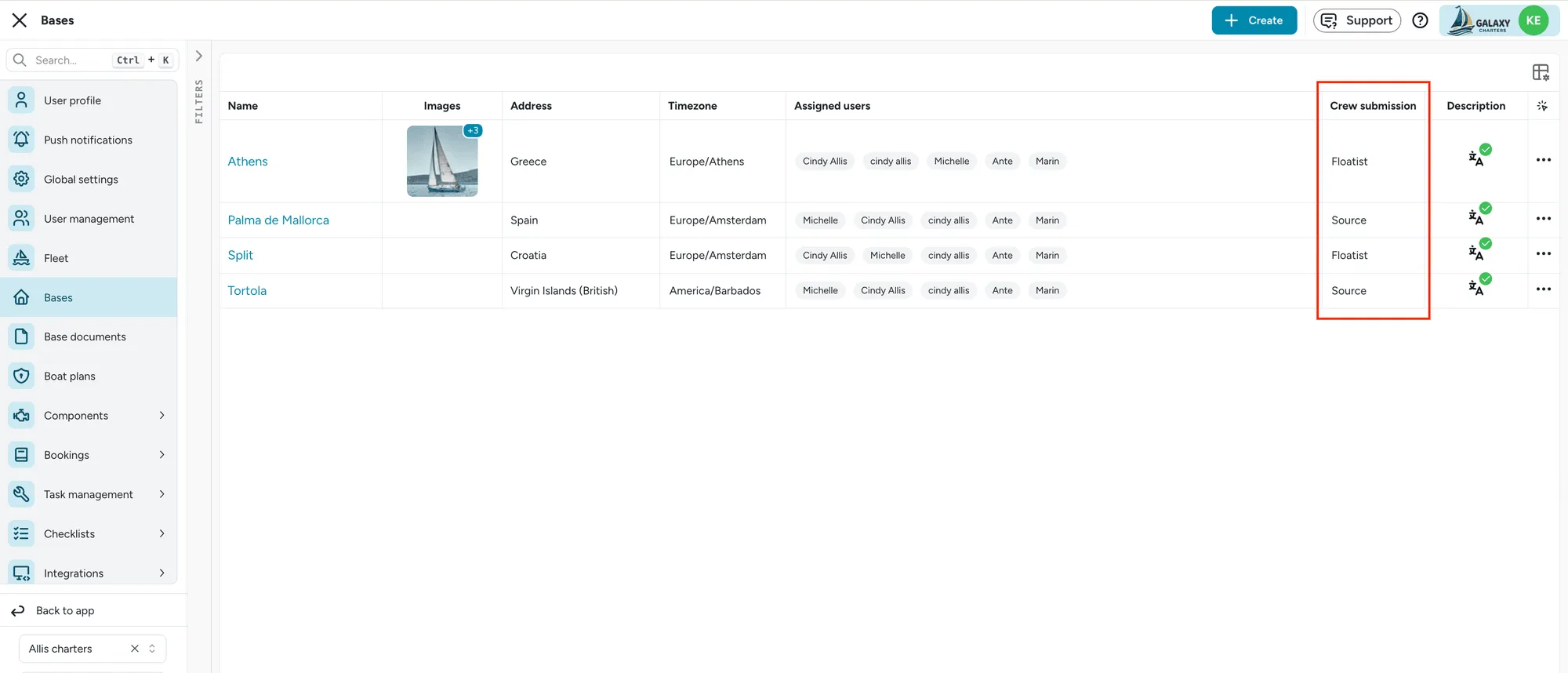
Crew roles
Section titled “Crew roles”Every person on a crew list has one of three roles:
- Passenger: a paying guest
- Crew: hired crew, such as a host, cook, hostess, or deckhand
- Skipper: the person in command of the boat
Crew members show up in their own section in the guest app, separate from passengers, and are listed alongside the skipper (not the passengers) on the crew list PDF and in the Greek and Croatian crew-list integrations.
Configurable crew fields
Section titled “Configurable crew fields”Per base, you can also configure which fields will be requested, separately for each of the three crew roles above. Every field can be configured to be:
- Required
- Optional
- Not collected: the field is not shown
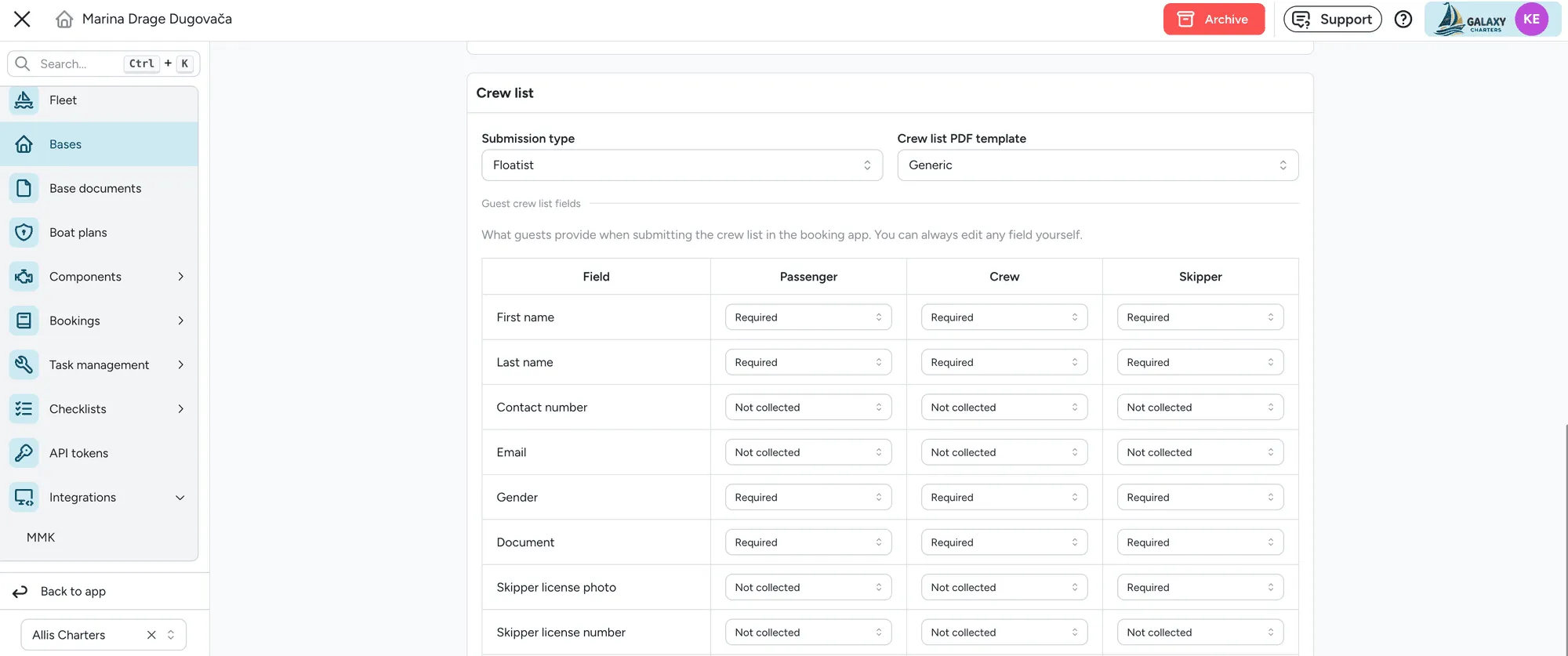
If your base has a connected government integration enabled, Floatist can match its field requirements for you. Read more on the Croatian eCrew integration and Greek eCharter integration pages for what each one requires.
Crew list lifecycle
Section titled “Crew list lifecycle”If you are using Floatist for the crew list, customers are able to fill their crew list from the app as long as the crew list booking stage is not completed (the icon is not yet blue).
Once the customer fills the crew list and selects Complete, the crew list icon will be marked as completed, and you will receive a notification.
Note that when the crew list is marked as complete, the client will no longer be able to edit it. To re-enable editing, unmark the crew list stage on the booking timeline.
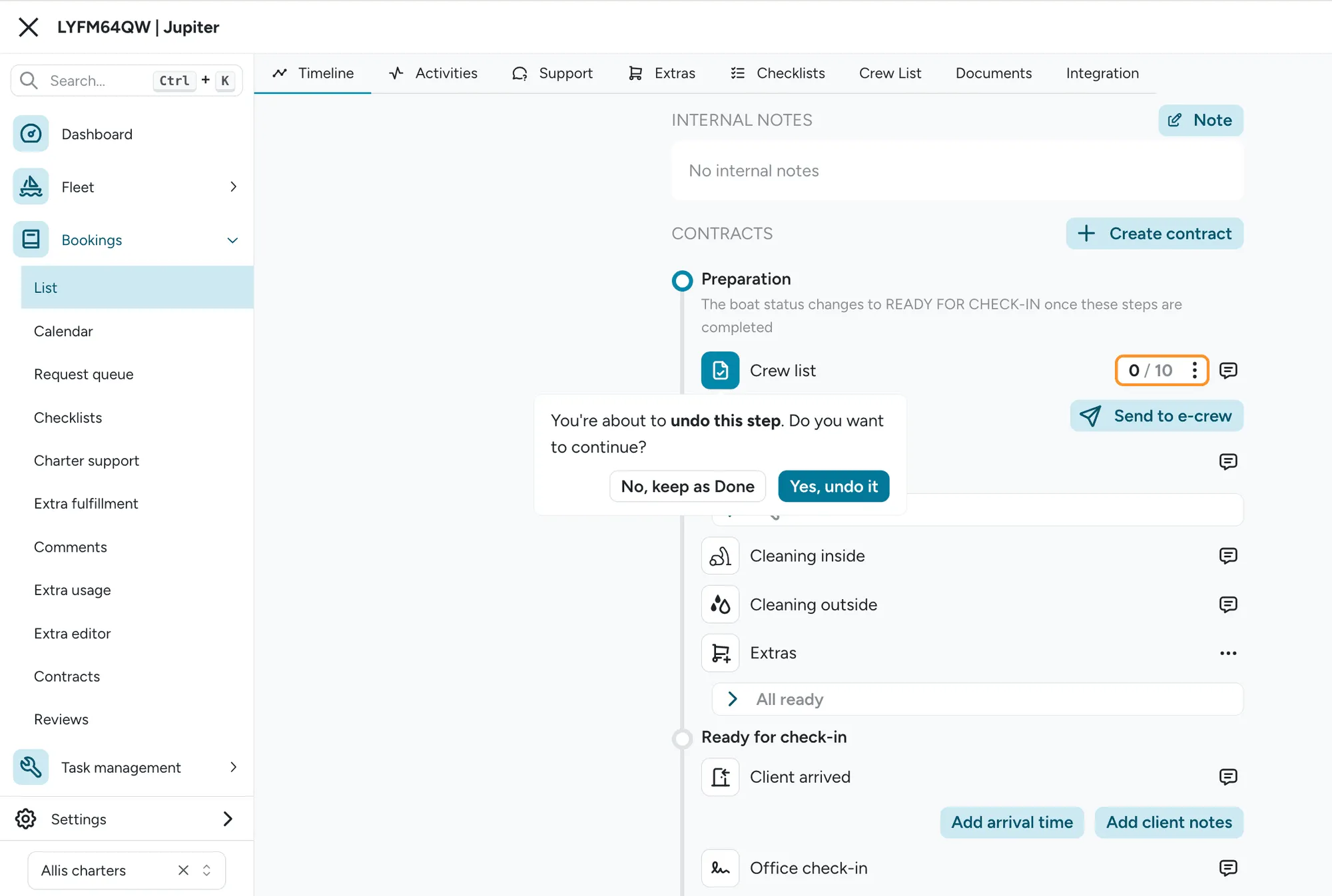
Crew size and extra requests
Section titled “Crew size and extra requests”When you create a booking, the crew size might not be finalized, but you can still allow guests to request extras that may depend on the number of crew members. The invoice for these extras remains in draft status until the crew list is officially submitted.
The crew size for a booking is determined in one of two ways:
- Automatically, based on the number of entries in Floatist’s crew list
- Manually, by directly specifying the crew size
Adding or removing crew members automatically recalculates any crew-size-dependent extras on the invoice.
The crew list status is clearly displayed with a badge:
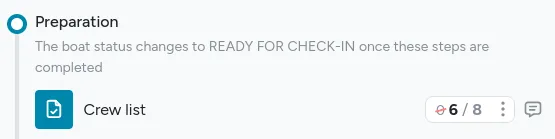
This badge provides key information, including:
- The current crew size
- The boat’s maximum capacity
- Whether the crew size is calculated from the crew list entries or manually overridden
Additionally, the badge offers quick actions to adjust the crew size or navigate directly to the crew list. If there’s an issue, the badge may display a warning to alert you:

How to download the crew list PDF
Section titled “How to download the crew list PDF”- Once the client has submitted the Floatist crew list link, the Crew List booking stage on a booking will be automatically set to completed.
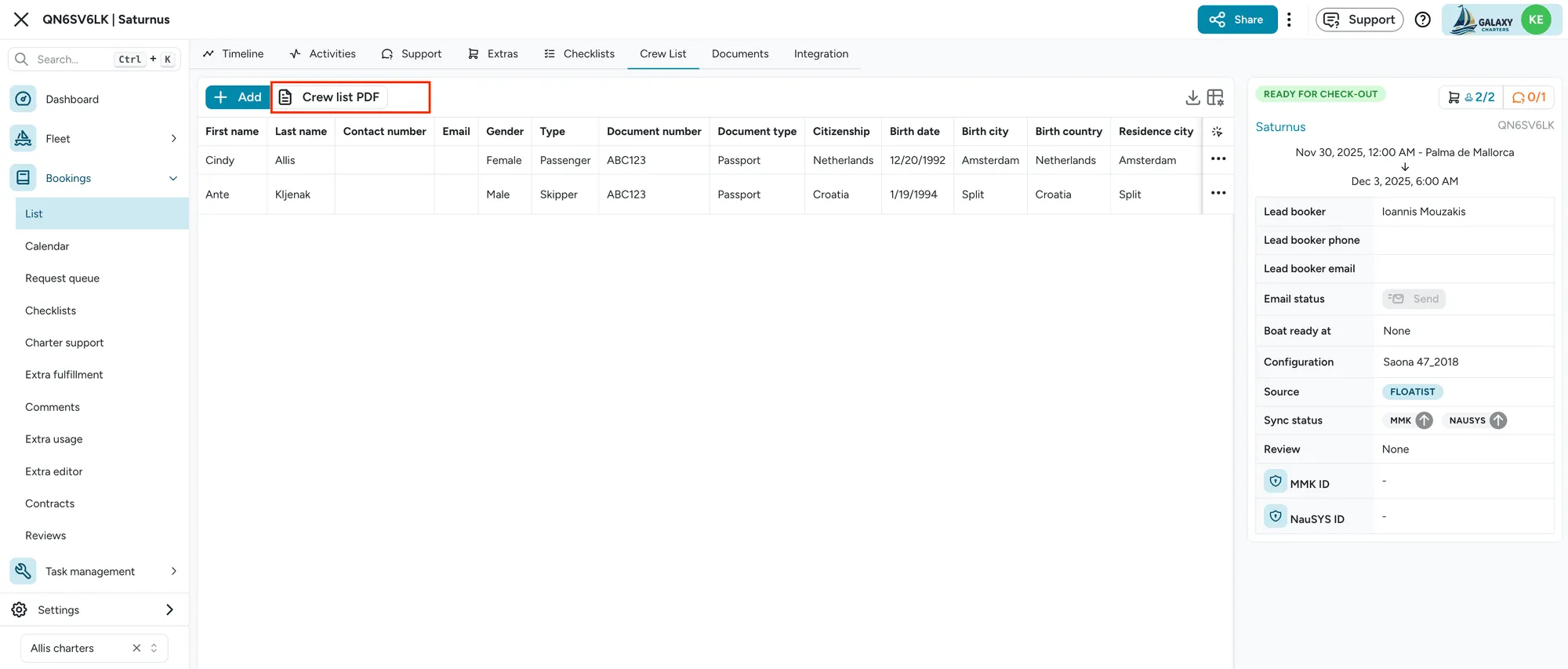
- Once the Crew List button on a booking has been set to completed, you can check the crew list submitted by navigating to Bookings > List, selecting a booking and navigating to the Crew List tab. There you can see all submitted passengers, including any skipper licenses. You can export this information to a PDF by clicking the download button.
You can also add crew members by clicking the + button, or edit them by scrolling to the right of the row and clicking the three dots to edit.
Import a crew list from CSV or Excel
Section titled “Import a crew list from CSV or Excel”If your crew list already exists in a spreadsheet, for example a fleet operator’s own Excel-based workflow, you can import it directly into Floatist instead of entering each crew member manually. This is available on any booking regardless of base or country.
On a booking’s Crew List tab, open the Import menu:
- Download CSV template or Download Excel template: gets a template with the exact columns Floatist expects. The Excel template includes dropdown lists for fields like role and gender, plus an Instructions sheet explaining what to enter in each column.
- Upload a file…: pick your filled-in
.csvor.xlsxfile to import.
Fill in the template with your crew details, then upload it. Each row is validated and, if valid, added to the crew list. After the upload, a results summary shows how many rows were imported successfully and, for any that failed, the reason, such as a missing required field or an invalid value.
Supported columns
Section titled “Supported columns”| Column | Required | Notes |
|---|---|---|
| First name | Yes | |
| Last name | No | |
| Type | No | Passenger, Crew (host, cook, hostess, or deckhand), or Skipper. Defaults to Passenger if left blank |
| Gender | No | Male, Female, or Other |
| No | ||
| Contact number | No | Include the country code, e.g. +385911234567 |
| Document number | No | Passport or ID card number |
| Document type | No | Passport or ID card |
| Citizenship | No | 2-letter country code, e.g. HR |
| Birth date | No | Format YYYY-MM-DD |
| Birth city | No | |
| Birth country | No | 2-letter country code |
| Residence city | No | |
| Residence country | No | 2-letter country code |
| License number | No |
Skipper license file uploads cannot be included in a spreadsheet import. Add those manually to a crew member’s record after importing.
Importing crew adds to your existing crew list rather than replacing it. Successfully imported crew members are added to the booking immediately, and the crew size and any crew-size-dependent extras on the invoice update automatically, the same as adding a crew member by hand.
Crew list PDF format
Section titled “Crew list PDF format”The default (EN) crew list PDF is landscape, with a header showing the booking reference, boat model, port of registry, and registry number. Each row starts with the crew member’s role (Skipper, Crew, or Passenger), so hired crew such as a host, cook, hostess, or deckhand print alongside the skipper rather than with the guests. Columns are dynamic based on your base’s crew-field configuration, and can include contact number, email, birth city, birth country, and license number when those fields are enabled.