
Managing booking requests
Guest booking requests land in Bookings > Request queue as soon as a guest submits an inquiry through your marketing site. Every request starts out Pending and stays that way until someone on your team moves it forward. This page covers the recommended process for triaging that queue.
Step 1: Turn on notifications
Section titled “Step 1: Turn on notifications”Enable push notifications for the request queue at Settings > Push notifications. Requests can come in at any time, and this helps your team respond faster.
Floatist also emails your Support email (set at Settings > Global settings) automatically whenever a guest submits a new request, no separate setup required. If no support email is set, the public Company email is used instead; if neither is set, only the push notification goes out.
Step 2: Review the request
Section titled “Step 2: Review the request”When a request comes in, open it from the request queue. Each request shows:
- The yacht and requested dates
- Guest contact details
- Any additional requests the guest included
- The price breakdown, including the amount due at booking (deposit) and the amount charged later
Use this information to double check availability and review any additional requests.
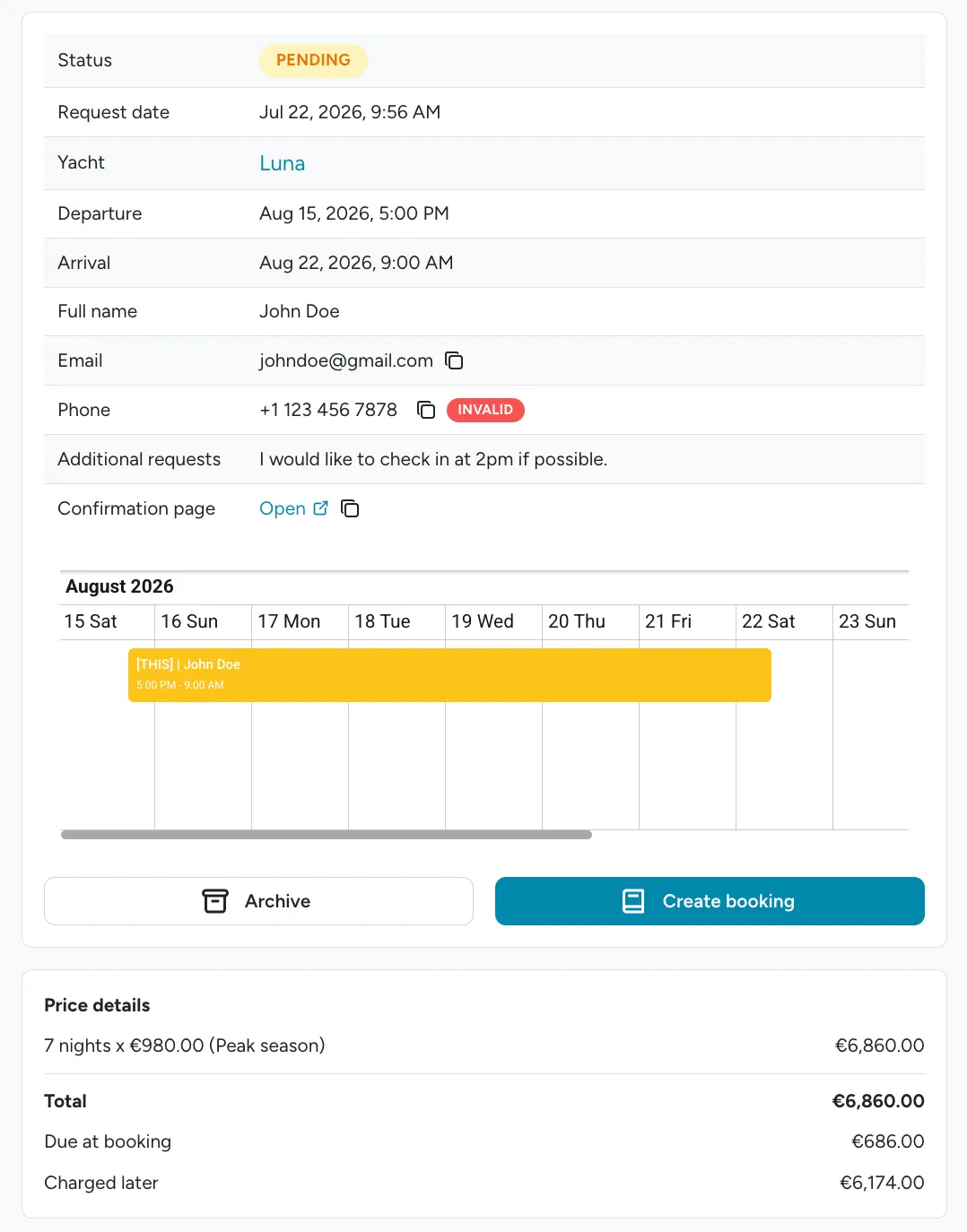
A copyable link to the guest’s confirmation page, the page they land on after submitting the request, is also shown here. Staff can share that link with a colleague or open it directly to see exactly what the guest saw.
Step 3: Contact the guest
Section titled “Step 3: Contact the guest”Reach out to the guest directly, by phone or email, to confirm details, answer questions, and walk them through next steps.
Step 4: Decide the outcome
Section titled “Step 4: Decide the outcome”Every request ends in one of two ways:
The guest pays the deposit
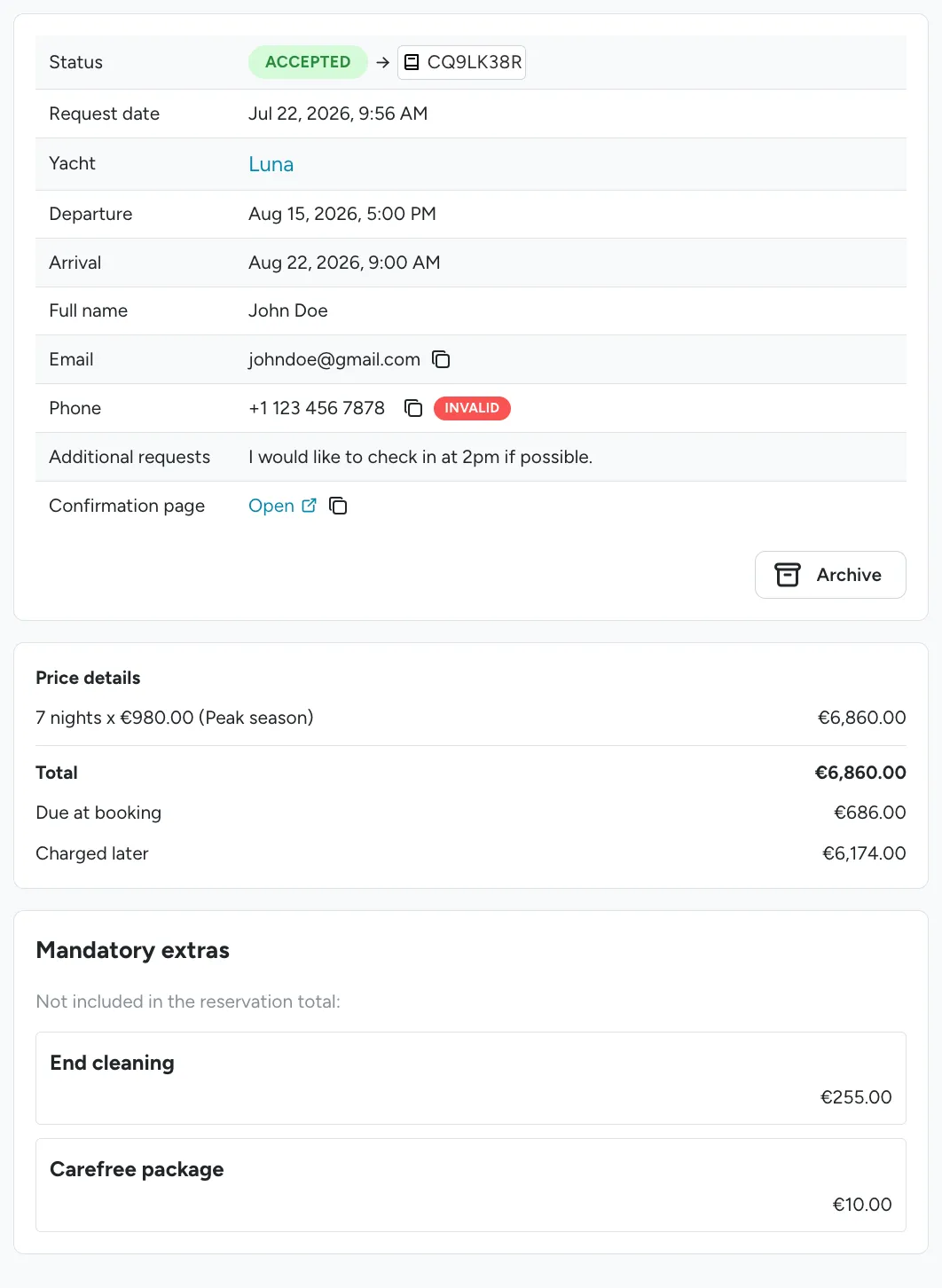
Section titled “The guest pays the deposit”Once the guest confirms they’re ready to move forward and pays the required deposit (the “Due at booking” amount shown in the request), confirm the booking directly from the request queue using Create booking. This converts the request into a confirmed booking on your calendar.
The guest doesn’t move forward, or changes their mind
Section titled “The guest doesn’t move forward, or changes their mind”If the guest decides not to book, or wants a different date or boat after you’ve spoken with them, archive the request. Archiving clears it from the active queue without creating a booking. Don’t leave the original request pending.
Step 5: Send Guest App Link from Confirmed Booking
Section titled “Step 5: Send Guest App Link from Confirmed Booking”When the booking is confirmed, the next recommended step is to send the guest app link to the customer in advance of the charter. See Share the guest login link for best practices.