Inventory management
Warehouses
Section titled “Warehouses”You can create your different warehouse from the Inventory > Warehouses page. To create a new warehouse, click the Create button, specify the name, and click Confirm.
Inventory items
Section titled “Inventory items”Once you have at least one warehouse defined, you can start adding inventory items to it.
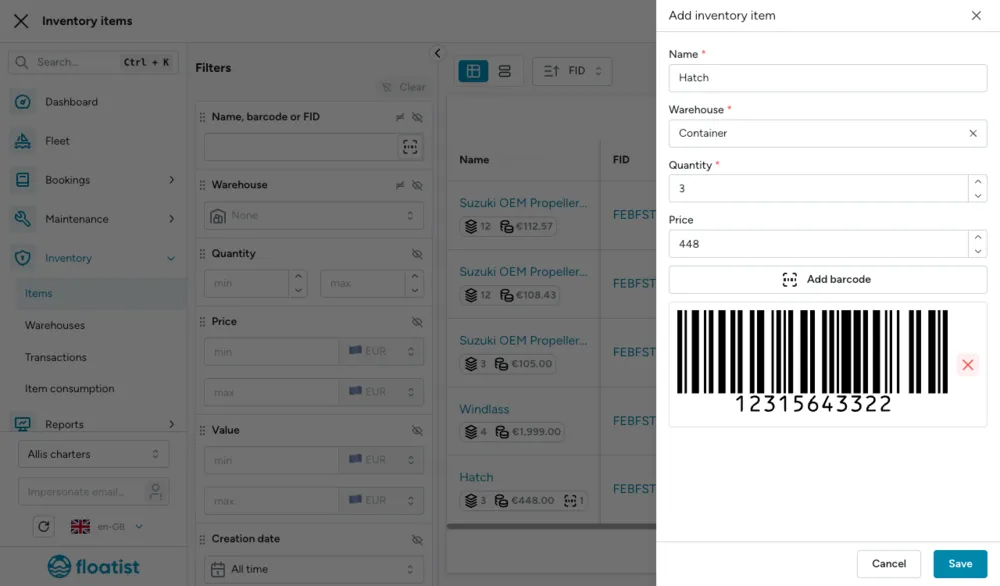
- Go to Inventory > Items Click Add.
- If you want to add from a barcode, select Scan barcode. You can use this function either from your mobile device’s camera, or you can connect a barcode scanner to your device.
- Otherwise, you can add the part manually by selecting Create manually.
- Fill the details of the part, like the name, warehouse, and price, and then click Save
Consume items
Section titled “Consume items”There are two ways to use parts on tasks: either you directly add them to the task, or you first take them out of the warehouse (this is called ‘Consuming’ the part), and you add it to your task later.
You can consume items in two different ways:
- Scanning the barcode of the item to consume
- Search and find the item, and then consume it from the item page.
1. Consuming from scanning barcode
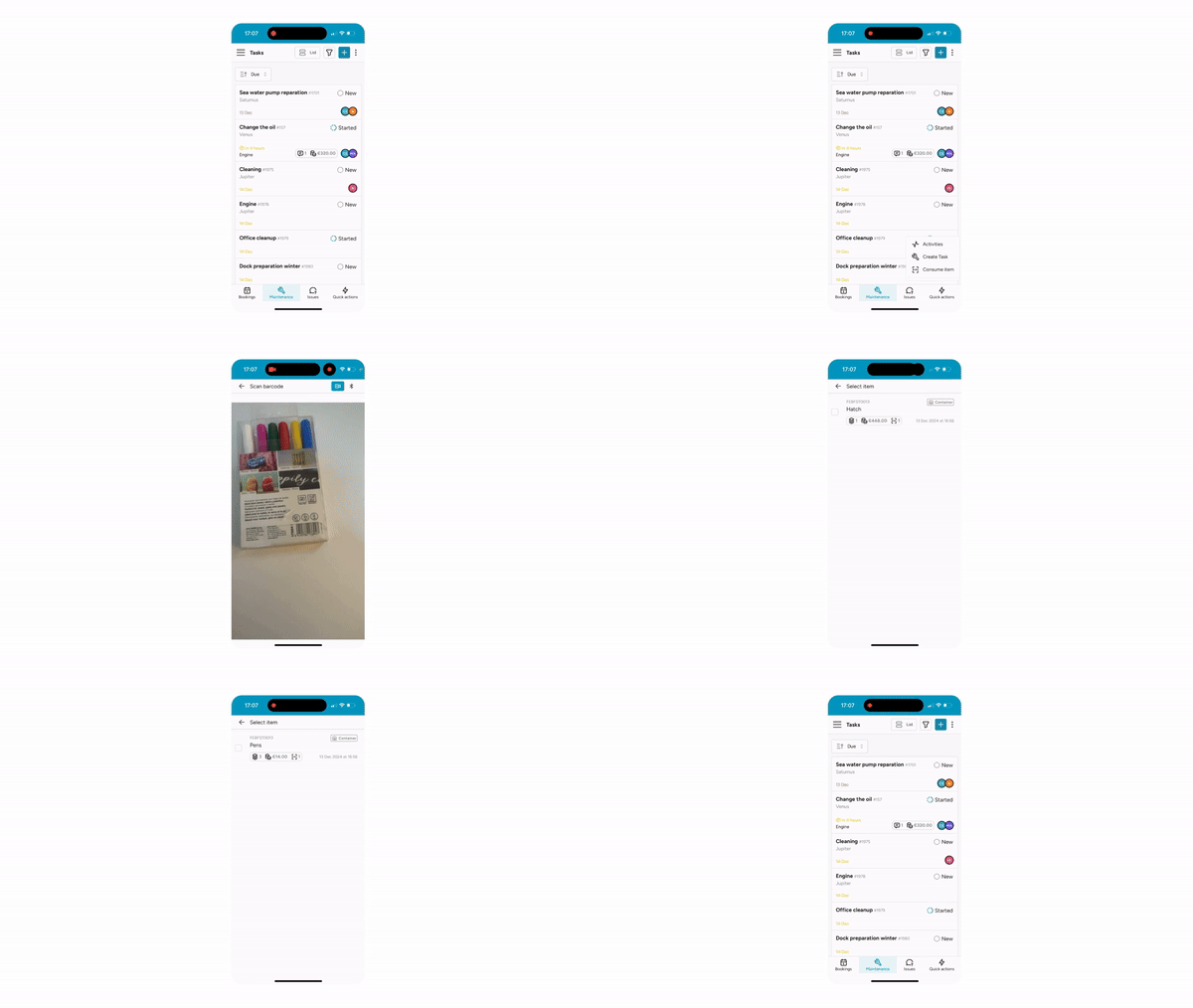
Section titled “1. Consuming from scanning barcode”- To consume an item from scanning the barcode, go to Quick actions > and select Consume item.
- This will open the camera on your mobile device, or you can choose to link a barcode scanner to your device
- Point the camera or scanner to the barcode
- Once the barcode is recognized, the item will show up in the list, and you can select it
2. Consuming from item page
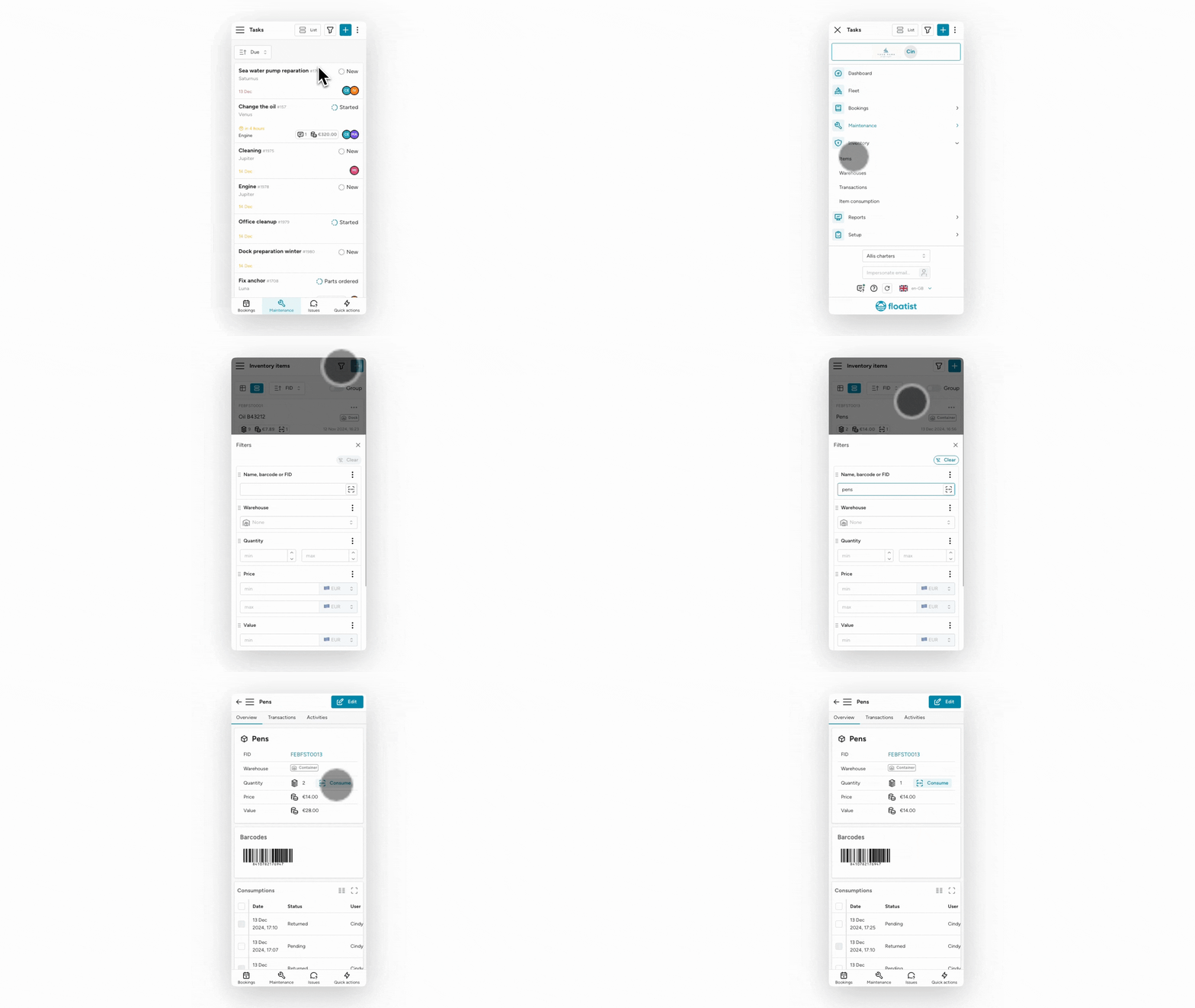
Section titled “2. Consuming from item page”- To consume an item without scanning the barcode, go to Inventory > Items
- Open the filter, and search for the item you want to consume
- Click on the item, and select Consume
Using items on a Task
Section titled “Using items on a Task”To use a part on a task, you can either:
- Add it from your consumables, if you have consumed it first
- Add it directly to the task
1. Add a part from your Pending Consumables
Section titled “1. Add a part from your Pending Consumables”To add a part to a task from your pending consumables, follow the steps below:
- Open the task you want to add the part to
- On the task, under the Add to task section, click Item
- You will see all the items that you have taken from your warehouse already (consumed) in Pending, simply pick the right item from there to add it to the task
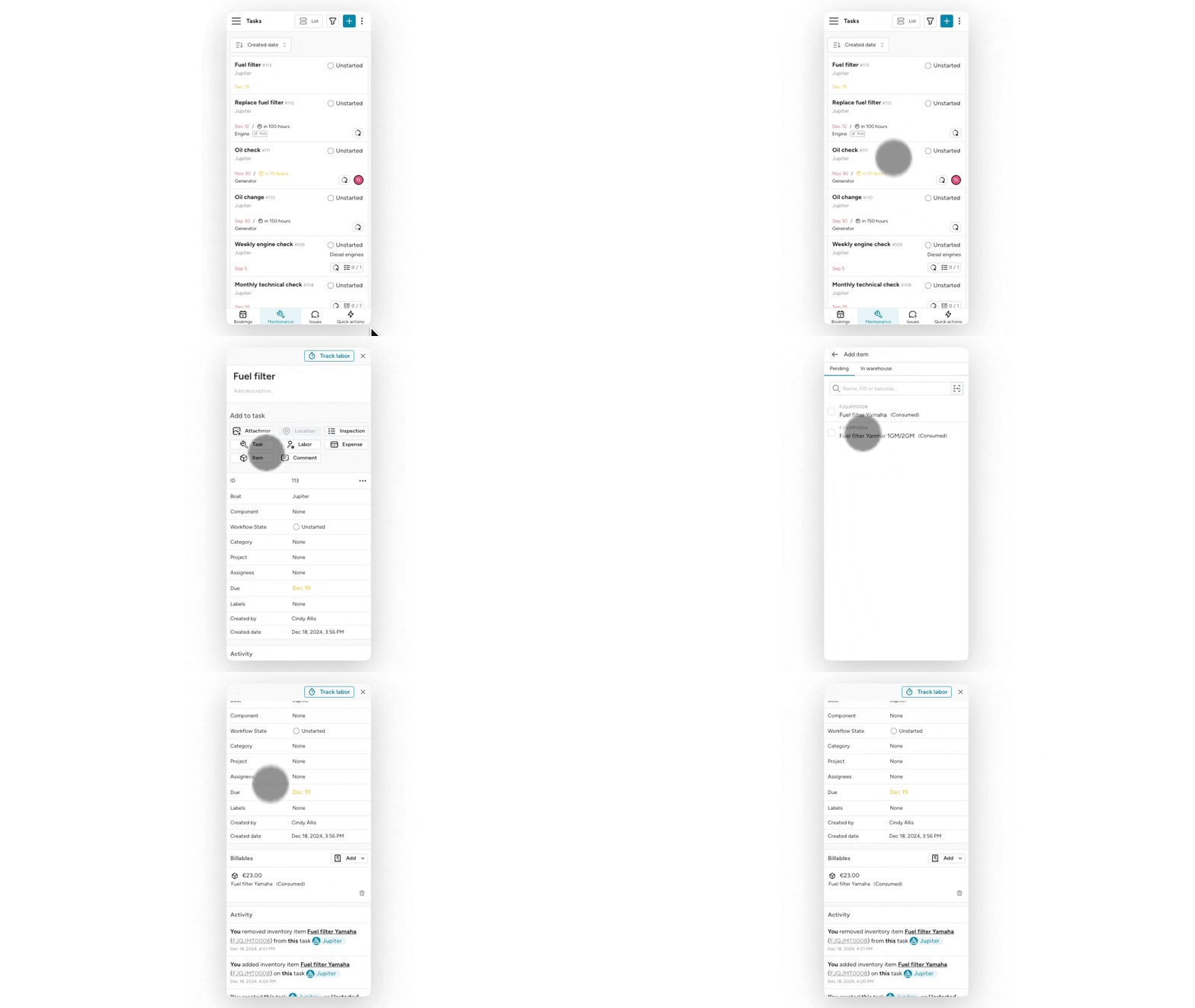
2. Add a part directly from the Warehouse
Section titled “2. Add a part directly from the Warehouse”To add a part to a task directly from the warehouse, follow the steps below:
- Open the task you want to add the part to
- On the task, under the Add to task section, click Item
- Navigate to the In warehouse tab, where you can search for the right item and select it. It will directly be added to the task. You can also search by scanning a part’s barcode.
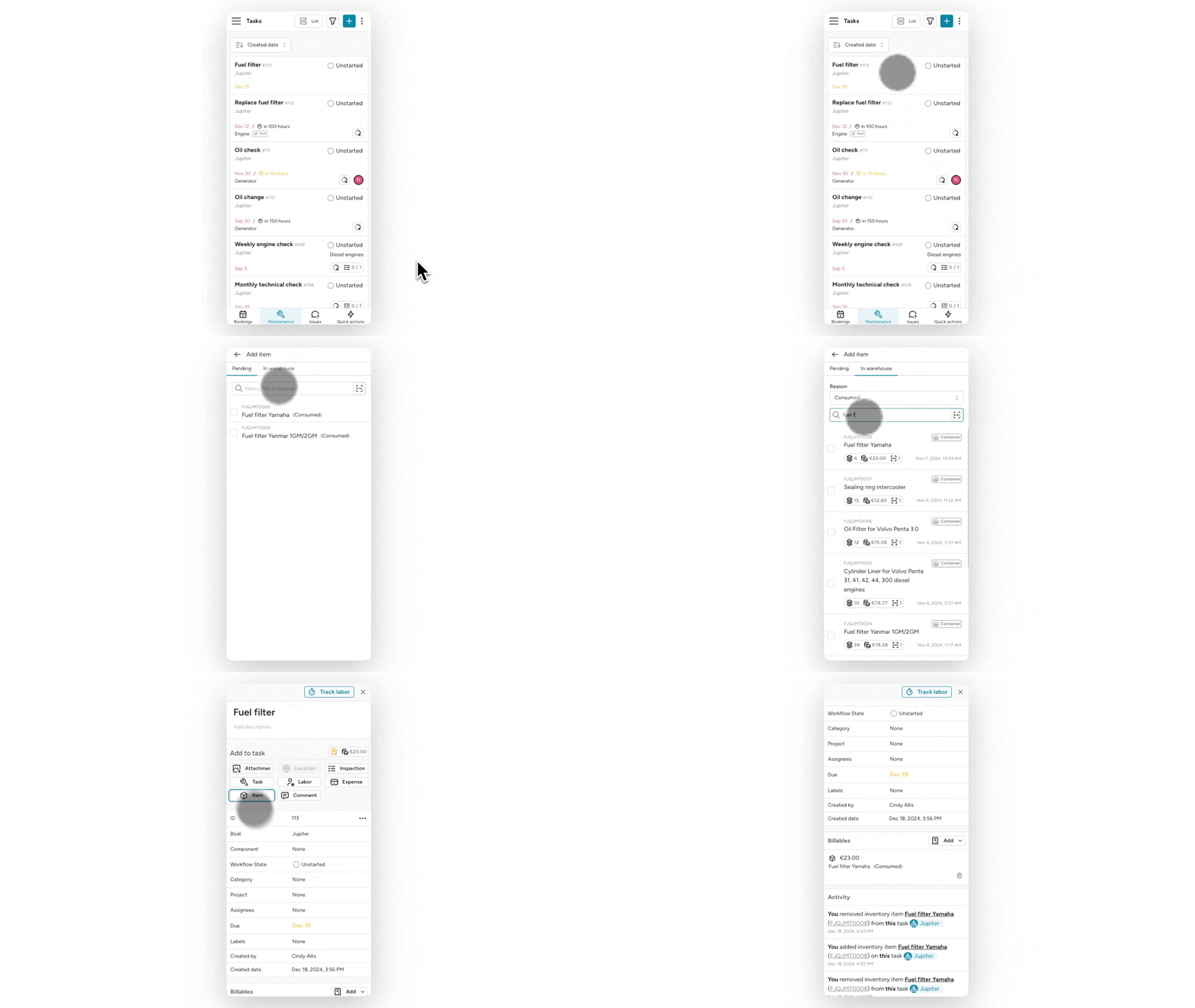
Inspect pending items
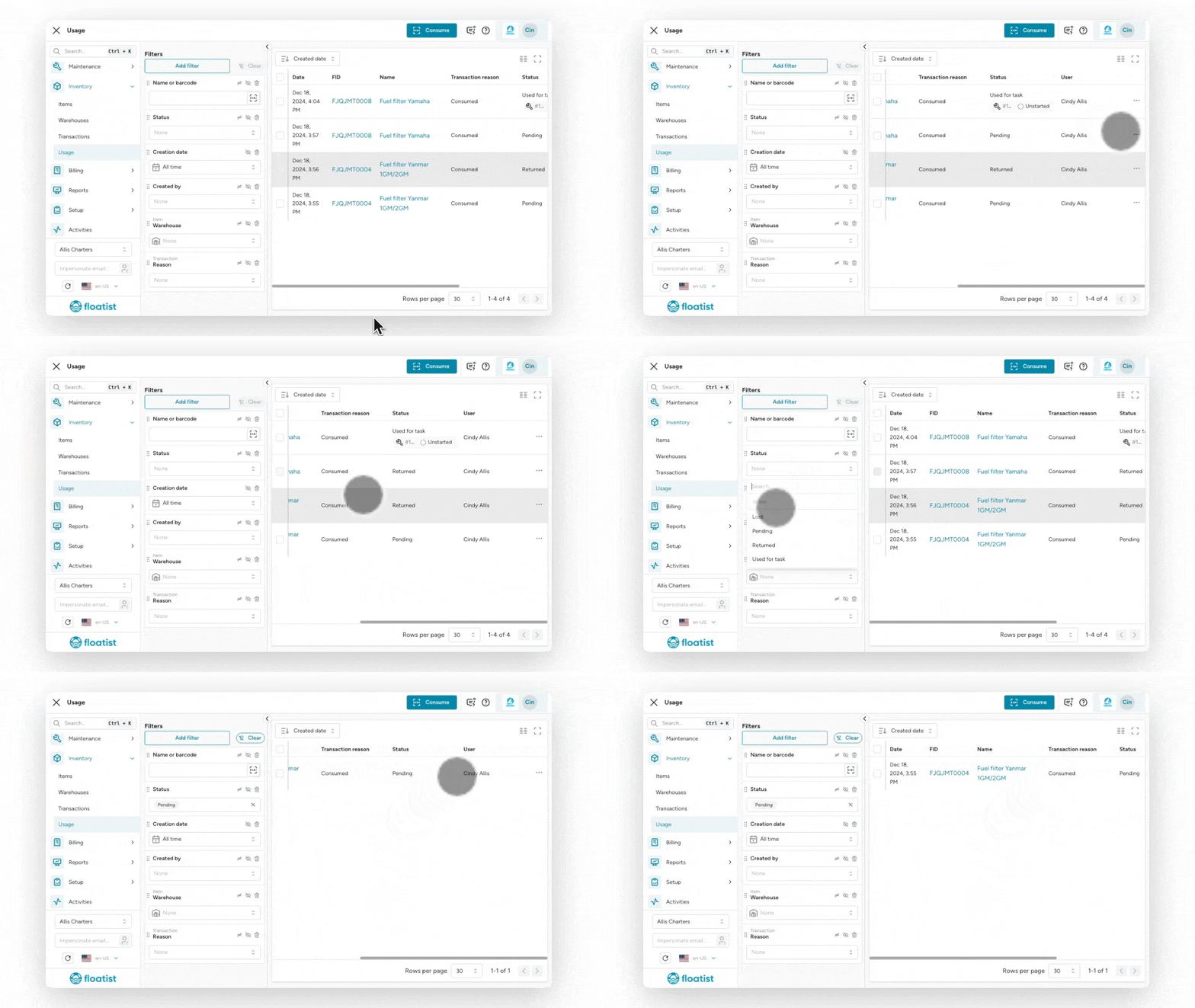
Section titled “Inspect pending items”It can happen that a part is taken out of the warehouse, and never used on a yacht. When this is the case, you want to make sure that items are being set as returned accordingly. You can set an item as returned by clicking the three dots next to the transaction row > Click Set returned.
You can also use the Inventory > Usage page to check if there are any items unaccounted for (still Pending despite the fact that everyone returned their items physically). By setting the Status filter to Pending you quickly see all pending items.