
Managing configurations
Booking configurations define the checklists that guests and staff see during the booking process. Floatist typically handles the initial setup for your fleet, but you can make changes at any time: adding, editing, or removing items from your configurations.
You can manage all your configurations at Settings > Bookings > Configurations.
Key concepts
Section titled “Key concepts”Before diving in, it helps to understand how the pieces fit together:
- Checklist: The underlying reusable content, defined at Settings > Checklists > Definitions. A checklist can be referenced by a booking configuration or attached directly to a task. See Using checklists on tasks. Checklists are the unit that gets shared when you copy a configuration or import a template. See How sharing works below.
- Configuration: A booking-specific wrapper assigned to a boat (or group of boats). Holds up to four checklists, one for each booking phase. Configurations exist only for bookings. Tasks use checklists directly.
- Section: A group of related items inside a checklist (for example, Safety Equipment or Galley). Sections can also be reused independently across different checklists. See How sharing works below.
- Item: An individual entry inside a section: a piece of equipment to check, a question to answer, or a signature to collect.
How sharing works
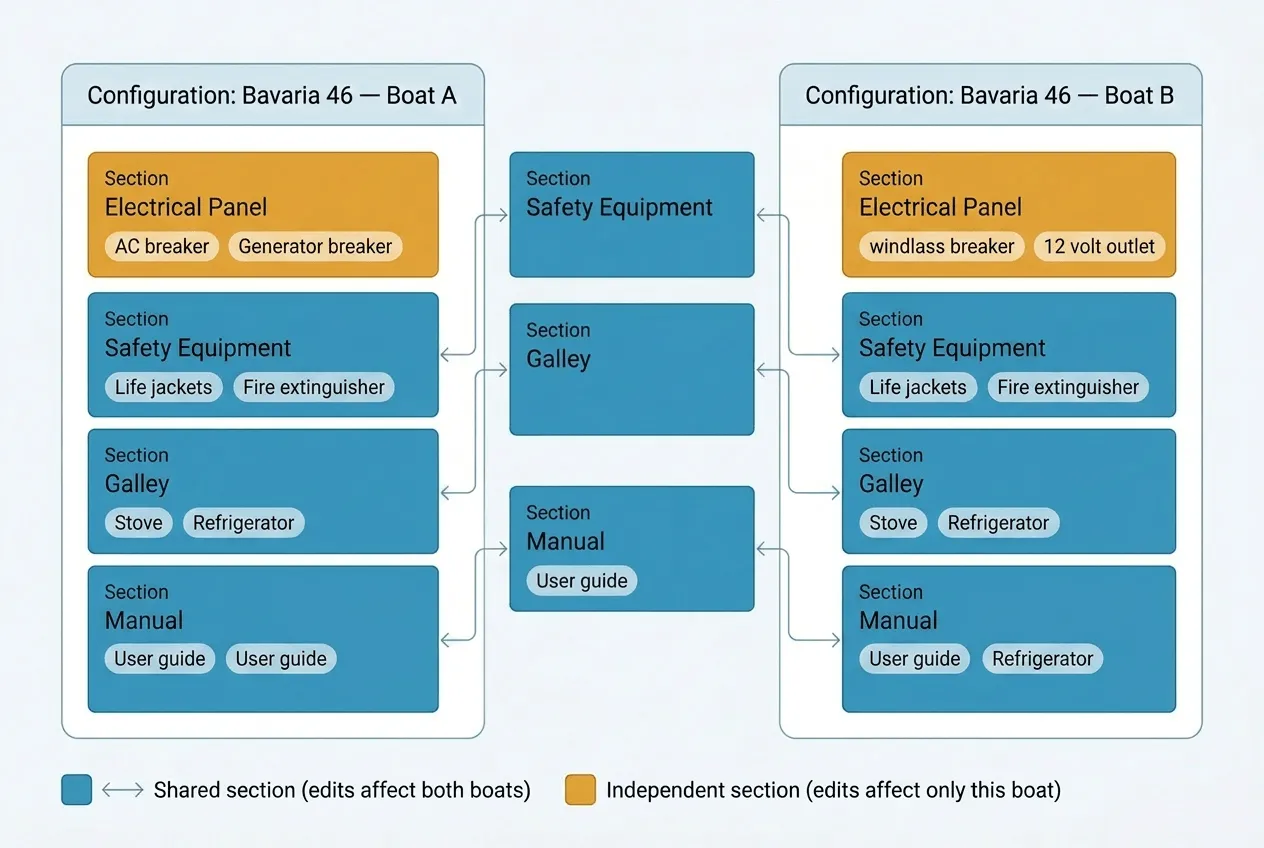
Section titled “How sharing works”This is intentional. Most fleets have equipment that is genuinely identical across boats (safety gear, standard galley items, manuals), and shared sections keep them in sync automatically. When you need two similar boats to differ in one or two areas, see Creating a variant configuration for the step-by-step.
Checking if a section is shared
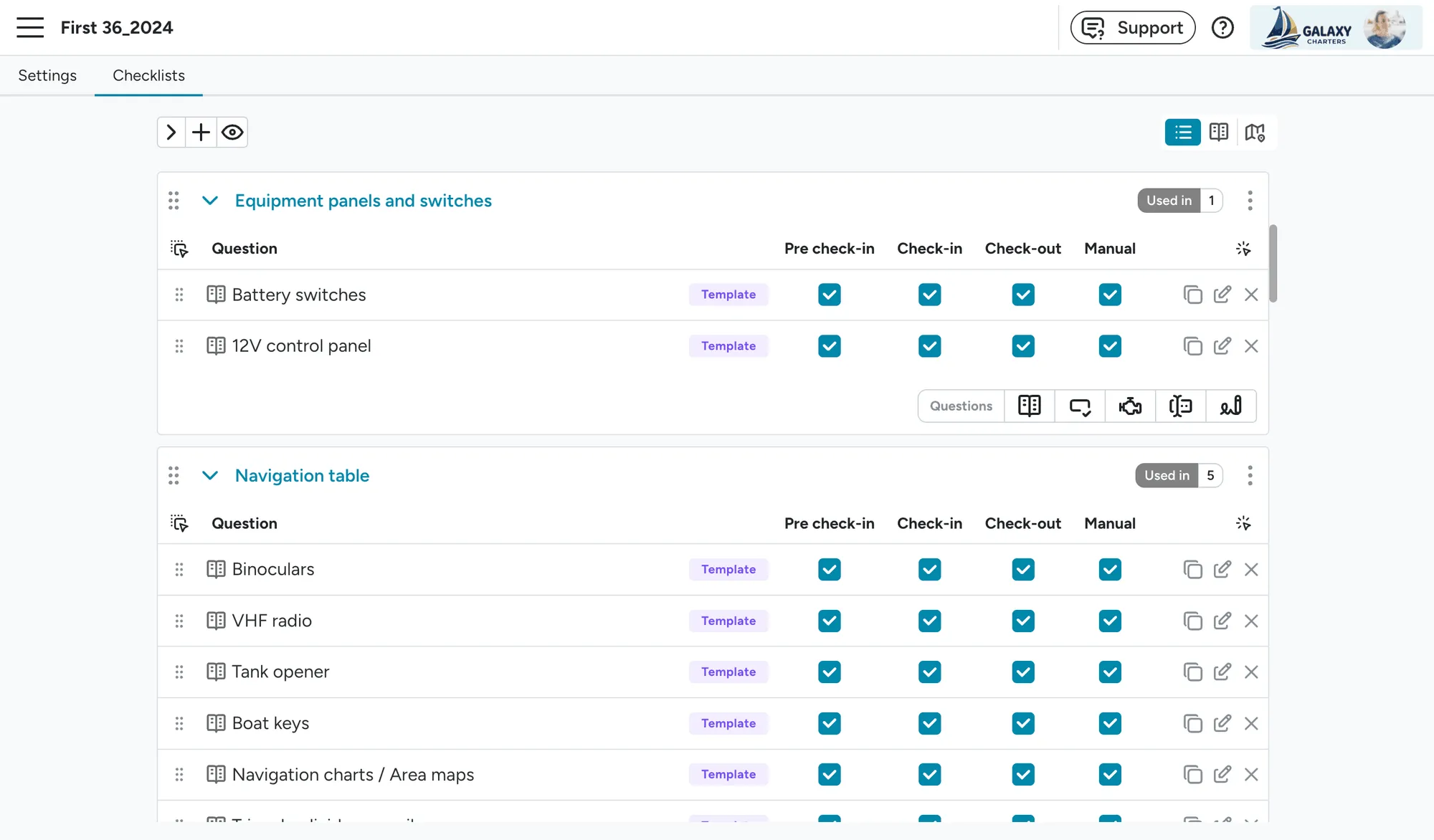
Section titled “Checking if a section is shared”The configuration editor tells you exactly how many configurations each section is currently used in. Every section header shows a Used in X configurations pill at the top right. Glance at that number before editing a section:
- Used in 1 configuration: edits affect only this configuration. Safe to edit freely.
- Used in 2 or more configurations: edits will propagate to every configuration that uses the section. If you want one configuration to diverge, see Creating a variant configuration.
Configuration templates
Section titled “Configuration templates”Floatist maintains a library of configuration templates for common boat models. These templates give you a complete starting point so you don’t have to build a configuration from scratch. Most users start by importing a template and then customizing it.
Importing a template
Section titled “Importing a template”- Go to Settings > Bookings > Configurations.
- Set the Is template filter to Yes to see available templates.
- Find the template for your boat model.
- Click the three dots in the Actions column and select Import.
- The template is copied to your account. You can now edit it freely.
When you import a template, its sections are copied to your account. You can edit them and reuse them in other configurations.
Assigning boats to configurations
Section titled “Assigning boats to configurations”Each boat needs a booking configuration assigned for checklists to appear during the booking process. To assign boats:
- Go to Settings > Bookings > Configurations.
- In the Assigned boats column, click to select which boats should use that configuration.
A single configuration can be shared across multiple boats of the same type. For example, all boats of the same model and layout can use the same configuration.
Configuration settings
Section titled “Configuration settings”Each booking configuration has:
- Name: Typically the boat model, year, and layout. Use a descriptive name since configurations can be shared across boats.
- Checklists: Up to four checklists, one for each booking phase:
- Pre check-in: Completed by the guest themselves, before they arrive, via the guest app.
- Check-in: Completed together with the guests at the start of the charter.
- Check-out: Completed when guests return the boat.
- Manual: A reference checklist guests can access during their charter.
To edit these settings, click on the configuration name in the list.
The configuration editor
Section titled “The configuration editor”The configuration editor is where you manage the content of your checklists: the sections and items that staff and guests will see. To open it, click on a configuration name and navigate to the Checklists tab.
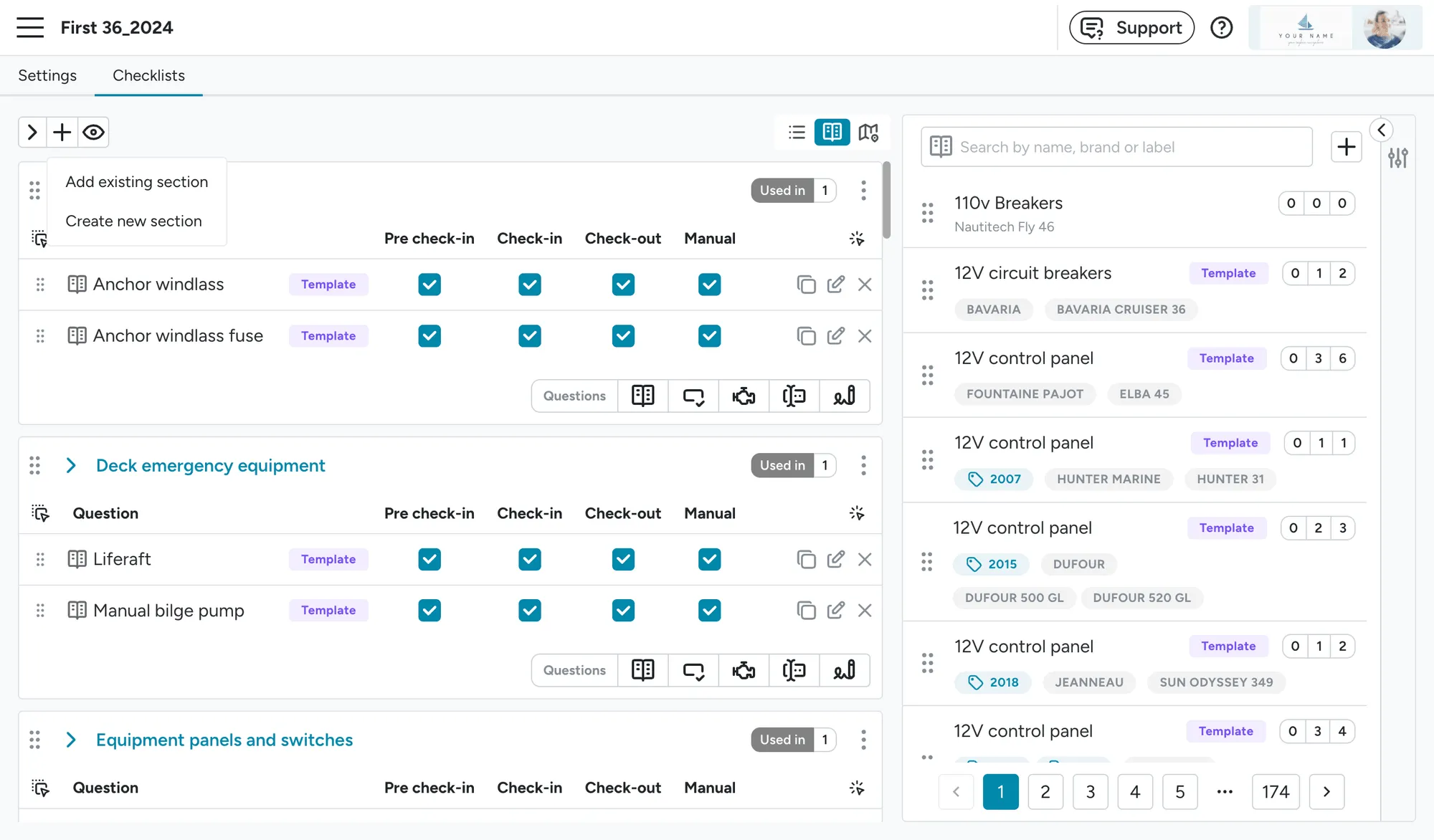
The editor has a two-panel layout:
- Left panel: Your checklist sections and items.
- Right panel: The catalogue of available items you can add.
Working with sections
Section titled “Working with sections”Sections group related items together. For example, you might have sections for Safety Equipment, Galley, Navigation, or Deck Equipment.
Adding a section
Section titled “Adding a section”Look for the small + icon above the sections list, on the left side of the toolbar (it’s easy to miss, so hover over it and it’s labeled Add section). Clicking it opens a menu with two options:
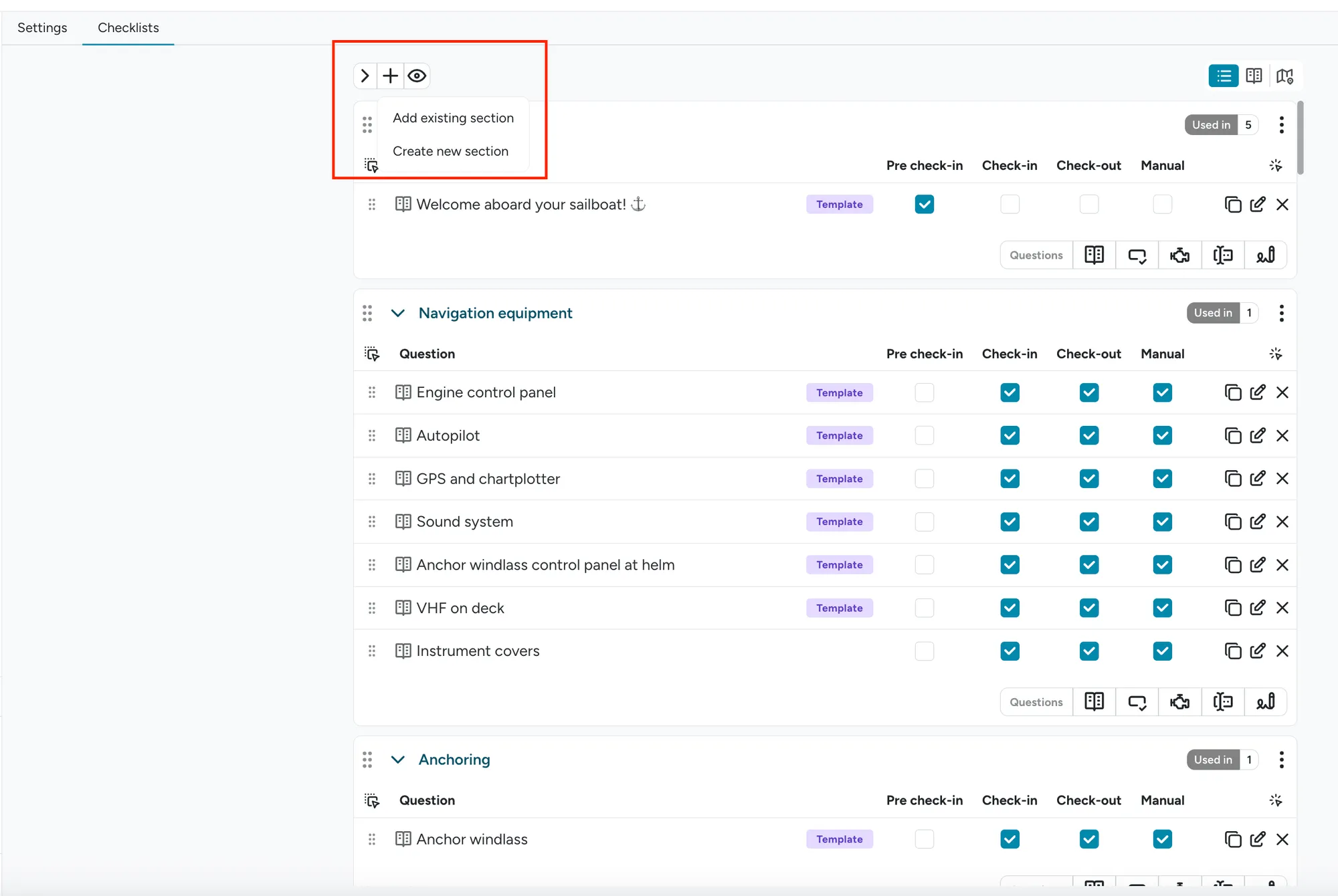
- Create new section: opens a drawer where you name the section (with an Auto-translate from English toggle) and save. It’s added empty at the bottom of the list (scroll down to find it), ready for you to drag items into from the catalogue.
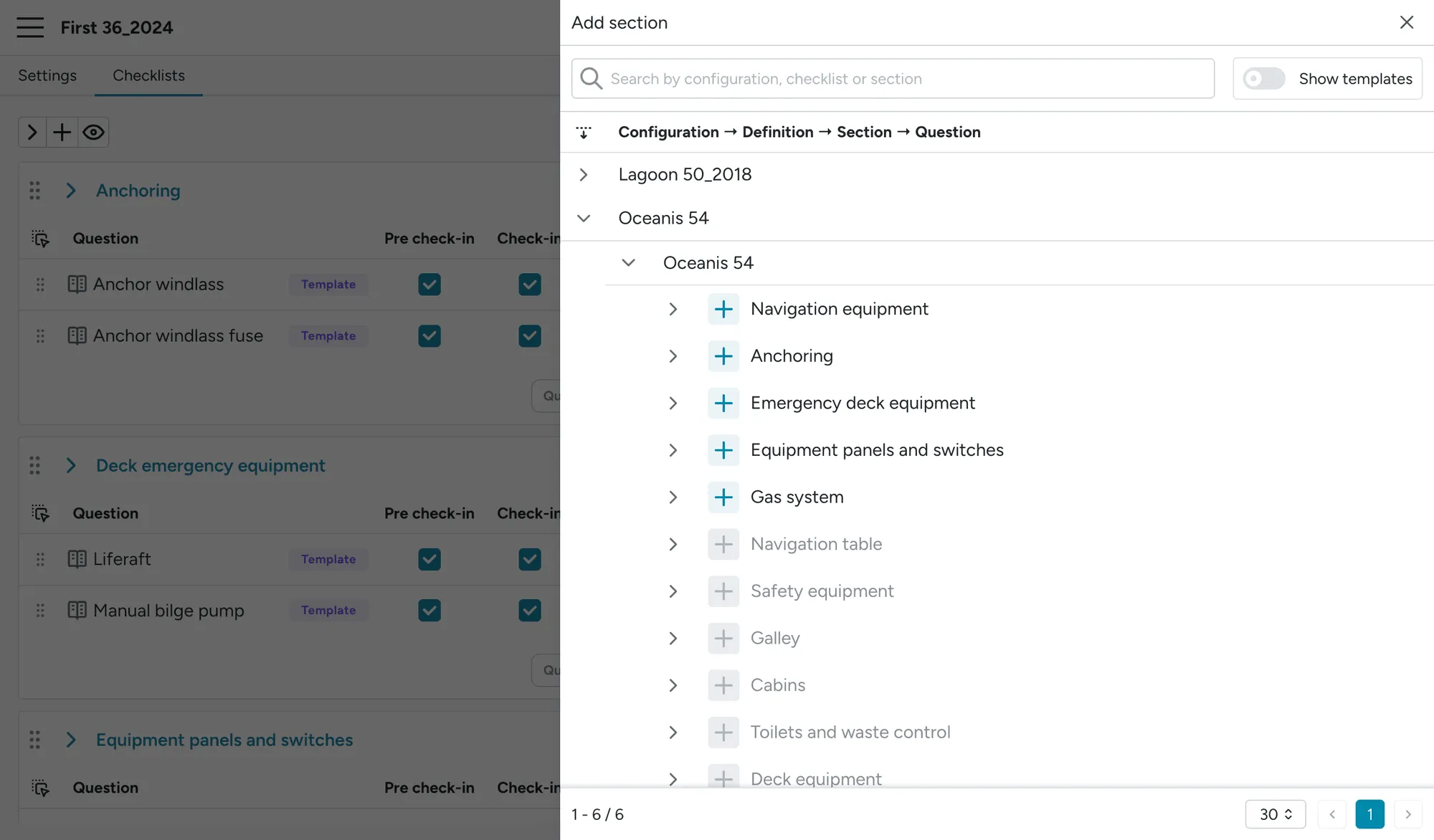
- Add existing section: opens a drawer to browse and search sections from your other configurations and Floatist’s templates. Toggle Show templates to include the template library, then click the button next to a section to add it. That button is a plain + when you’re pulling a section from one of your own configurations, and an import icon only when you’re pulling a template section into a non-template configuration.
Reordering sections
Section titled “Reordering sections”Drag sections using the handle on the left side of each section header. To move sections over long distances, click Collapse all first to make dragging easier.
Removing a section
Section titled “Removing a section”Click the menu icon on the section header and select Remove to remove a section from the configuration.
Reusing sections
Section titled “Reusing sections”A section can be used in multiple configurations at the same time. This is useful for equipment that is identical across boats, such as safety equipment or standard galley items.
Working with items
Section titled “Working with items”Items are the individual entries within a section: equipment to check, instructions to follow, or questions to answer.
Adding items from the catalogue
Section titled “Adding items from the catalogue”The catalogue panel on the right side of the editor shows all available items. To add an item to a section:
- Search for the item using the search bar and filters on the right. The search bar matches item names (typos included) as well as brand and label names, and the filters work the same way as on the catalogue page. See Finding items in the catalogue.
- Drag the item from the catalogue into the desired section using the drag handle (six dots) on the left of the item.
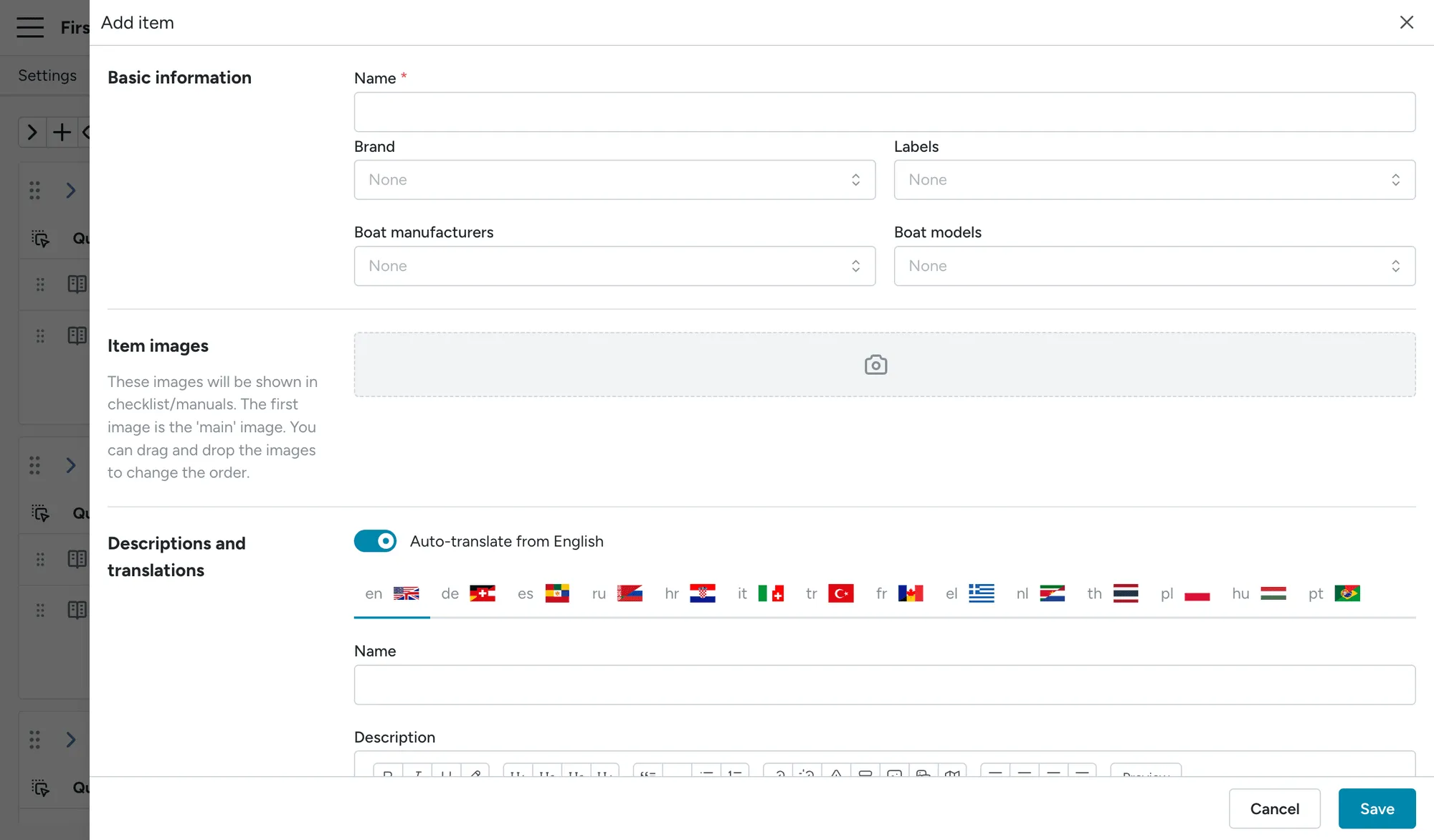
If the item you need doesn’t exist yet, click the + button at the top of the catalogue panel to create a new catalogue item. Fill in the details, click Save, then drag the new item into your section.
Adding other question types
Section titled “Adding other question types”Besides catalogue items, you can add other question types directly to a section using the toolbar below each section:
- Inline question: A quick question you don’t plan on reusing elsewhere.
- Component question: Asks about engine hours or fuel gauge of a boat component.
- Text input: Asks the user for free-text input, such as notes or quantities.
- Signature: Requests a signature from the charterer, skipper, staff, or other parties. See Signatures for configuration, device rules, and skipping behaviour.
Editing an item
Section titled “Editing an item”Click on an item in the section list to open the editing form. For local items (items you created), you can change the name, description, images, and other properties directly.
Editing a template item
Section titled “Editing a template item”Items marked template are maintained by Floatist. These cannot be edited directly since they are shared across all Floatist customers.
To customize a template item:
- Find the template item in your section.
- Click the three dots on the right of the item.
- Select Import.
- A local copy is created that you can freely edit.
- The local copy is automatically added to the section.
- Remove the original template item from the section to avoid having both versions in the checklist.
Removing an item
Section titled “Removing an item”Click the menu icon (three dots) on the item and select Remove. This only removes the item from the section. It remains available in the catalogue for future use.
Question exclusions
Section titled “Question exclusions”When a configuration uses the same checklist across multiple booking phases, you may want certain items to only appear in specific phases. For example, a safety briefing item might be needed at check-in but not in the manual.
The configuration editor shows a column for each booking phase. Each item has checkboxes indicating which phases it appears in. Unchecked phases mean the item is excluded from that phase.
Previewing a checklist
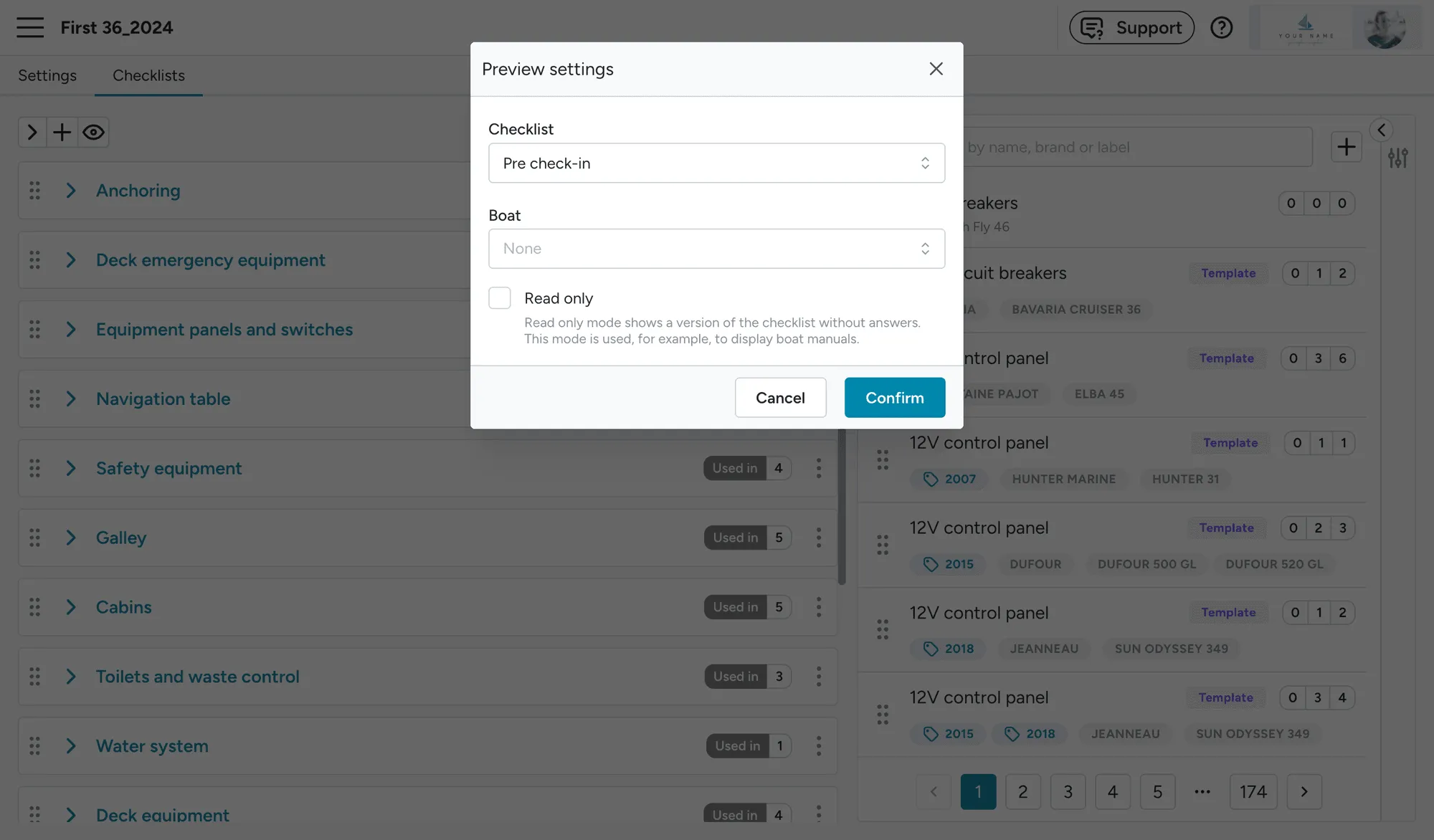
Section titled “Previewing a checklist”You can preview how a checklist will look for a specific booking phase and boat. Click the preview button in the editor to open the preview settings, where you can select the checklist phase, boat, and whether to show it in read-only mode (useful for previewing boat manuals).
Quantity computation
Section titled “Quantity computation”For catalogue items that represent physical equipment, you can configure how the expected quantity is calculated. This is set per item within a section.
Manual
Section titled “Manual”A fixed number you specify. Always shown as-is, regardless of boat or booking details.
Boat max capacity
Section titled “Boat max capacity”Calculates the quantity based on the boat’s maximum passenger capacity. You can add an offset. For
example, Boat max capacity + 2 ensures you always have two extra life jackets.
Number of crew in booking
Section titled “Number of crew in booking”Uses the number of passengers on the crew list for the current booking. This only works if you use Floatist’s crew list, not a third-party provider.
For example, setting Number of crew in booking + 0 makes the quantity match exactly the number of
guests.
Per cabin
Section titled “Per cabin”Calculates the quantity based on the number of cabins on the boat (double cabins + crew cabins).
For example, Number of cabins × 2 would show 8 towels for a boat with 4 cabins.
The catalogue
Section titled “The catalogue”All catalogue items are available at Settings > Checklists > Catalogue. The catalogue contains two types of items:
- Local items: Items you created and manage yourself.
- Template items (🌐): Items maintained by Floatist, available to all customers.
You can use template items directly in your configurations, or copy them to create local versions that you can customize.
Each catalogue item has:
- Title: The name shown internally.
- External name: The name shown to guests.
- Description: Details about the item or instructions for checking it.
- Images: Photos to help identify the item.
- Brand: The manufacturer or brand (optional).
- Labels: Tags for organizing items in the catalogue.
- Location on the boat plan: Helps staff and guests locate items during checks (optional). See Boat plans for setup.
When you create an item with images, it saves in one go: if anything goes wrong, nothing is saved, so you never end up with a half-created item missing some of its photos. Just try again.
Finding items in the catalogue
Section titled “Finding items in the catalogue”The search bar matches item names, including partial words and small typos (impeler still finds Impeller), plus brand and label names.
The filter panel opens with every filter already in place: Is template, Labels, Brand, Boat model, Boat manufacturer, Is used and Is archived. The yes/no filters (Is template and Is used) start switched off, so they don’t hide part of your catalogue until you turn them on. Is archived starts on and set to No, so archived items stay out of the way. The checklist editor’s item list uses the same filters.
For Labels, Brand, Boat model and Boat manufacturer you can:
- Pick Any of and choose one or more values, to show items with at least one of them.
- Pick Has any, to show items that have any value set at all.
- Negate the filter, to flip it. Negated Has any means “has none”, for example every item without a brand.
Filters combine with AND by default. Switch a group to OR when you want items that match either condition, for example items labelled Safety or made by a specific brand.
Reading the catalogue table
Section titled “Reading the catalogue table”- In checklists: when the name guests and staff see in checklists differs from the item’s own name, it’s shown in small text under the name. This makes it easy to tell apart items like Engine A and Engine B that both show as Engine.
- Used in: shows how many of your checklists, and how many Floatist template checklists, use the item. Hover a number to see the list, then click a checklist to open it.
- Translations: the Name and Description columns show a translation status icon. A green check means every language is filled in, an orange number tells you how many languages are done, and gray means nothing is written yet. Hover the icon to see which languages are covered.
Copying and archiving items
Section titled “Copying and archiving items”Copy an item from its menu to get your own editable version. If some of its images can’t be copied, the copy still goes ahead and Floatist tells you how many images were left behind, so you can add them again.
Archiving an item removes it from every checklist it’s part of. Unarchiving it later doesn’t put it back, so check Used in before you archive.
Managing labels
Section titled “Managing labels”Labels are managed at Settings > Checklists > Labels. You can also create a new label on the spot while editing an item: type the name in the Labels field and add it.
On the labels page you can:
- Rename a label by clicking its name. Labels marked template belong to Floatist and can’t be renamed or deleted.
- See how many catalogue items carry each label in the Catalogue items column.
- Delete one or more labels. The confirmation tells you how many catalogue items lose the label before you commit. Deleting cannot be undone.
Label names must be unique. If you try to create or rename a label to a name that already exists, Floatist tells you straight away instead of creating a duplicate.