
Getting started
This page covers everything you need to start using Floatist, from logging in to setting up your fleet. If you’re already logged in and want to jump straight to fleet setup, see Set up your fleet.
First steps
Section titled “First steps”-
Log in
You should have received an email from Floatist to join your fleet operator account. If not, ask your admin to add you, or reach out to support@floatist.com.
If you’re an admin yourself, see Creating new users to invite your team.
-
Install the app on your phone
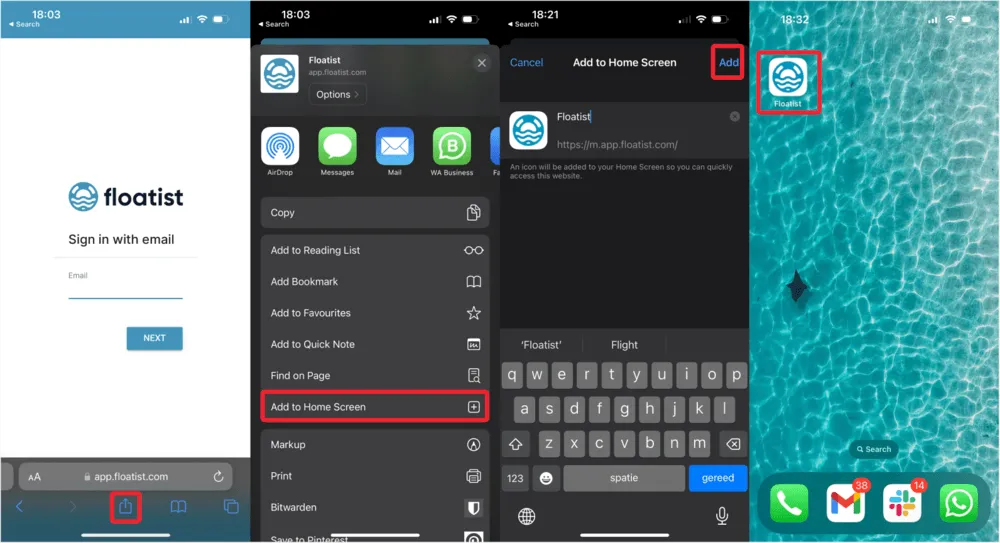
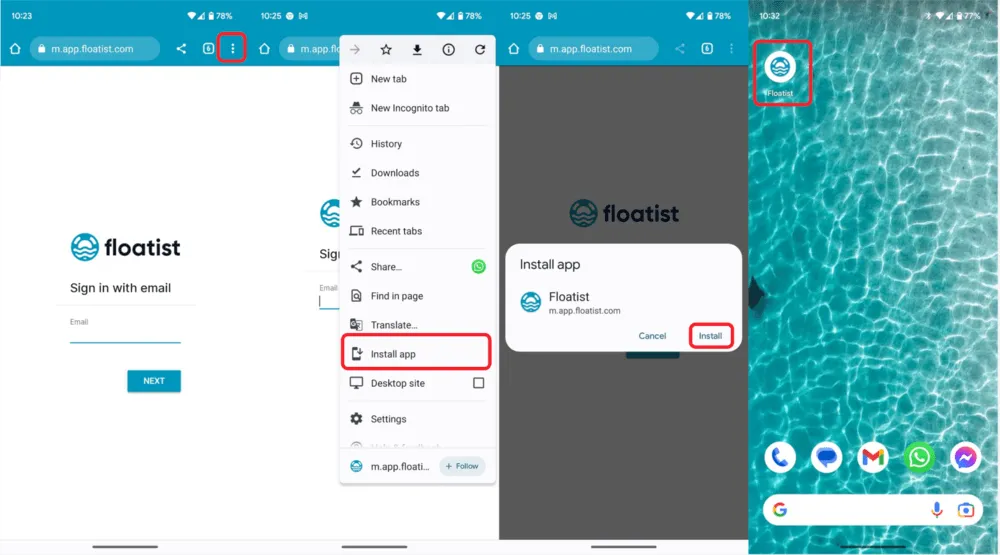
Floatist is a PWA, so there’s nothing to download from the App Store or Play Store. Open app.floatist.com on your phone and add it to your home screen:
- Open app.floatist.com in Safari.
- Tap the share button (square with an arrow pointing up).
- Tap Add to Home Screen.
- Open app.floatist.com in Chrome or Firefox.
- Tap the three-dot menu (top or bottom right).
- Tap Install app.
-
(Optional) Open Floatist on your computer
On your desktop, open app.floatist.com and log in.
If you don’t remember your password, see Recovering your password.
-
Set your name
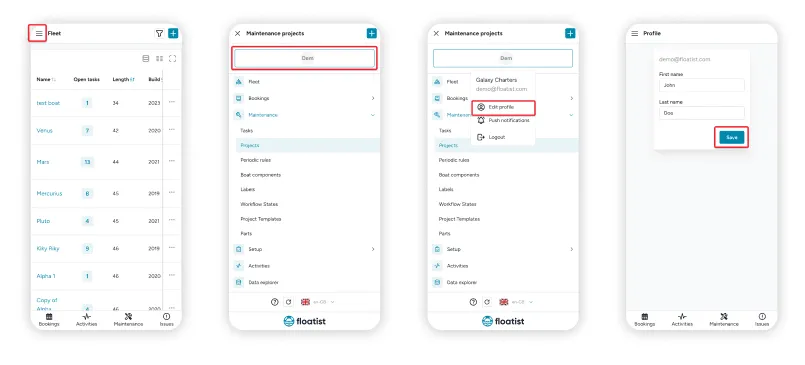
Open your profile from the user button (top right on desktop, or via the burger menu on mobile), click Edit profile, set your first and last name, and save.
-
Enable push notifications
Follow the instructions in Push notifications.
Creating new users
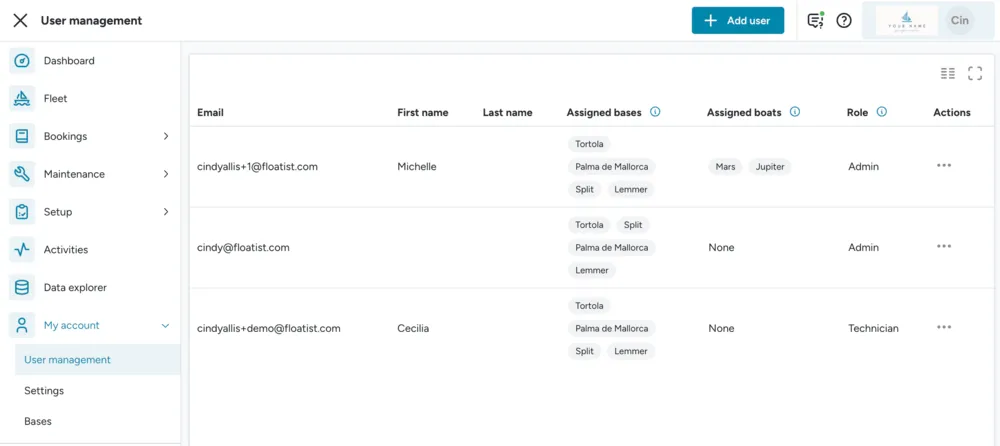
Section titled “Creating new users”Admins can add users at Settings > User management. Click Add new user, fill in their details, and choose the appropriate role. See User management for what each role can do.
The new user will receive an email invite. Once they join, they go through the First steps above.
Next: set up your fleet
Section titled “Next: set up your fleet”If you’re an admin or fleet operator, these are the main setup tasks once your account is ready:
- Adding a new yacht: covers both the manual setup path and the MMK / NauSYS integration path.
- Managing configurations: set up the checklists, sections, and items each boat uses during bookings and tasks.
For a complete pre-launch checklist, see Go-Live Checklist.
Common issues
Section titled “Common issues”If you’re having trouble logging in for the first time, here are the most common causes and how to fix them.
Outdated phone or browser
Section titled “Outdated phone or browser”An outdated operating system or browser can prevent the app from working correctly.
- iPhone: Update via Settings > General > Software Update. Push notifications require Safari.
- Android: Update via Settings > System > System Update. Push notifications require Chrome or Firefox.
After updating, restart the device.
Wrong email account
Section titled “Wrong email account”Make sure you’re using the email address associated with your Floatist account, not a personal email. If you signed in with the wrong account, log out from the app and sign in with the correct email.
Still stuck?
Section titled “Still stuck?”Check that your internet connection is stable. If it still doesn’t work, email support@floatist.com and we’ll help you out.