
Service status
status.floatist.com shows the live health of Floatist. If the app feels slow or something won’t load, check it first: it tells you in a few seconds whether the problem is on our side or somewhere closer to you.
Open status.floatist.com Read the SLAWhat’s on the page
Section titled “What’s on the page”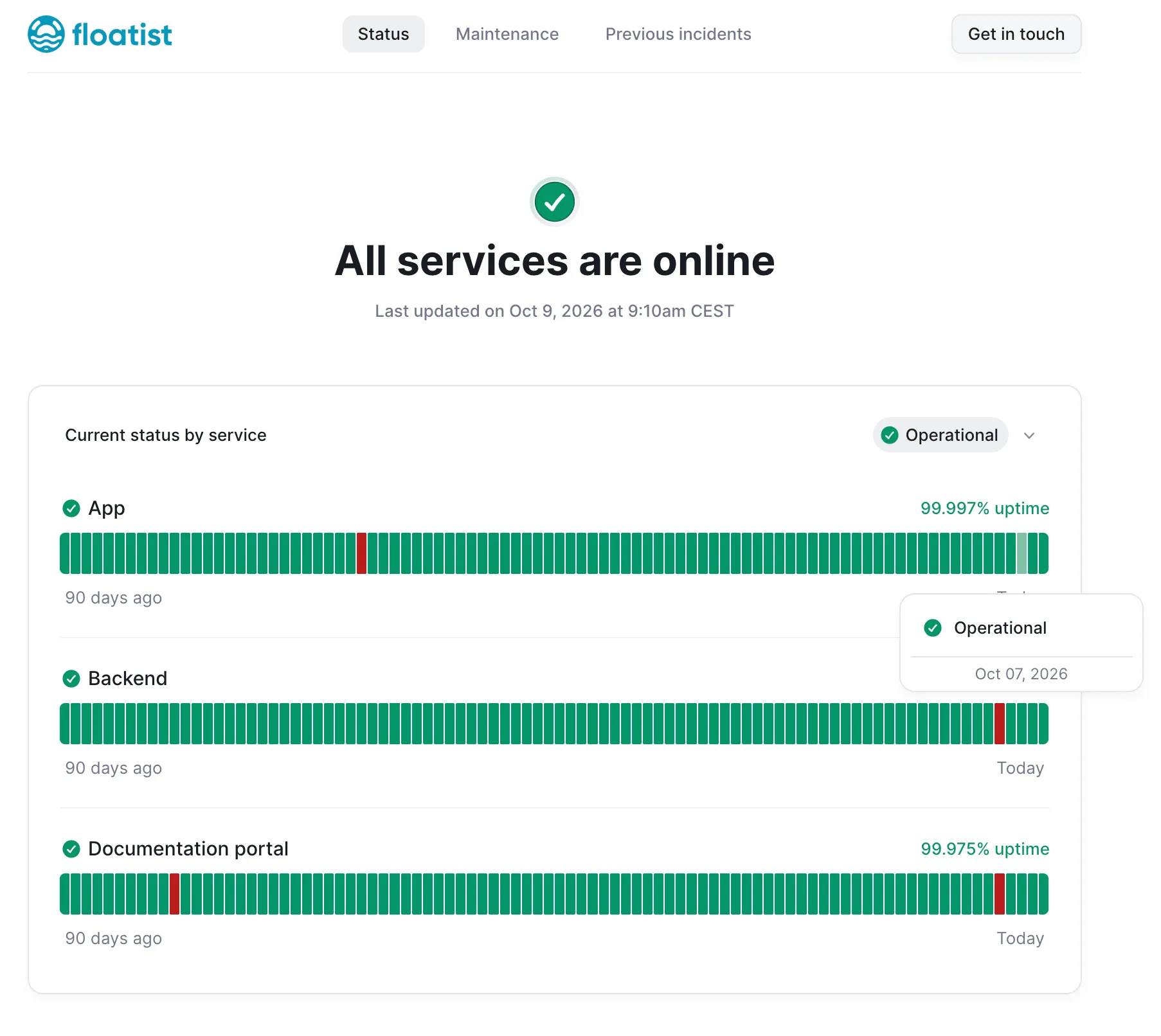
The headline
Section titled “The headline”The banner at the top sums everything up. All services are online with a green tick means every service is working normally. If anything is down or degraded, the headline changes and the affected service is called out. The time under the headline is when the page last checked.
The services
Section titled “The services”Each service is monitored on its own, so you can see exactly what’s affected.
| Service | What it covers |
|---|---|
| App | app.floatist.com, the app your office and base teams use on desktop and phone. |
| Backend | The servers that store and serve your fleet data. If the app opens but data won’t load or save, look here. |
| Documentation portal | This docs site. |
The uptime bars
Section titled “The uptime bars”Each bar is one day, covering the last 90 days, with today on the far right.
- Green: no downtime recorded that day.
- Red: downtime was recorded that day.
Hover over any bar (or tap it on your phone) to see the date and its status. Green days show Operational; red days show how long the downtime lasted.
The percentage on the right of each service is its uptime over that 90-day window. A short blip of a couple of minutes shows as a red bar but barely moves the percentage.
Maintenance and Previous incidents
Section titled “Maintenance and Previous incidents”The tabs at the top of the status page give you the wider picture:
- Maintenance lists planned work for the coming months. Check it before a big turnaround day if you want peace of mind.
- Previous incidents is the history of past outages, with what happened and when it was fixed.
What to do when something isn’t working
Section titled “What to do when something isn’t working”| What the status page shows | What it means | What to do |
|---|---|---|
| All services online, but you have a problem | Floatist is up. The issue is likely local or specific to your account. | Check your internet connection, reload the app, then contact support with what you were doing and a screenshot if you can. |
| An incident or outage is shown | We know about it and we’re working on it. | No need to report it. Follow updates on the status page. For major incidents we also email affected customers. |
| Maintenance is in progress | Planned work, announced in advance. | Wait for the maintenance window to end. The status page shows when it’s done. |
How this relates to the SLA
Section titled “How this relates to the SLA”Our Service Level Agreement sets out what we commit to. In short:
- 99.9% monthly uptime for the Floatist platform.
- Scheduled maintenance is announced by email at least 48 hours ahead, is capped at 4 hours a month, and never falls on a Friday, Saturday or Sunday during the charter season (1 May to 31 October).
- Critical (P1) issues get a first response within 2 hours, and are covered 24/7 during the charter season.
- Service credits apply if we miss the uptime target. Claims go to support@floatist.com within 30 days of the end of the affected month.